
Getting started
Welcome to QA-Online
QA-Online is a quality and project management system for construction. Your whole team – in the field and in the office – works on the same data: checklists, non-conformances, lab and survey tests, work logs, documents, plans, and tasks. Every item is saved in a project, with its location, photos, signatures, and full history.
QA-Online runs in a browser on a computer, tablet, or phone. On your phone you can also use the QA-Online app from Google Play or the App Store – see Using QA-Online on a phone or tablet.
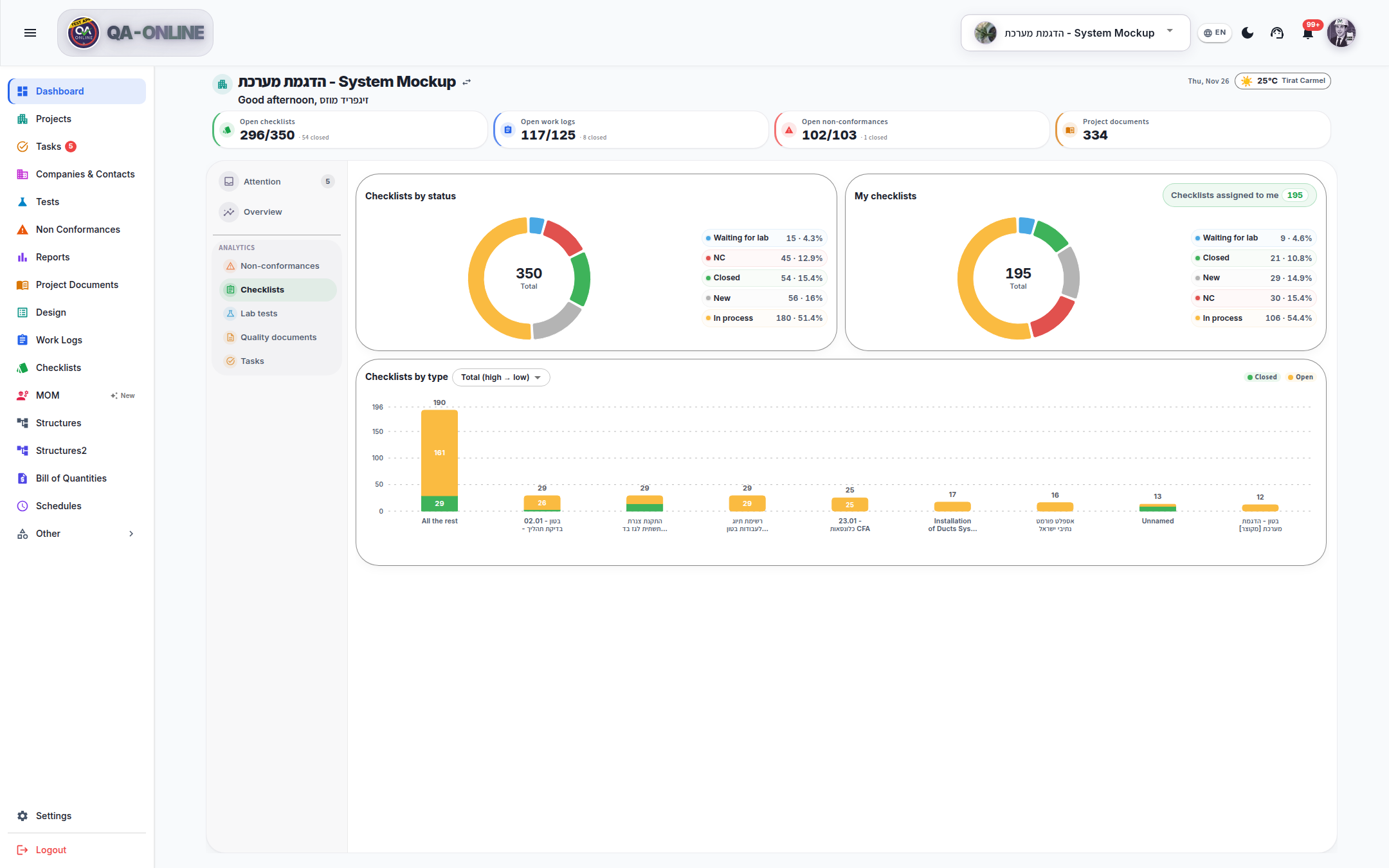
What you can do in QA-Online#
The modules are listed here in the same order as in the side menu.
| Module | In brief |
|---|---|
| Dashboard | A snapshot of the project and what's waiting for you |
| Projects | All your projects, and how to switch between them |
| Tasks | Everything that needs your attention – approvals, signatures, and tasks |
| Companies and contacts | Everyone involved in the project, with their contact details |
| Tests | Lab orders and survey orders, and their results |
| Non-conformances | Record defects, assign them to a responsible party, and track them through to closure |
| Reports | Ready-made reports for analysis and sharing |
| Project documents | The project's quality documents in one place |
| Design | Plans and drawings – view and mark up |
| Work logs | A daily record of the work on site |
| Checklists | Step-by-step quality control, with signatures and reports |
| Field reports | Field reports, site-visit summaries, and meeting minutes |
| Structures | The project's structure: subprojects, structures, and elements |
Where to start#
If this is your first time, start with Quick start. In five minutes you'll sign in, choose a project, and complete your first action.
Then pick the path that fits your role:
Field inspectors and site managers#
- Getting to know the screen and navigation
- Checklists – fill in and sign steps
- Non-conformances – open a defect with a photo and location
- Work logs
- Common tools – location, photos, and voice typing
- Using QA-Online on a phone or tablet
Quality managers#
- Tasks and approvals
- Checklists, Non-conformances, and Tests
- Project documents and Field reports
- Reports
Project managers#
Labs and surveyors#
Organization administrators#
How this guide is organized#
Each chapter opens with a single sentence explaining what the module is for. Short, task-based instructions follow – "How to create…", "How to approve…" – in numbered steps.
A few conventions:
- Bold text is the name of a button, tab, or field, exactly as it appears on screen.
- Callout boxes look like this:
- This guide follows the English interface. Bold text matches the label on screen. If QA-Online is shown in another language, switch it in Settings. Screenshots are from a sample project and may still show the Hebrew interface.
What you need#
- A current browser on a computer, tablet, or phone – or the QA-Online app on your phone.
- Username and password – you get these from your organization. Don't have an account? See How to request access.
- Project assignment – after you sign in, you'll see only the projects you've been assigned to.
- A saved signature – required to sign steps and rows in documents. Users don't upload their own signature – see Settings.
Need help?#
- Use the guide's search bar, or browse the FAQ.
- Not sure what a term means? See the Glossary.
- Can't find an answer? Open a support ticket right from within the system.
See also#
- Quick start – your first five actions in the system.
- Getting to know the screen and navigation – the side menu, the project selector, and lists.
- FAQ and troubleshooting – quick answers to common problems.