
Quality modules
Tests
This module has two types of orders:
- Lab Orders – Samples of materials (concrete, asphalt, aggregates, steel, and so on) that are sent to an accredited lab.
- Survey Orders – Measurements by a licensed surveyor (heights, levels, position deviations, and so on).
Inspectors and quality managers create orders, lab or survey staff enter results and certificates, and then the order is closed. A passing result is marked OK, and a failing result is marked NC.
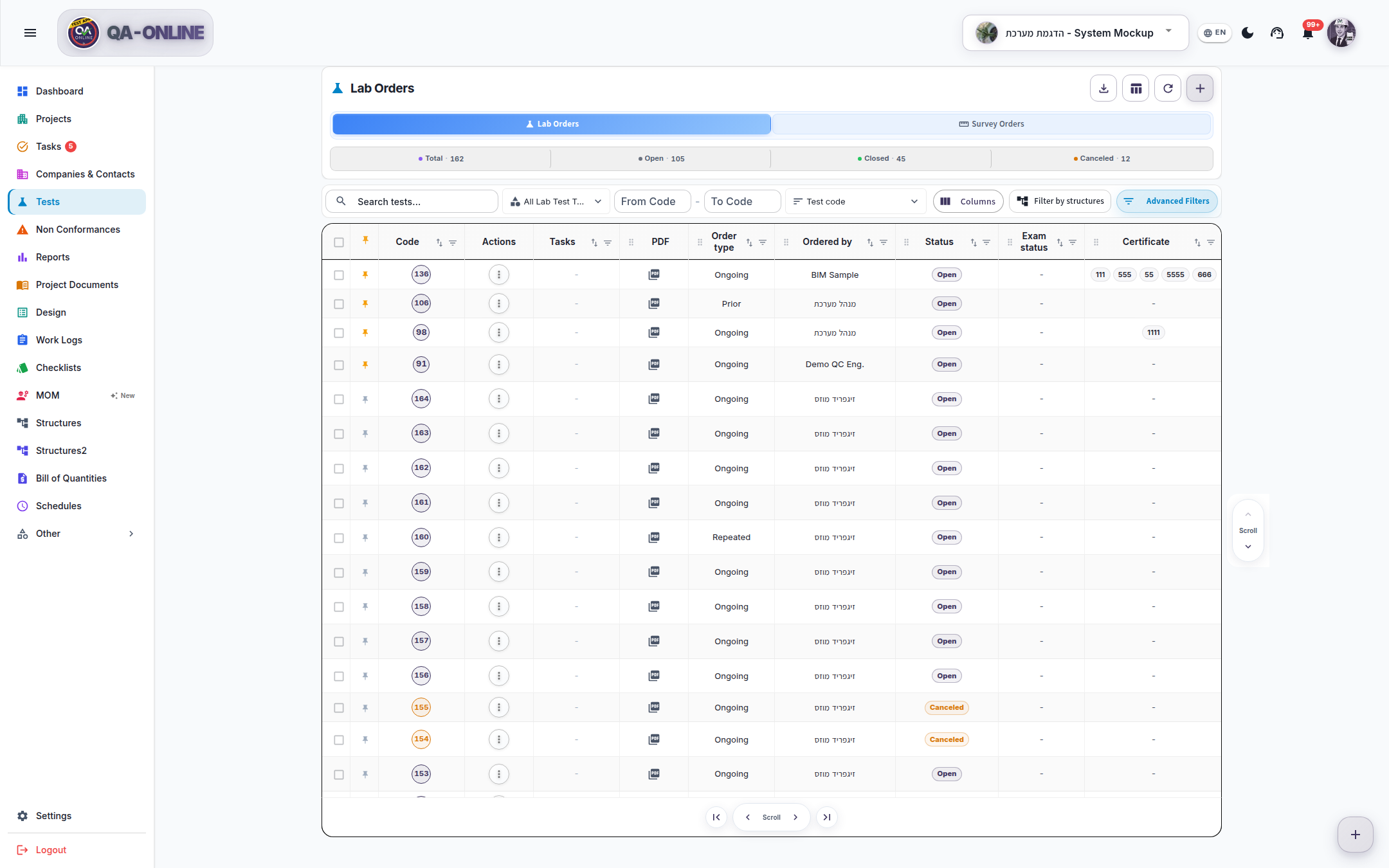
Switch between lab orders and survey orders#
- From the side menu: Click Tests. In the grouped menu, you can also open the arrow next to Tests and choose Lab Orders or Survey Orders.
- From the screen: At the top of the screen, there's a Lab Orders | Survey Orders switch.
QA-Online remembers which tab you worked in last and opens it the next time you click Tests.
Create a lab order#
- In the side menu, click Tests, and make sure you're on the Lab Orders tab and the right project is selected.
- At the top of the screen, click + (Create lab order).
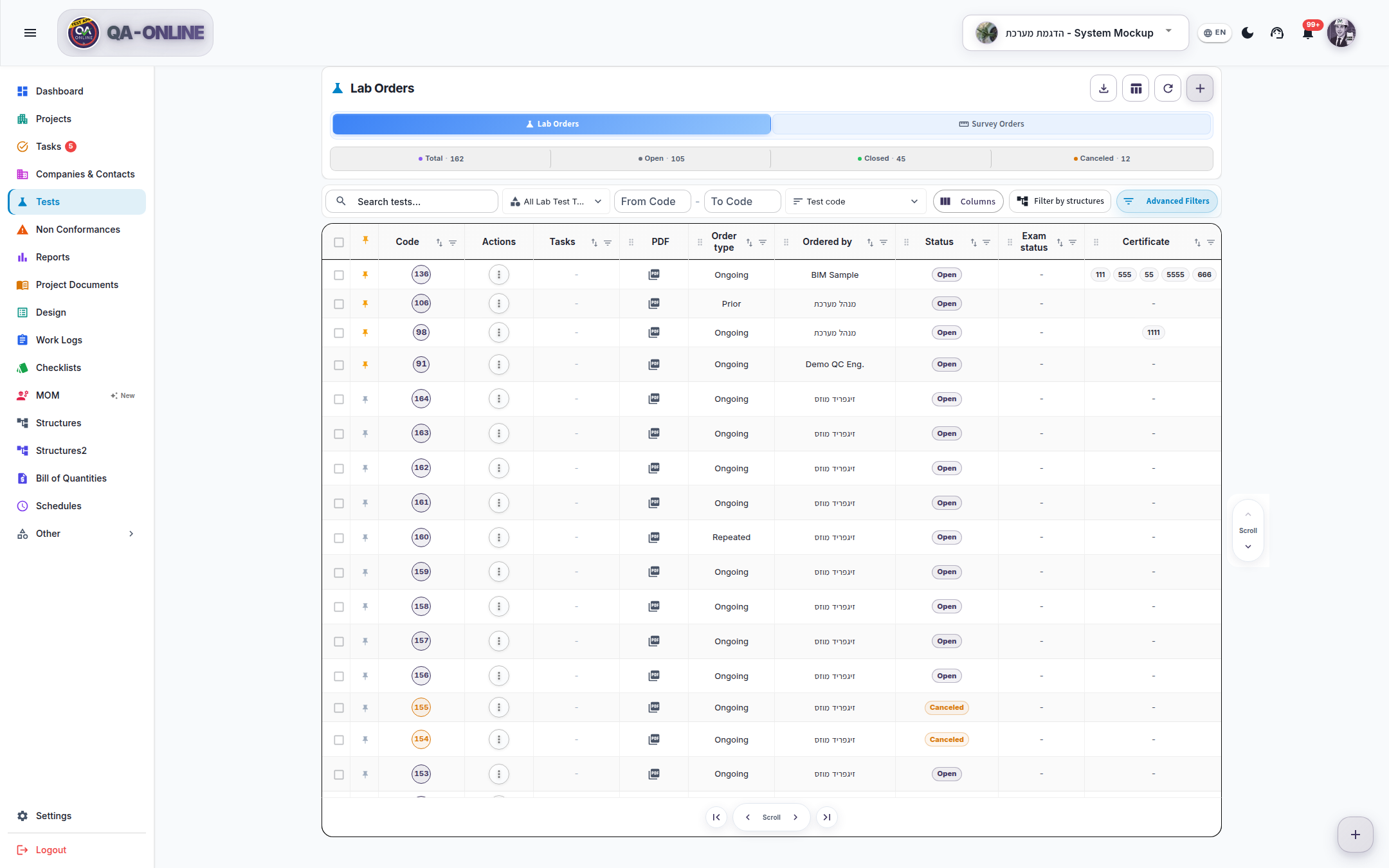
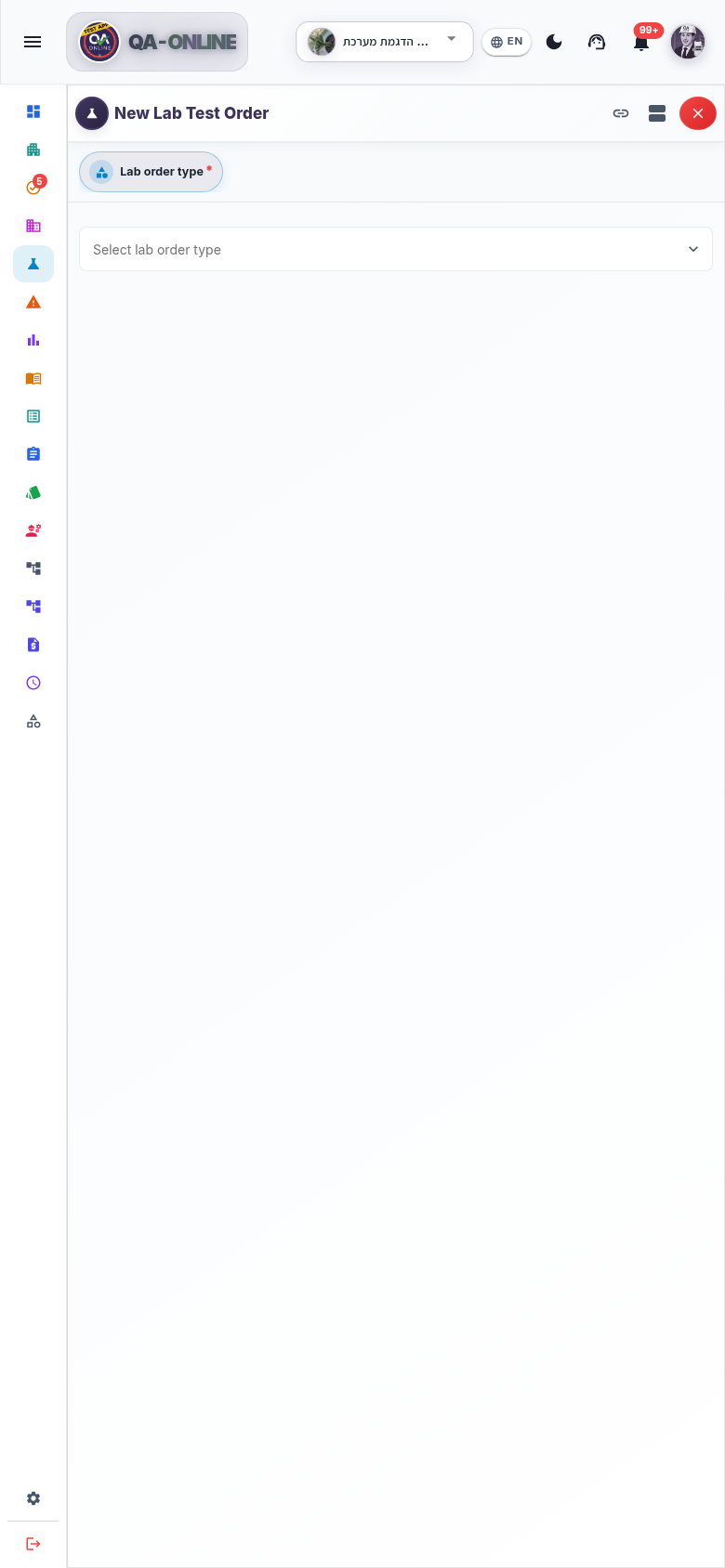
- The New lab test order window opens. In the Test type section, choose the order type (for example Ongoing or Preliminary). The list of types depends on your role, and the other sections only appear after you choose one.
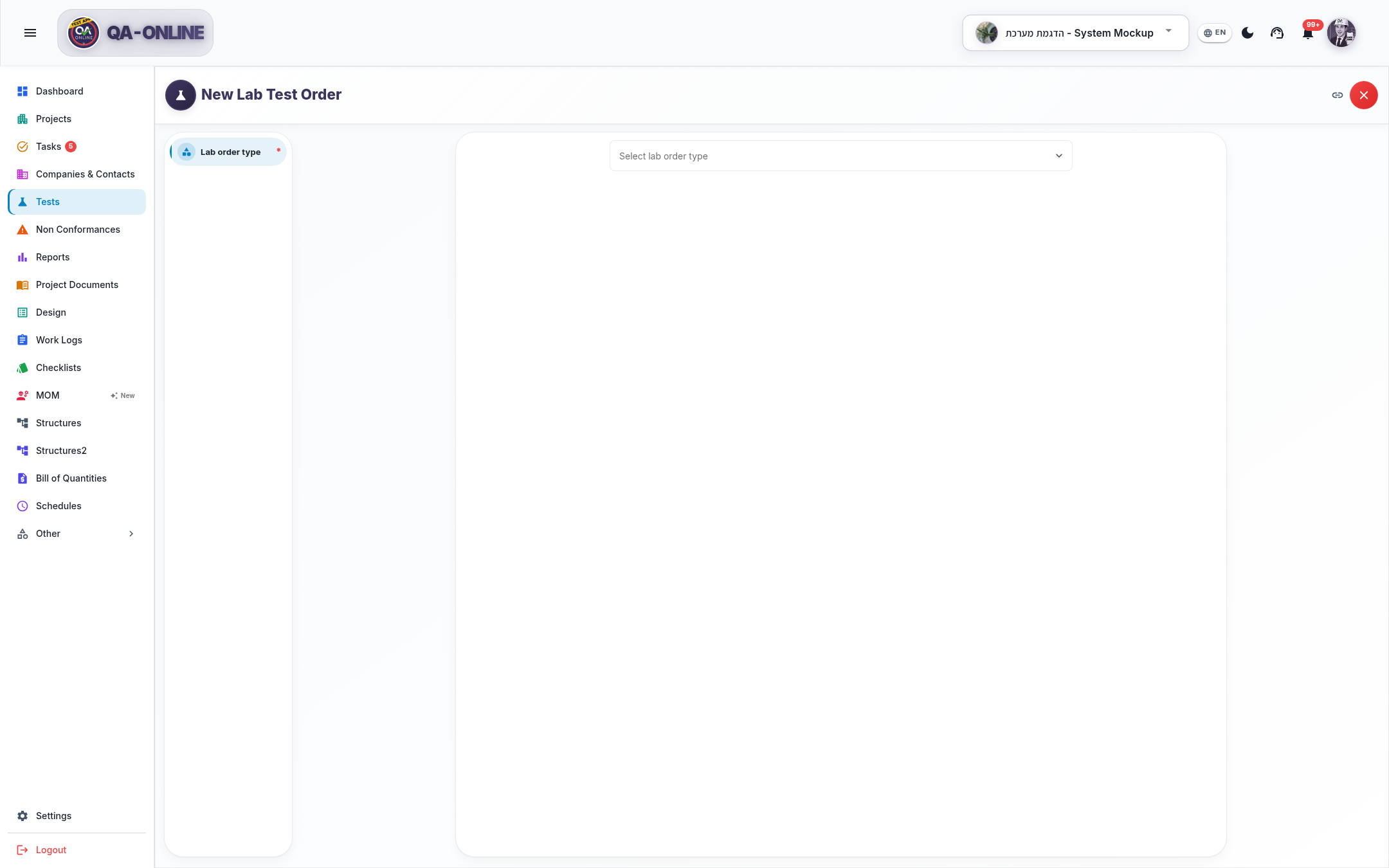
- In the Order details section, fill in the fields in order:
- Sampling date, Sampling time, and Accuracy (Exact or Estimated), followed by Execution date.
- Sampled quantity and Unit of measure.
- Contractor and Performed by (the lab).
- Select structure – The location the sample was taken from. You can select several elements and click Add location for another path. See Common tools.
- Location details – A written description, if needed.
- Manufacturer, Category, and Product/material.
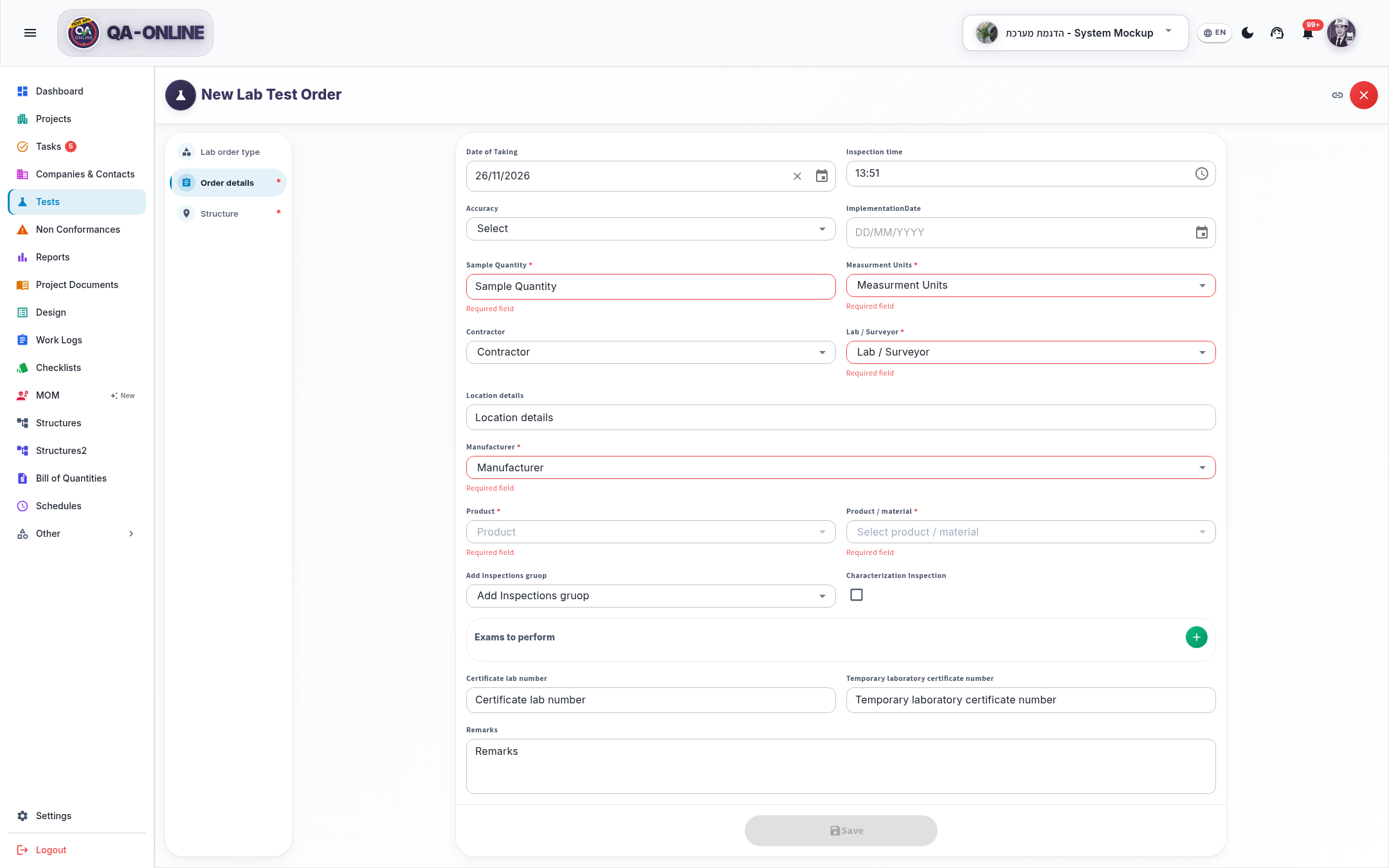
- In Tests to perform, choose what the test list is built from (Test list by): category, product/material, or Add test group. For an additional test, click Add new row.
- If needed, fill in Lab certificate number, Temporary certificate number (lab), and Notes.
- Click Save.
- In the Test order created successfully! message, click Go to order or close the window.
On your phone#
- In the list, tap + at the top of the screen or the floating button.
- Tap Select test type and choose a type. Move between sections with the Next button at the bottom. In the last section, it becomes Save.
Create a survey order#
- Switch to the Survey Orders tab and click +. The New survey test window opens.
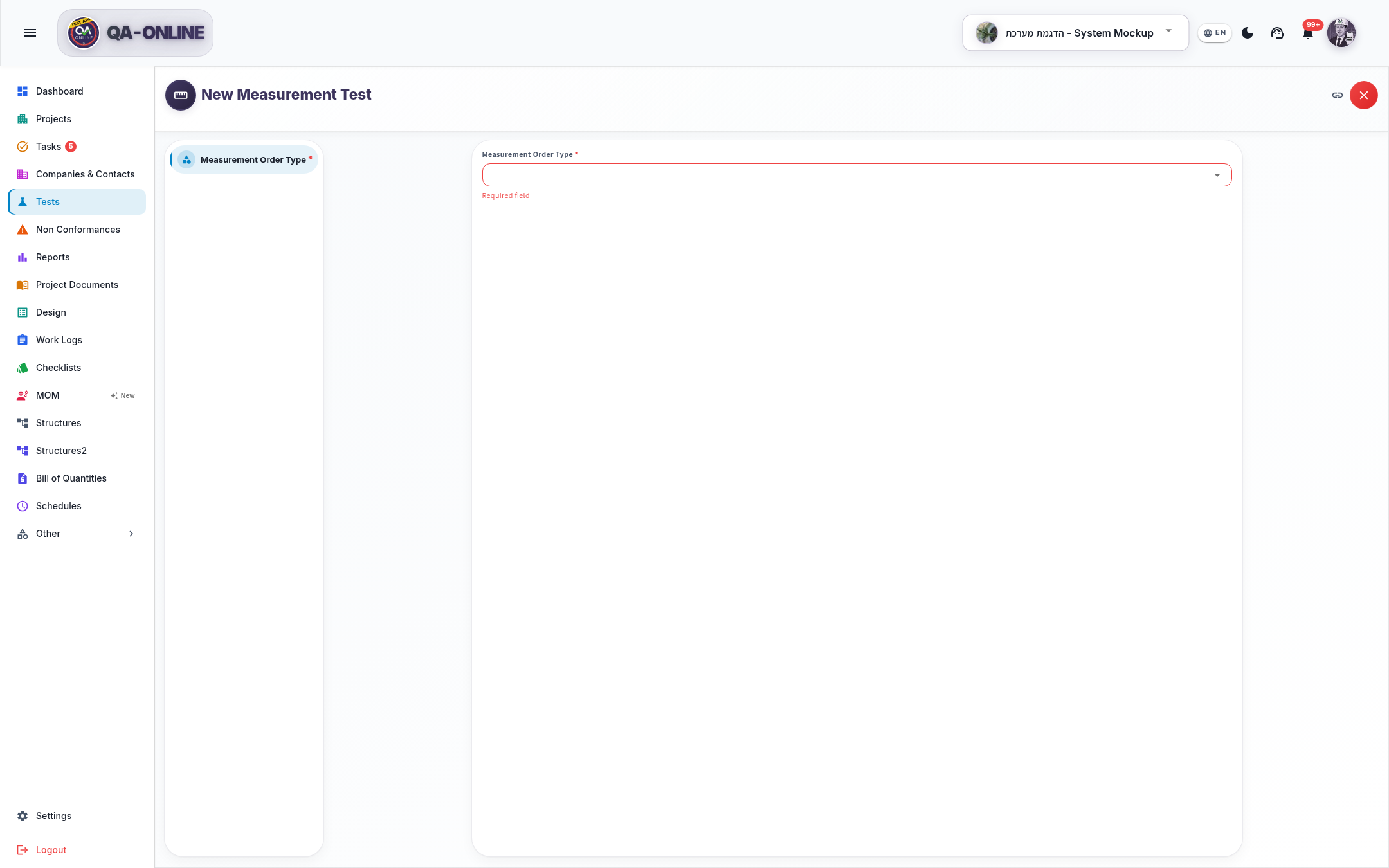
- In the General details section, choose a Survey order type, then a Survey company, followed by a Surveyor or Contact (the list only loads after you choose a company).
- Fill in Order date, Survey date, Contractor, and Notes.
- In the Select elements section, choose the location on site.
- Click Save. The message Order created successfully! appears.
Edit an existing order#
- Click the card or the row (or use the three-dot menu: Order details). The Detail window opens, with the order type in the title.
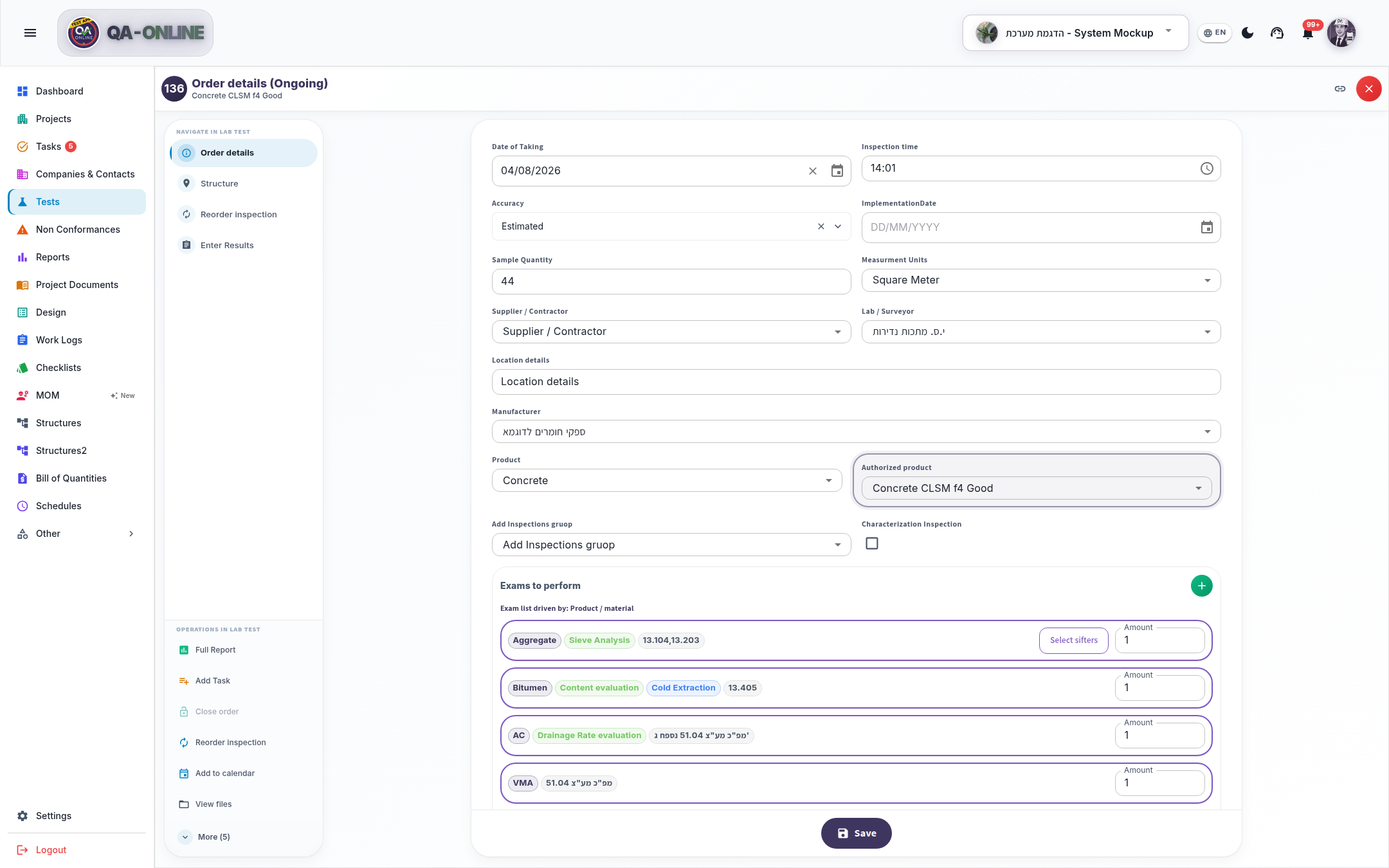
- In the side menu, choose the section:
- Lab order – Order details, Structure, Reorder inspection, and Enter results (under Navigate in lab test). Actions on the order are under Operations in lab test.
- Survey order – Order details, Structure, and Enter results (under Navigate in survey test).
- Edit the fields.
- Click Save. The message Test order saved successfully appears (or Survey order saved successfully).
Tests don't have a duplicate action. To place another order for the same sample, use a reorder.
On your phone#
Tap the type group (for example Ongoing test) to open it, then tap the order card (see the list above). The order opens in full screen, with the sections stacked one below the other; Save is at the bottom of the screen.
What you see on the screen#
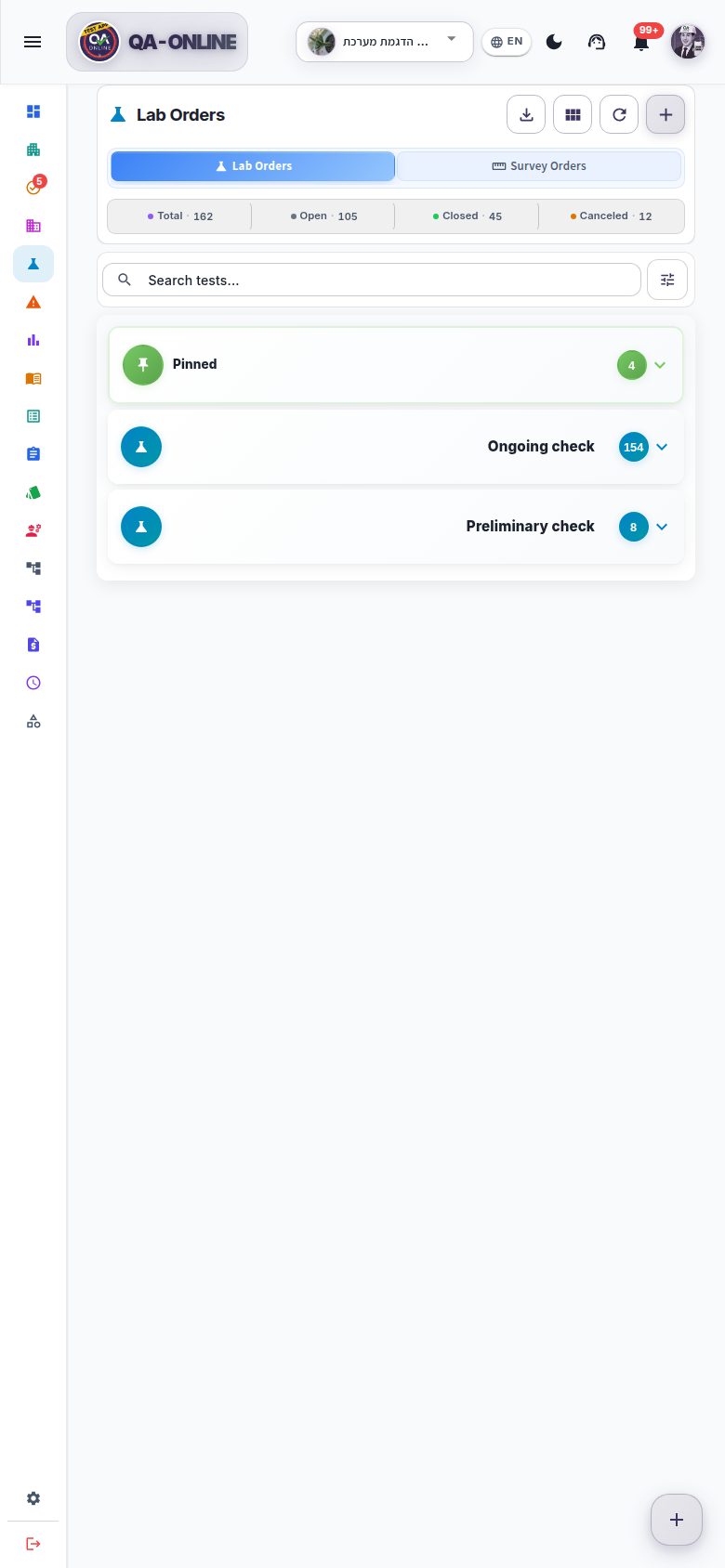
At the top of the screen: the title (Lab Orders or Survey Orders), view mode, export, Refresh, and a + button for a new order (New lab order or New survey order).
The row of counters filters the list when you click one:
| Counter | Meaning |
|---|---|
| Total | All orders |
| Open | Orders still in progress – waiting to be carried out or waiting for results |
| Closed | Orders that were completed and closed |
| Canceled | Orders that were canceled |
View modes#
- Table (on desktop) – Columns such as Code, Order type, Ordered by, Status, Exam status (OK / NC), Certificate, Opening date, Requested date, and location. Click Columns to choose columns and change their order.
- Cards – In lab orders, cards are grouped by Ongoing test and Preliminary test, and within each group by category.
- Calendar – Orders by date.
When the list is empty or won't load#
- If there are no orders in the project, No tests available appears. If you have permission to create, click Create your first lab order (or Create your first survey order).
- If no project is selected, Please select a project to see tests appears.
- If the filters return no results, No results match your filters appears. Click Clear filters.
- If loading failed, Couldn't load tests appears. Click Retry, and if the problem continues, click Open a support ticket.
Search and filter#
- Type in the Search tests... field.
- For a range of codes, fill in From number and To number.
- To see only one type, choose Lab test type (or Measurement test type).
- To filter by location, click Filter by structures, choose a sub-project, structure, structure part, or element, and click Filter.
- For a date range, click Advanced Filters and fill in From date and To date.
- To change the order, choose Sort by: By opening date, By test code, or By contractor.
Active filters appear as tags above the list. Clear all removes all of them.
Send a test order from a checklist#
A test step in a checklist creates an order directly from the step:
- In the checklist, click the lab test step and fill in the sample details.
- Click Create test.
- In the Send test order window, click Send order. The order is created, the step is signed, and the message Test order sent successfully appears.
The order also appears in the Lab Orders list. Survey steps work the same way, with the Create survey button. For details, see Checklists.
Reorder a test#
A reorder is a new order created from an existing lab order, for example after a failing result:
- Open the lab order and choose Reorder inspection in the side menu (or in the options menu on the card).
- The details load from the original order. Change whatever you need.
- Click Save. A new order is created, and the window switches to it (The new order has been loaded).
Enter results: lab order#
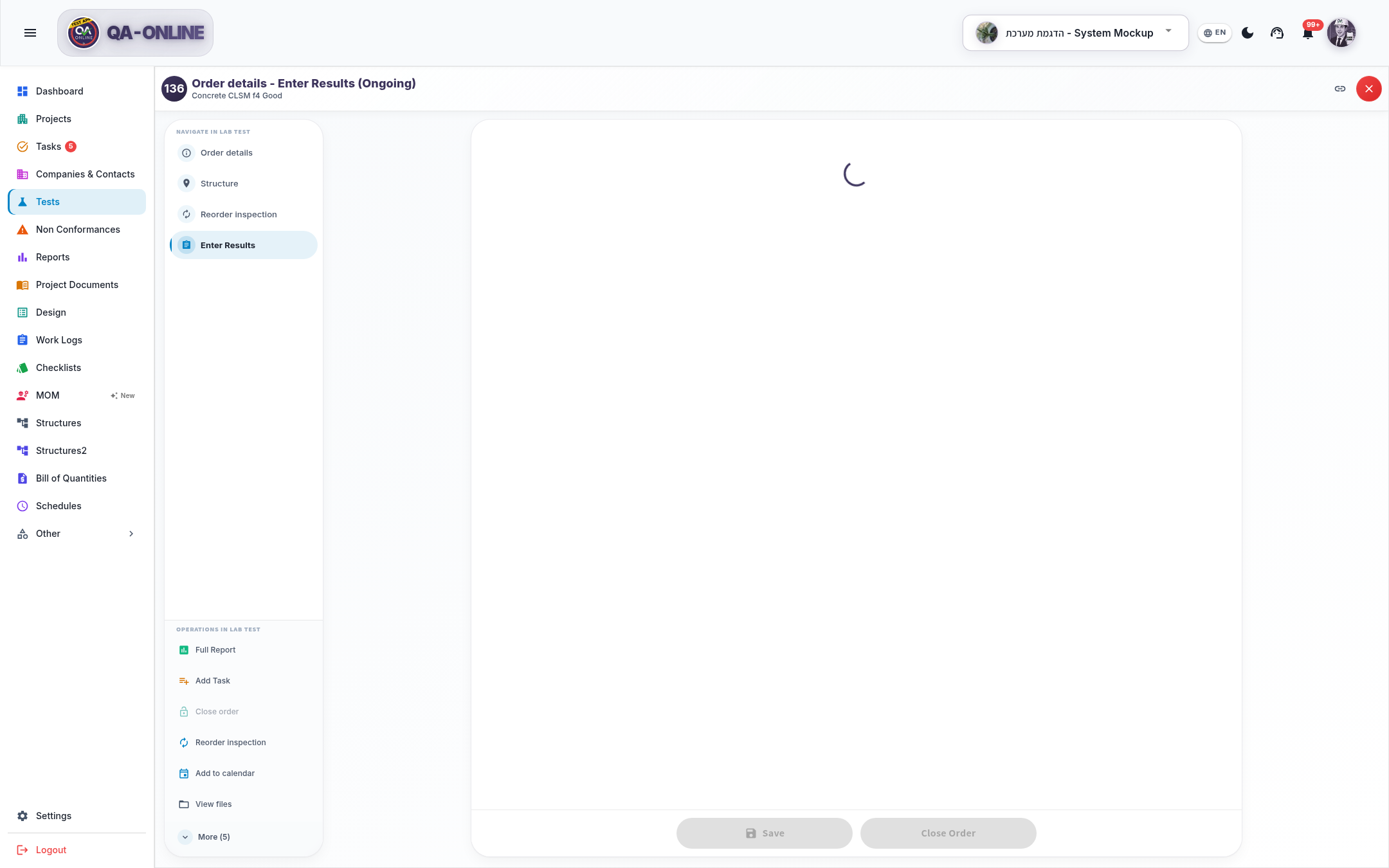
- Open the order and choose Enter results (or, in the options menu on the card: Enter results).
- In the Select test and certificate section, choose the test. If there are several certificates, move between them with Previous certificate / Next certificate.
- Fill in the result values in the table, according to the test parameters.
- Fill in Certificate number.
- In the Material status field, choose OK (Pass) or NC (Fail).
- To attach the lab certificate or other files, click Upload files.
- Click Save. The message Data saved successfully appears.
- When the results for the certificate are final, click Close certificate. From then on, the results are locked for editing.
If you need to correct a closed certificate, click Open certificate.
Enter results: survey order#
- Open the survey order and choose Enter results.
- Choose the Survey status: OK or NC.
- Fill in Certificate number and Notes.
- In the Files section, click Upload files to attach the survey file.
- Click Save. The message Survey results saved successfully appears.
Close an order#
Lab order#
- Make sure all the certificates in the order are closed (see above).
- Open the order and click Close order – under Operations in lab test or in the Enter results section.
- In the Close order window, click Close order. The message Test order closed appears.
Close order is only inside the order window – not in the card menu and not in multi-select. As long as a certificate is open, the button is gray.
Survey order#
- Open the order and go to Enter results.
- Fill in the result and click Close order at the bottom of the window.
- In the Close order window, click Close order. The message Survey order closed appears.
Cancel an order#
- In the order's options menu, choose Cancel order.
- Confirm in the Cancel order window (or Cancel survey order) by clicking Cancel order.
The order moves to the status Canceled. For a canceled lab order, only Reopen and Full Report remain in the menu.
Reopen a lab order#
You can return a closed or canceled lab order to the Open status:
- In the options menu, choose Reopen. There's no confirmation window.
- The order returns to the list as an open order and is highlighted there.
Change the order type or orderer#
Both actions exist in lab orders only, from the options menu or from multi-select:
- Change order type – The window shows Test code:, Test name:, and Current order type:. Choose a new type and click Change order type. When you switch to the Repeat type, you also need to enter the Original order number.
- Switch user – In the Change performing user window, Current user: is shown. Choose a different Username in the project and confirm.
More actions from the options menu#
| Action | What it does | Available in |
|---|---|---|
| Order details | Opens the order window | Lab and survey |
| Enter results | Goes straight to entering results | Lab and survey |
| View files | The files attached to the order | Lab and survey |
| Full Report | A PDF of the order and the results | Lab and survey |
| Duplicate | A new order, pre-filled from an existing order | Lab and survey |
| Reorder inspection | A new order based on this one (see Reorder a test) | Lab |
| Change order type | See Change the order type or orderer | Lab |
| Switch user | Transfers the order to a different orderer in the project | Lab |
| Reopen | Returns a closed or canceled order to the Open status | Lab |
| Cancel order | Cancels the order (doesn't appear on an order that's already canceled) | Lab and survey |
| Add task | A task linked to the order. See Tasks | Lab and survey |
| Add to calendar | Adds it to your personal calendar | Lab and survey |
| Pin / Unpin | Pins it to the top of the list | Lab and survey |
Lab order permissions in brief#
Some actions in lab orders require a special permission in your role, in addition to access to the module:
- Change order type
- Switch user
- Cancel order
- Close order
- Reopen
- Editing order details after results were entered, and editing results the lab locked
If you don't have permission for an action, it appears grayed out in the menu and you can't click it. Users with view-only permission can open orders and generate reports. When they try to create, enter results, or make changes, the No permission window appears with the message You don't have permission to perform this action. – click Got it.
Act on several orders at once#
- Switch to the Table view and select the orders you want. In the bar that opens, … selected is shown.
- Choose an action: Pin / Unpin, Add task, Cancel order, and in lab orders also Change order type and Switch user.
- Confirm in the window that opens (for example Cancel 3 orders?).
- To clear your selection, click Clear selection.
Actions you don't have permission for don't appear in the bar. Closing orders is only possible from inside the order window.
Export to Excel#
- Filter the list, or select orders in the table view.
- Click the export button at the top of the screen (Export lab orders or Export survey orders).
- The file is prepared in the background. Progress appears in the corner of the screen, and when it's done, a preview opens with an option to download.
The file includes only the orders shown based on the filters, or only the ones you selected. See Common tools.
Share an order link#
- Open the order.
- In the window title, click Copy link (on a phone: Share).
The link opens the order directly, for anyone who has access to the project. The preview of the Full Report also has an option to copy a link.
Frequently asked questions#
Why is "Close order" gray in a lab order? The order has a certificate that isn't closed yet, or you don't have permission to close orders. Close all the certificates in Enter results and try again.
What's the difference between "Duplicate" and "Reorder inspection"? Duplicate opens a new order window, pre-filled from an existing order. Reorder inspection loads the original order inside the Detail window, and when you save, it creates a new order from it – for example, after a failing result.
I don't see the switch between lab and survey. The switch only appears for users who have permission for both types.
I corrected a mistake in a result, but the fields are locked. The certificate is closed. Click Open certificate, make your corrections, save, and close it again. If the fields are still locked, the lab locked the results and a special permission is required – contact the project manager.
Does saving an order send an email to the lab? The system doesn't show a confirmation like that. Let the lab or the surveyor know in whatever way your project usually does.
See also#
- Checklists – Ordering a test from a step in a checklist.
- Dashboard and projects – Test data and filtering by result.
- Tasks – Tasks linked to orders.
- Common tools – The location picker, export, PDF reports, and copying a link.