
Daily work
Dashboard and projects
Almost everything you see in QA-Online belongs to a single project: checklists, non-conformances, work logs, documents, and tasks. That's why the first step of every workday is to make sure you've selected the right project. The Dashboard shows you what's waiting for you, what was opened this week, and where you left off last time.
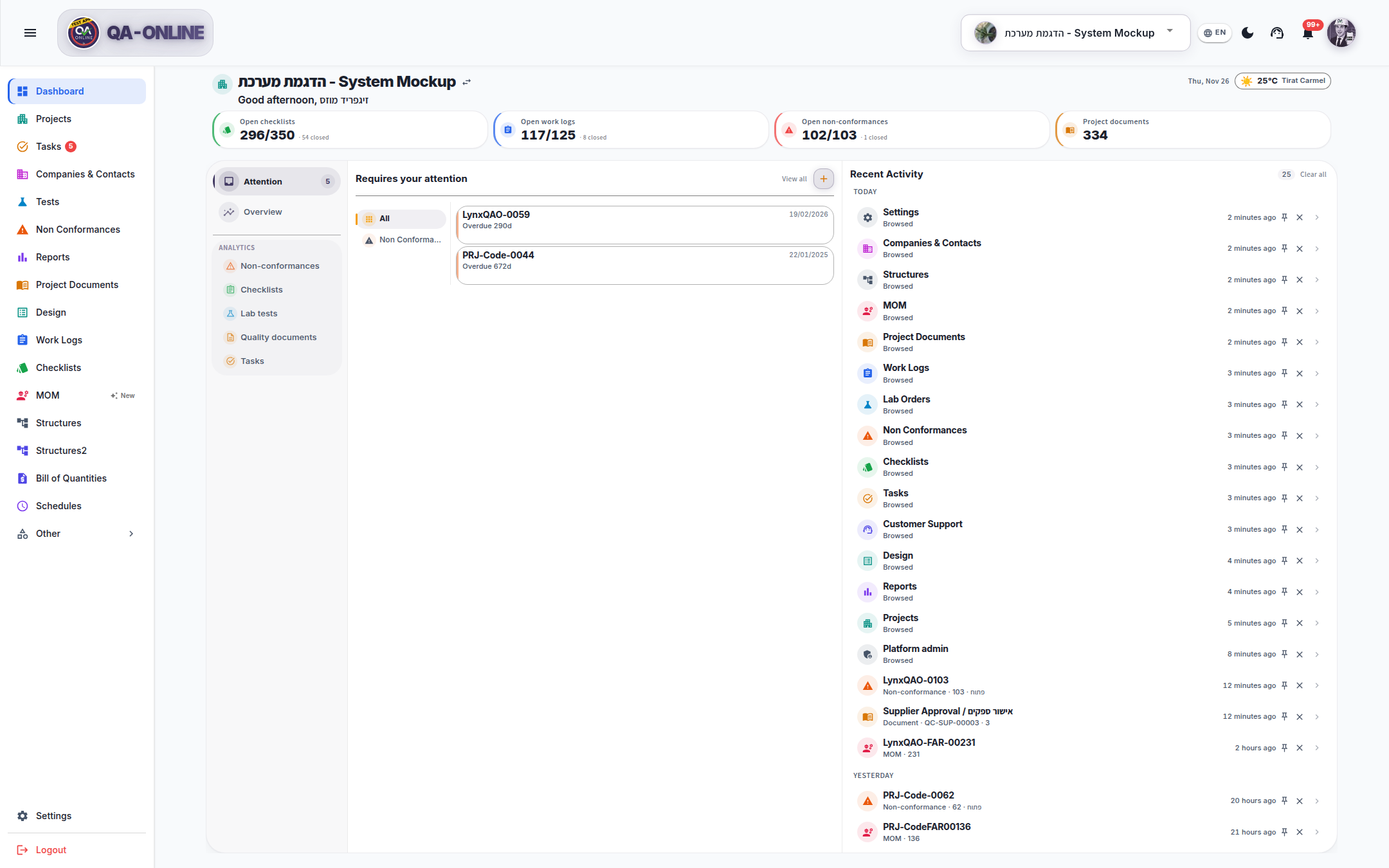
What you see on the Dashboard#
Open the Dashboard from the Dashboard item in the side menu. It has three parts, from top to bottom:
- Project header – a personal greeting ("Good morning, …"), the name of the active project, and the weather at the site.
- Metrics row – four tiles with the project's key numbers.
- Workspace – three sections: Attention, Overview, and Analytics. On a computer, you choose a section from the list beside the workspace. Next to Attention, you'll see the number of items waiting for you.
If you haven't selected a project yet, you'll see the message No project selected. Choose a project in the project selector in the top bar (see How to switch projects).
Project header#
- Project name – next to the name, there's a quiet Switch project button that opens the same project list as the top bar. If you have only one project, the button isn't shown.
- Weather – the temperature and conditions at the project's location. Click it to see Wind, Humidity, and Radiation. To change the city, click Change location in the detail window.
- Add location – appears in place of the weather when the project doesn't have a location yet. Click it, then search for a city in the Search location... box or click the map.
- Open support tickets – if you've opened a support ticket that isn't closed yet, a badge such as "2 open tickets" appears. Click it to open the Support Center (see Support and help).
Metrics row#
| Tile | What it shows | Where it goes |
|---|---|---|
| Open checklists | Open out of the total, and how many are closed | Checklists – the All view |
| Open work logs | Open out of the total, and how many are closed | Work logs |
| Open non-conformances | Open out of the total, and how many are closed. The color gets stronger as the number of open items grows | Non-conformances |
| Project documents | The total number of documents in the project | Project documents |
Click a tile to go straight to the matching list.
Attention: tasks and recent activity#
This is the section that opens by default. It has two parts.
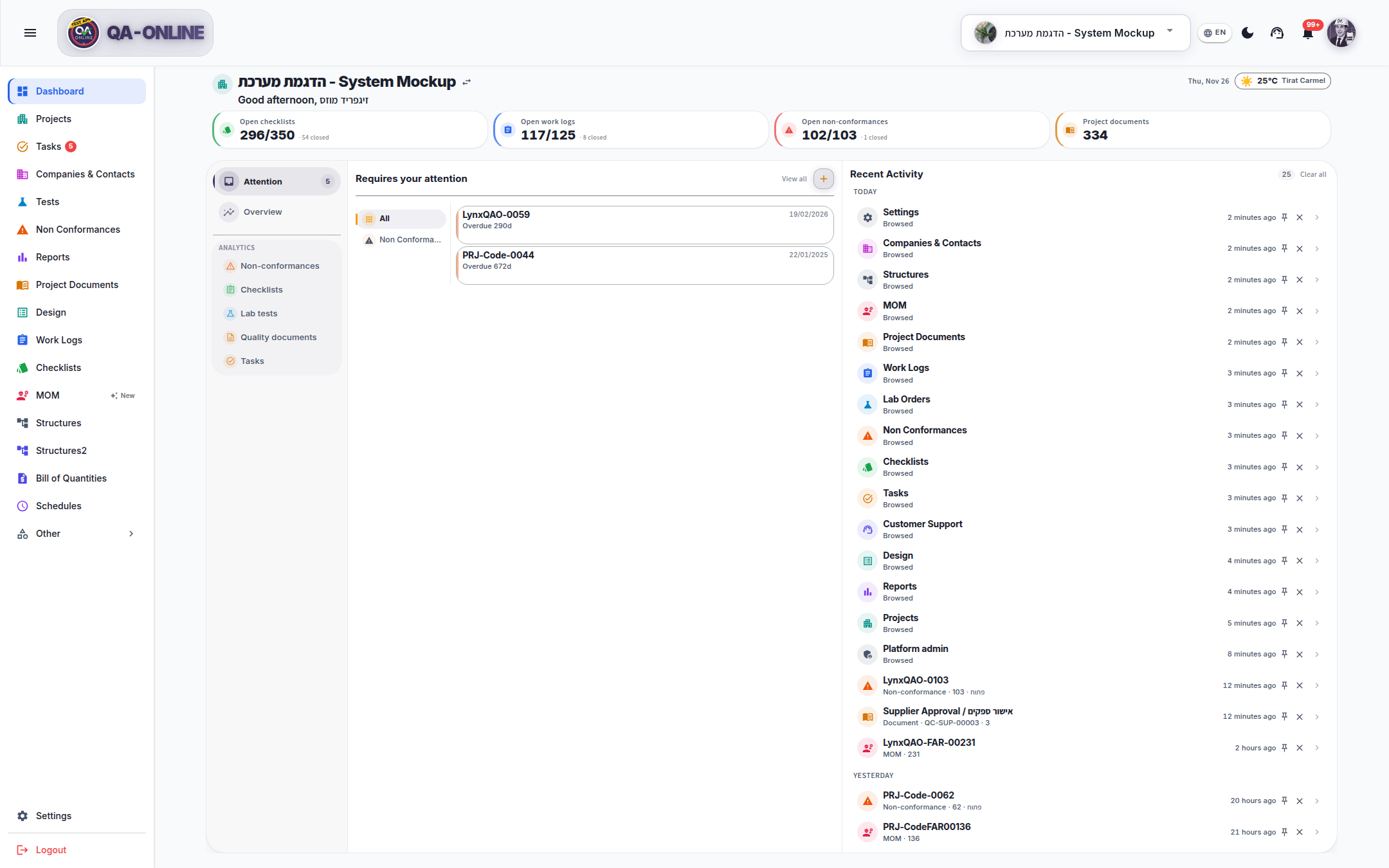
Requires your attention#
A summary of your incoming tasks and your activity in the project: approvals passed to you, checklist steps assigned to you, and tasks that others opened for you. Non-conformances you opened whose expected closing date has passed or is approaching appear at the top of the list.
- Filter by module with the chips All, General, Project Documents, Checklists, Non Conformances, and so on.
- Click an item's title to open the document or record.
- Click Done on a card to close a task you've handled.
- Click View all to go to the Tasks screen.
- Click + in the section header to create a new task (see How to create a new task).
- If you've sent tasks that aren't completed yet, a link such as "3 waiting on others" appears. It opens the Outgoing box on the Tasks screen.
When there's nothing to handle, you'll see All clear for now. Actions such as Mark all done, the Done view, and export are available only on the Tasks screen itself.
Recent activity#
A personal list of the items and modules you've opened recently in the project, grouped by Today, Yesterday, This week, and Earlier. Click an item to return to exactly where you left off. You can pin items, remove them, and clear the list – the full explanation is in Shared tools.
Overview: this week and documents summary#
This week#
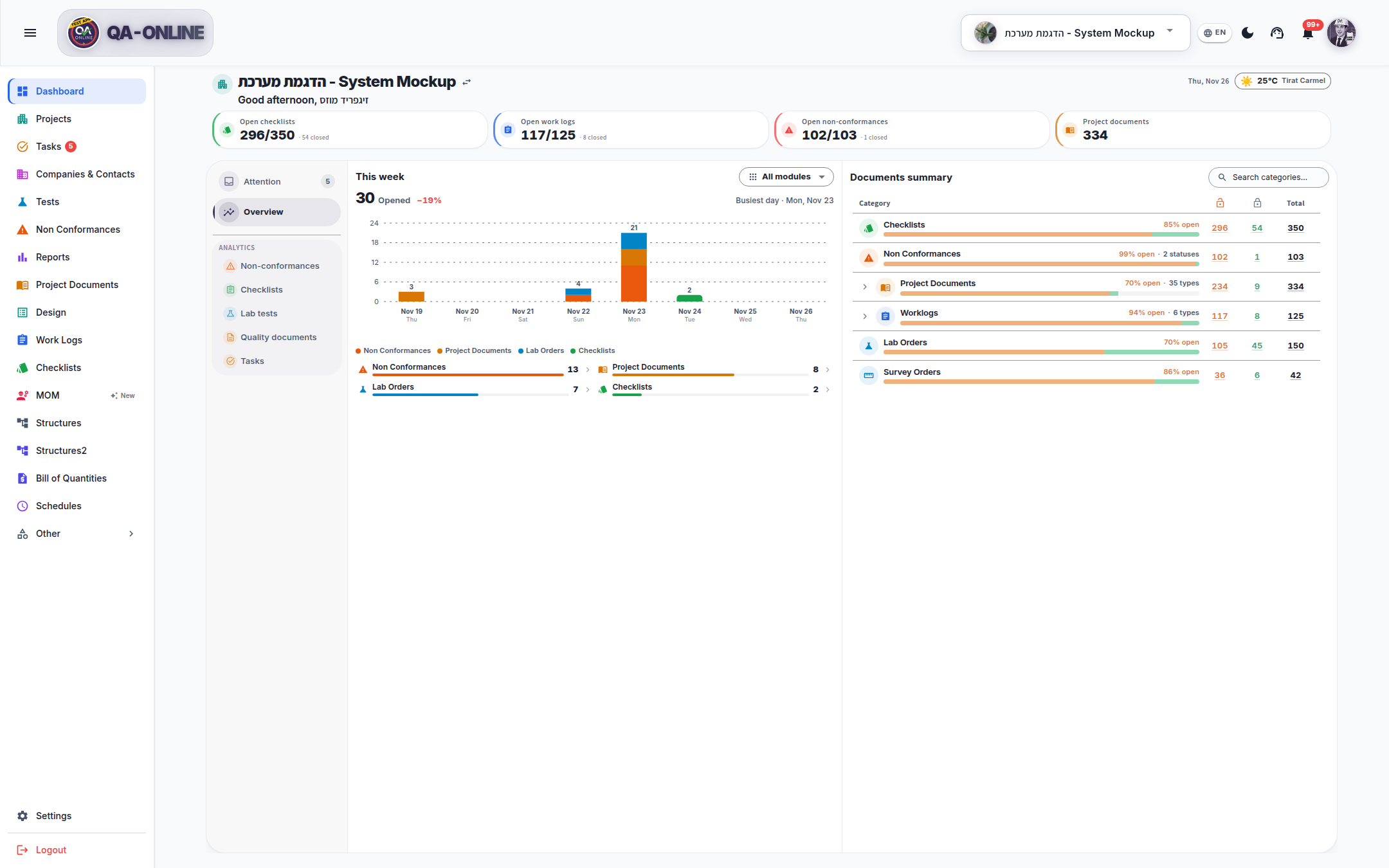
The This week panel shows how many documents were opened in the project over the last seven days, by module. It reflects the whole team, not just what you opened.
- Opened – the total number of documents opened this week.
- vs last week – the percentage change compared with the previous week.
- Busiest day – the day on which the most documents were opened.
- Open / Closed – how many of this week's documents are still open and how many have already been closed.
To focus on one module, choose it in the All modules box. Lab orders and survey orders are shown in separate rows. If nothing was opened, you'll see the message No documents opened this week.
How to open a module's documents for the week#
- In the This week panel, click the number or the bar for the module.
- The module's list opens already filtered to the documents opened this week.
Documents summary#
A table of all the documents in the project, of all time, by category: Checklists, Non Conformances, Project Documents, Work Logs, Lab Orders, and Survey Orders. Each row shows Open, Closed, and Total.
- Click a category to see the document types in it.
- Click the number in the Open, Closed, or Total column to open the filtered list.
- To go back, click Back to categories.
Analytics#
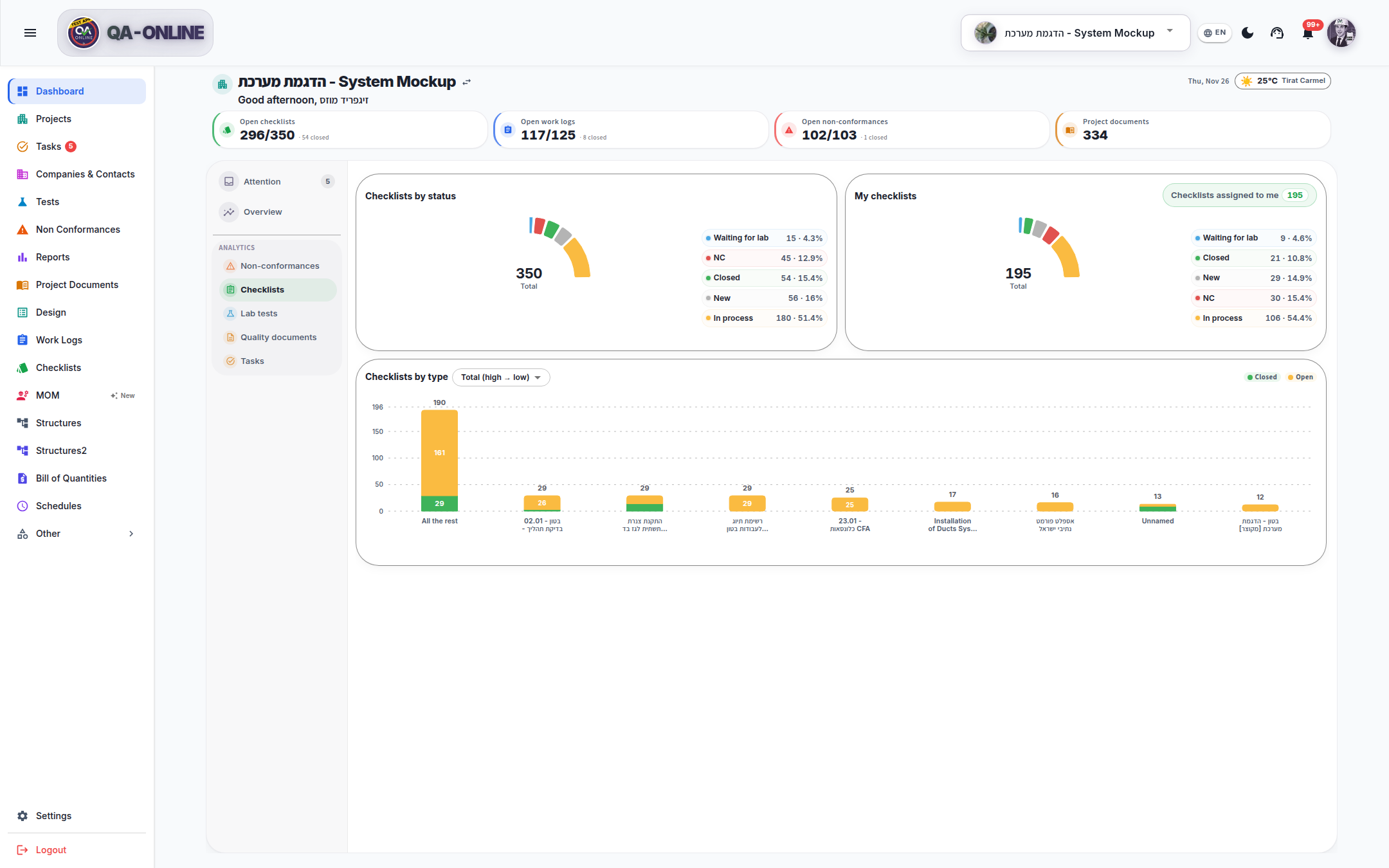
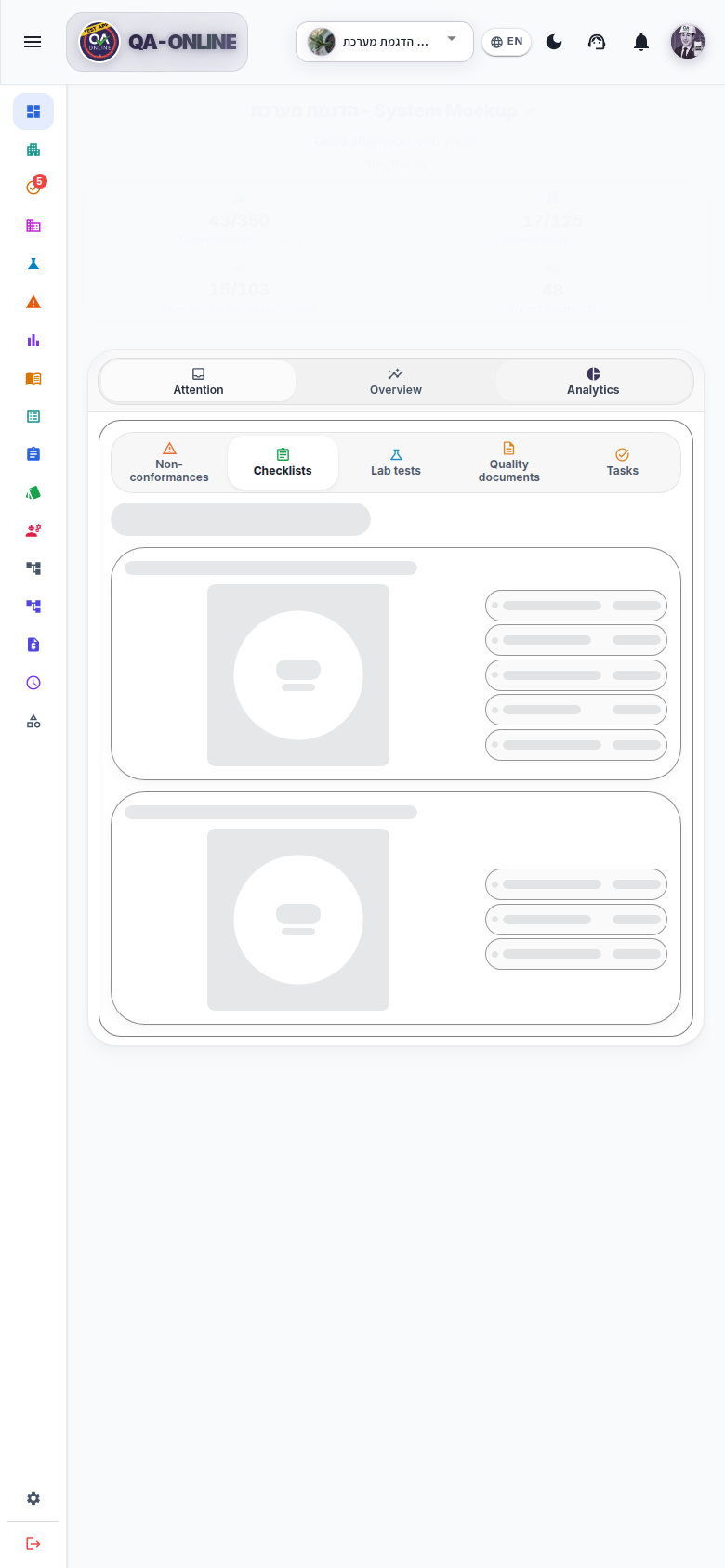
The Analytics section shows live charts for the active project, divided into tabs. On a computer, the tabs appear as a submenu under Analytics in the list of sections.
| Tab | What you see |
|---|---|
| Non-conformances | By status (Open (on time) / Delayed / Closed), by creator, by severity, by responsible party, and by discipline |
| Checklists | By status and by type, My checklists, and the number of Checklists assigned to me |
| Lab tests | By status, by result (OK / Not OK), and by material category |
| Quality documents | Documents in progress, by module and type |
| Tasks | Open, overdue, and completed tasks across the whole project, the Completion percentage, and breakdowns By module and Workload by person |
- Click a segment in a chart to open the list, filtered by what you clicked.
- In open-versus-closed bar charts, you can change the order in the Sort box.
- A chart with no data isn't shown. An empty tab shows a message such as No non-conformance analytics yet.
How to check tasks across the project#
- On the Tasks tab, click a number, a legend item, or a module or person row.
- A window opens with the list of tasks. At the top, choose open, overdue, on time, or done.
- Click a task to open the item it's related to.
The window lists only tasks that are related to an item. Private general tasks are counted but not listed. To go to your own tasks, click My tasks.
Projects#
The Projects screen (in the side menu) shows all the projects you're assigned to. From here, you choose the active project, mark favorites, and export the list.
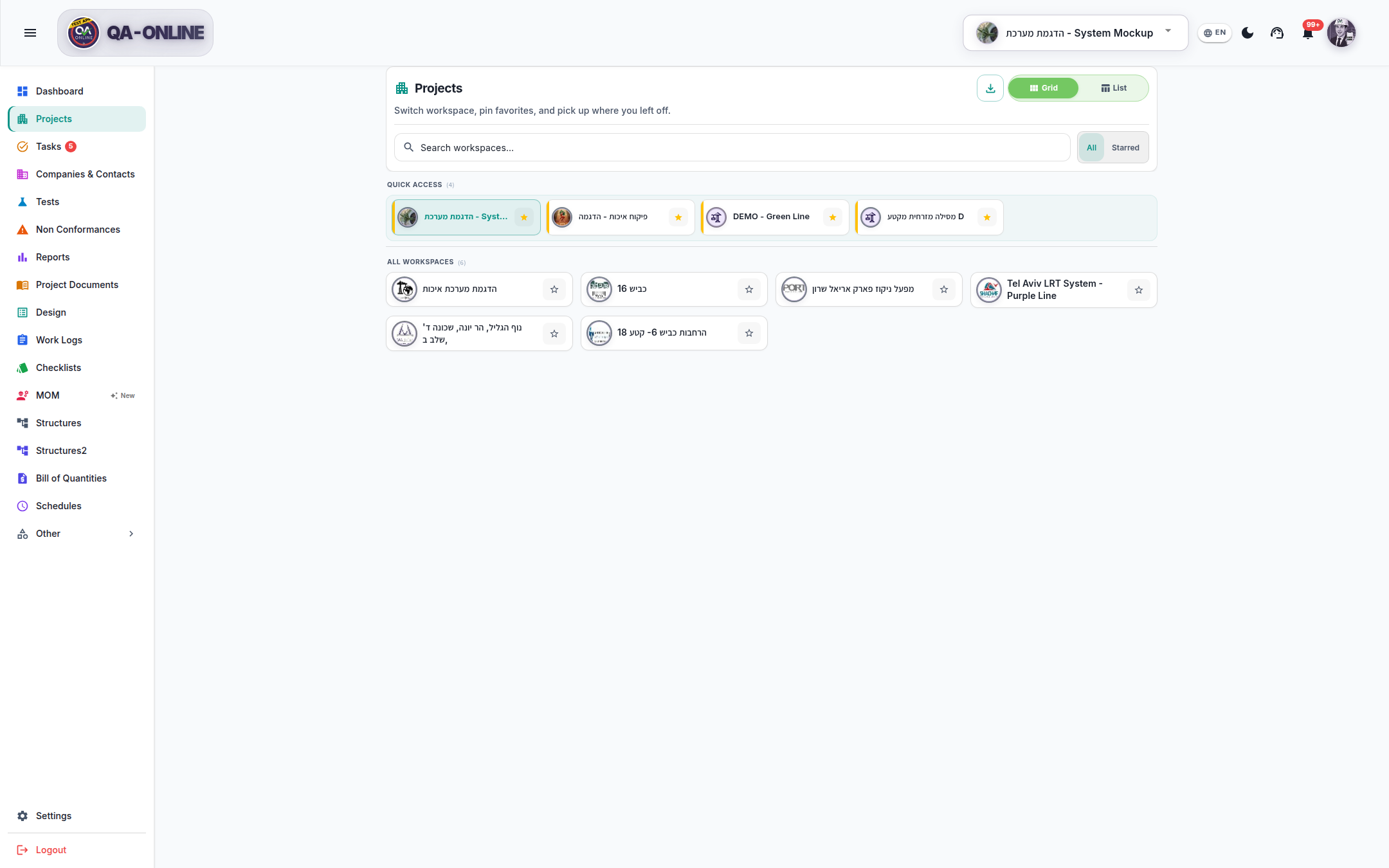
The screen is organized like this:
- Quick access – a strip at the top with the projects you've marked as favorites.
- All workspaces – all your other projects.
- The project that's active right now is highlighted in color.
- Each card shows the logo, the project name, its code, and a short description (if one was entered).
If you have many projects, click Show … more projects at the bottom of the list.
How to switch projects#
There are three ways, and they all do the same thing.
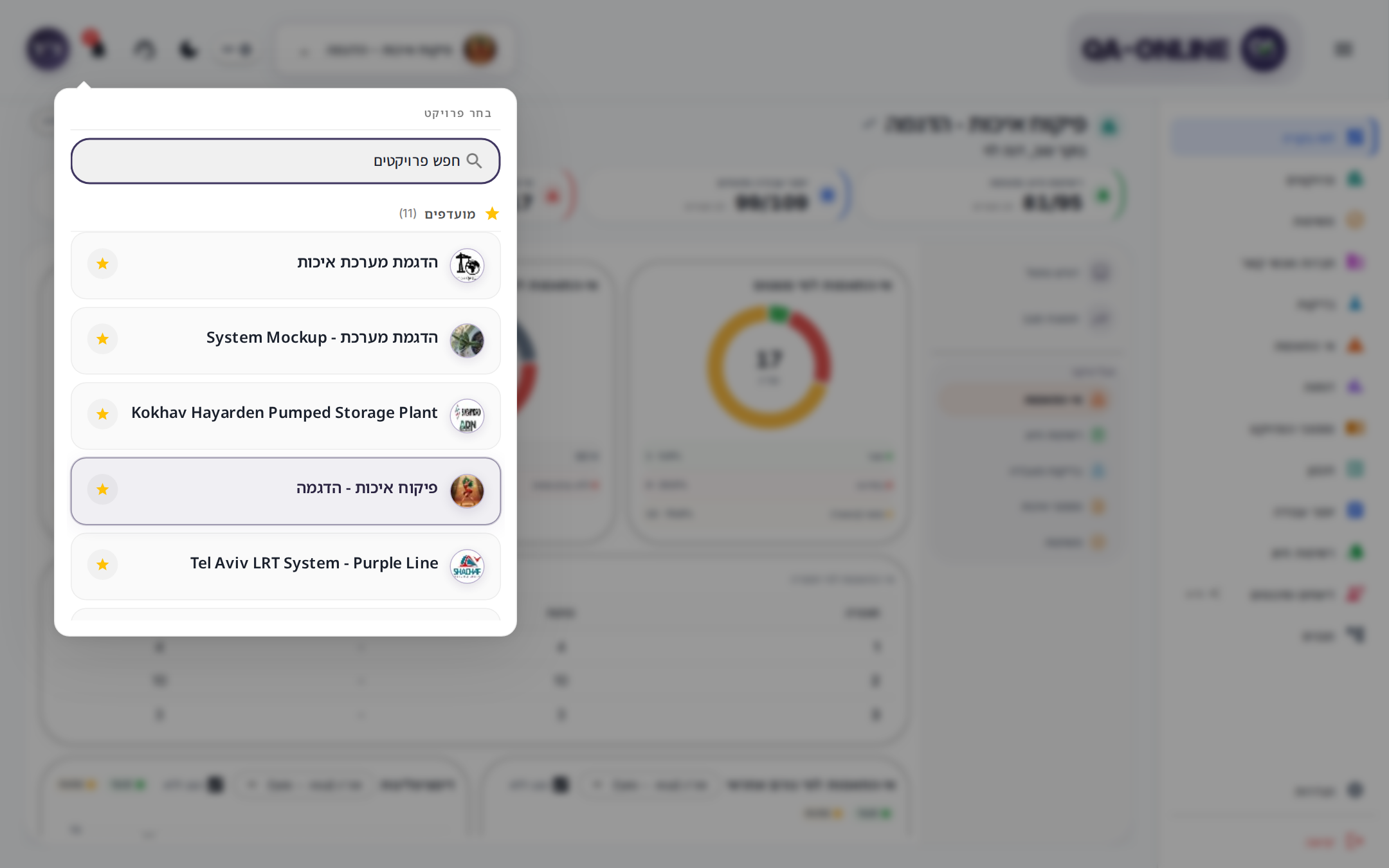
From the project selector in the top bar
- Click the project name in the top bar.
- If needed, type part of the name, code, or description in the Search projects box.
- Click the project you want.
From the Projects screen
- In the side menu, click Projects.
- Click the project's card.
From the Dashboard
- Click Switch project next to the project name.
- Choose a project from the list.
After you switch, you always land on the Dashboard of the new project, no matter which screen you were on. All modules now show that project's data.
How to search for a project#
- On the Projects screen, type in the Search workspaces… box.
- The list filters as you type, by name, code, or description. Below the box, you'll see how many projects were found.
- To return to the full list, click the clear icon in the box.
If there are no results, you'll see the message No results found. Click Clear search, or try a shorter part of the name.
How to mark a project as a favorite#
- On the Projects screen, click the star icon on the project's card (Pin project).
- The star turns yellow, and the project moves to the Quick access strip.
- To undo, click the star again (Unpin project).
Favorite projects also appear first in the project selector in the top bar, under Favorites. The mark is saved to your account and appears on every device you sign in from.
How to filter and change the view#
- Filter – choose All to see all projects, or Starred to see only the ones you've starred. If you have no favorites, you'll see the message No starred projects with the Show all projects button.
- View – in the screen header, choose Grid (cards) or List (rows). QA-Online remembers your choice.
The order of the projects is fixed: favorites first, then all the rest. You can't sort the list any other way, and you can't filter by active or inactive projects.
How to export the projects list#
- On the Projects screen, click the download icon in the header (Export projects PDF or Excel).
- In the Export window, choose PDF or Excel.
- The file is created in the background, so you can keep working in the meantime. A PDF is saved to your device when it's ready. For Excel, a preview opens first, and you download from there.
The file includes all the projects in the view you chose (All or Starred): the logo, the project name, whether it's a favorite, and whether it's the active project. Search doesn't narrow the file. For preview and download, see Shared tools.
Project details and settings#
You don't edit project details on the Projects screen. General details, the logo, the banner, and project options are managed in Project settings, inside the Settings screen (see Settings).
On phones and tablets#
- Dashboard – the sections appear as tabs at the top of the screen: Attention | Overview | Analytics. Recent activity shows the first few items, and View all opens the rest.
- Project selector – on a phone, it opens as a sheet from the bottom of the screen. To close it, drag it down.
- Projects screen – on a phone, you always see the list view.
Frequently asked questions#
Why don't I see a project I'm supposed to work on? A project appears only after you've been assigned to it. Contact the project manager or your organization's system administrator.
How do I open a new project? New projects can't be created from this screen. Contact your organization's system administrator.
I switched projects and landed on the Dashboard. Is that normal? Yes. After you switch projects, QA-Online always takes you to the Dashboard, so you don't keep working by mistake on a screen from the previous project.
What's the difference between "This week" and "Recent Activity"? This week counts documents that the whole team opened in the project. Recent Activity is a personal list of items that you opened.
The numbers on the Dashboard aren't updating. The metrics update when you open the Dashboard. Go to another screen and come back, or refresh the page in your browser.
See also#
- Tasks and approvals – the full list of what's waiting for you and what you've sent.
- Shared tools – recent activity, pinning, export, and preview.
- Settings – project details, logo, and location.
- Getting to know the screen and navigation – the top bar and the side menu.