
Planning, reports, and management
Companies and contacts
Project managers, quality managers, and office staff use this screen. The companies and contacts you define here are the ones that appear throughout the rest of QA-Online – for example, when you choose the responsible contractor for a Non-conformance, a supplier for a test, or a signer in an approval step.
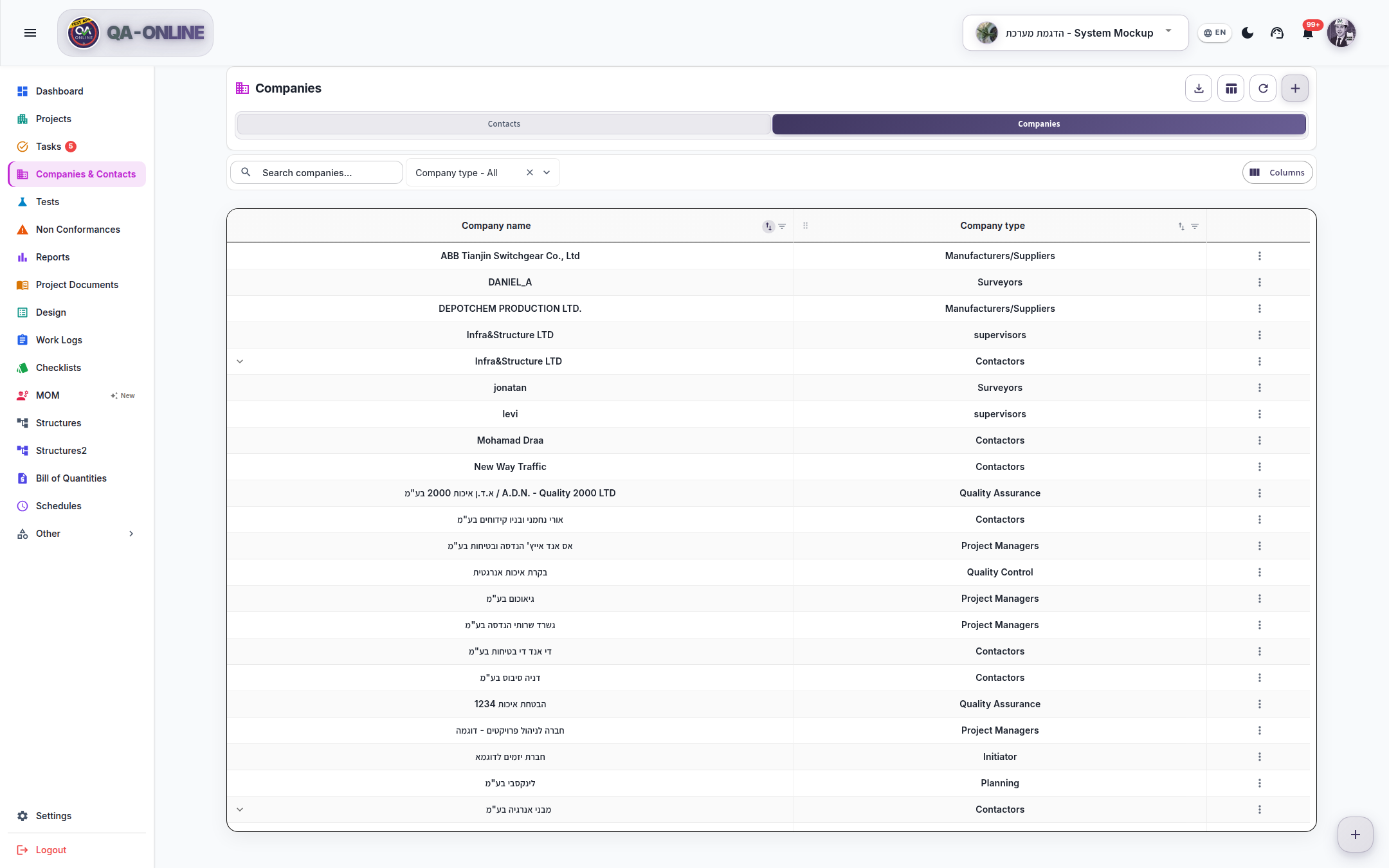
How to open the screen#
- Choose a project in the Project selector.
- In the side menu, click Companies & Contacts.
- At the top of the screen, choose a tab: Contacts or Companies. QA-Online remembers the last tab you chose.
| Tab | What you see |
|---|---|
| Companies | All the companies in the project, grouped by company type. This is where you add companies and contacts |
| Contacts | A single list of every contact from every company, for browsing and quick search |
How to add a company#
- On the Companies tab, click + (Add company) in the header. You can also click the add button inside a specific type group – the company type is then filled in for you.
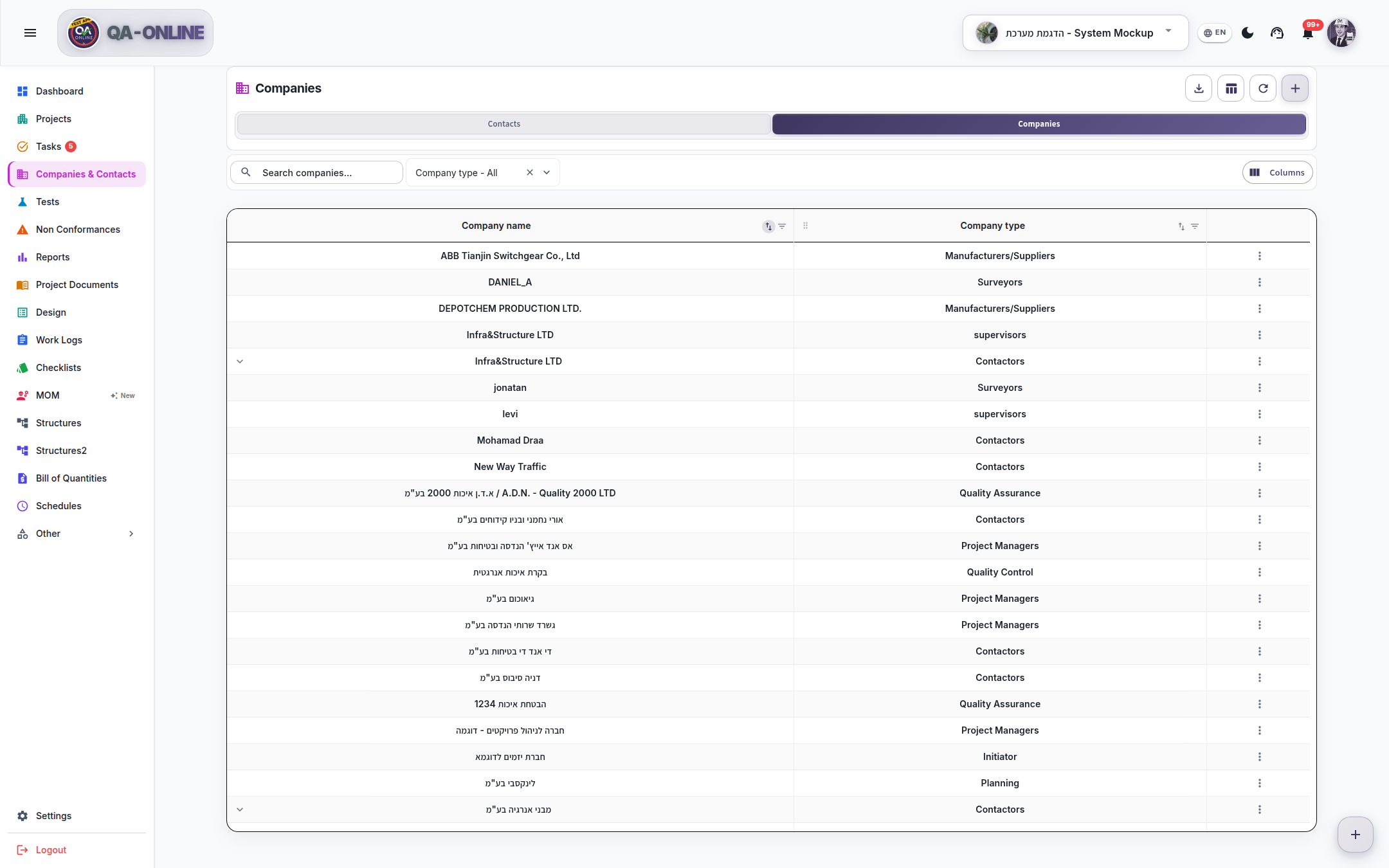
- The Add company window opens on the Company details tab. Enter a Supplier name.
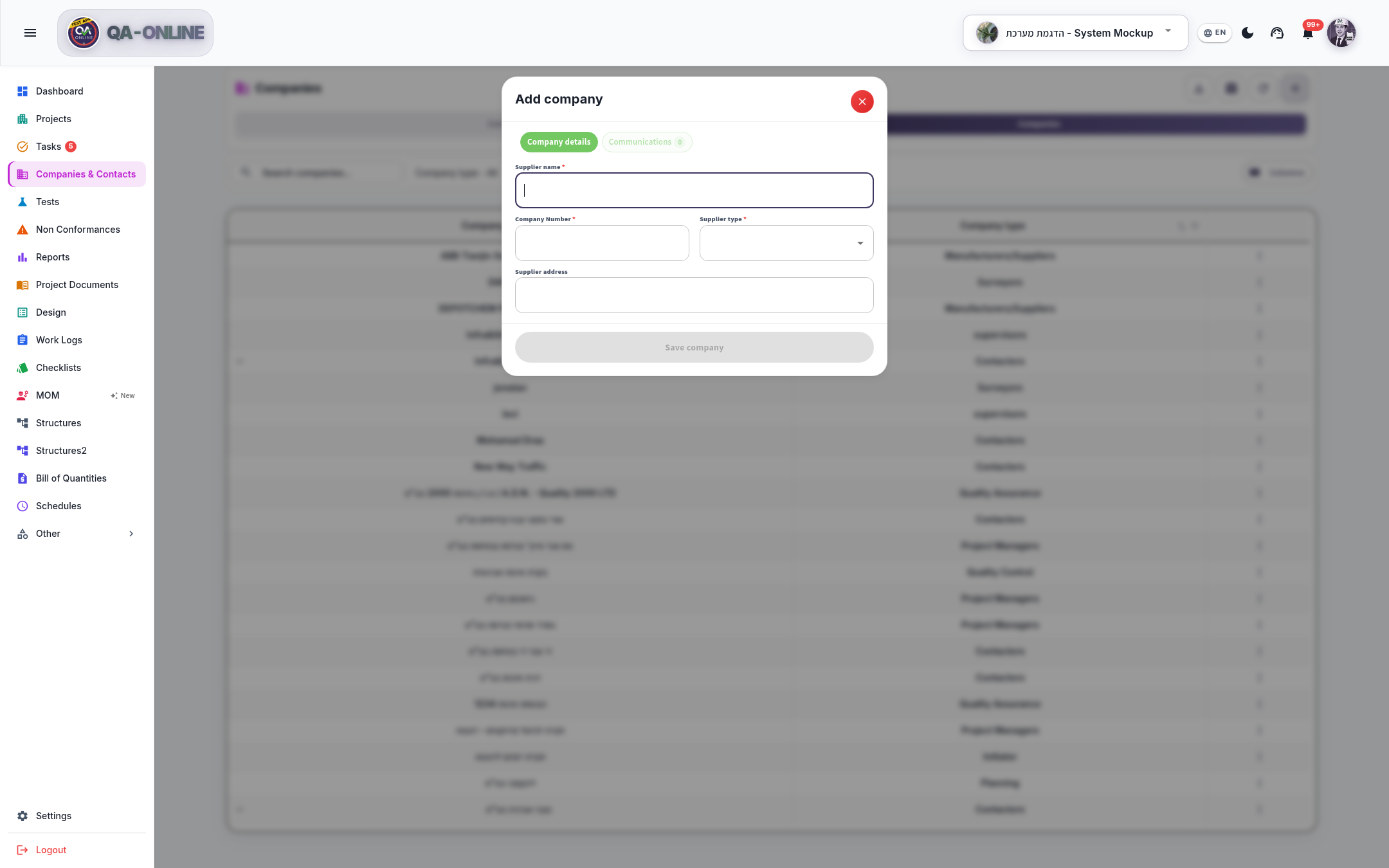
As you type, QA-Online searches and shows:
- Similar companies in the system – companies that already exist in QA-Online. If your company is in the list, click it. Its existing contacts are shown, and they’re linked to the project when you save.
- Official registry matches – companies from the Companies Registry. Selecting a result fills in the company number and the address.
Enter the Company Number (9 digits). If the number is found in the registry, you’ll see Verified with Israeli Companies Registry, and the name is filled in automatically.
Choose a Supplier type (for example, contractor, supplier, or consultant). Optional: enter a Supplier address.
On the Communications tab, click Add communication and add a phone, mobile, fax, or email. You can add each type once.
Click Save company.
On your phone#
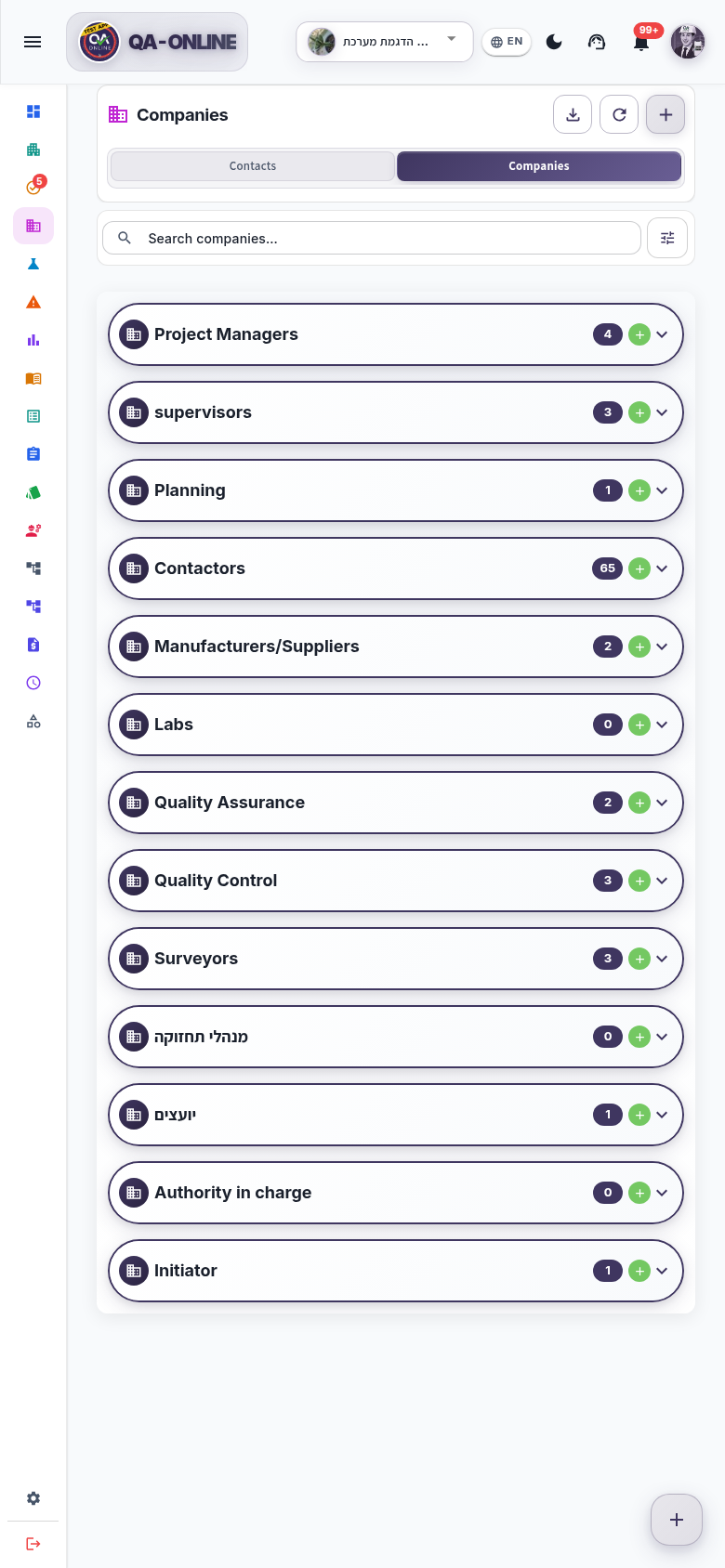
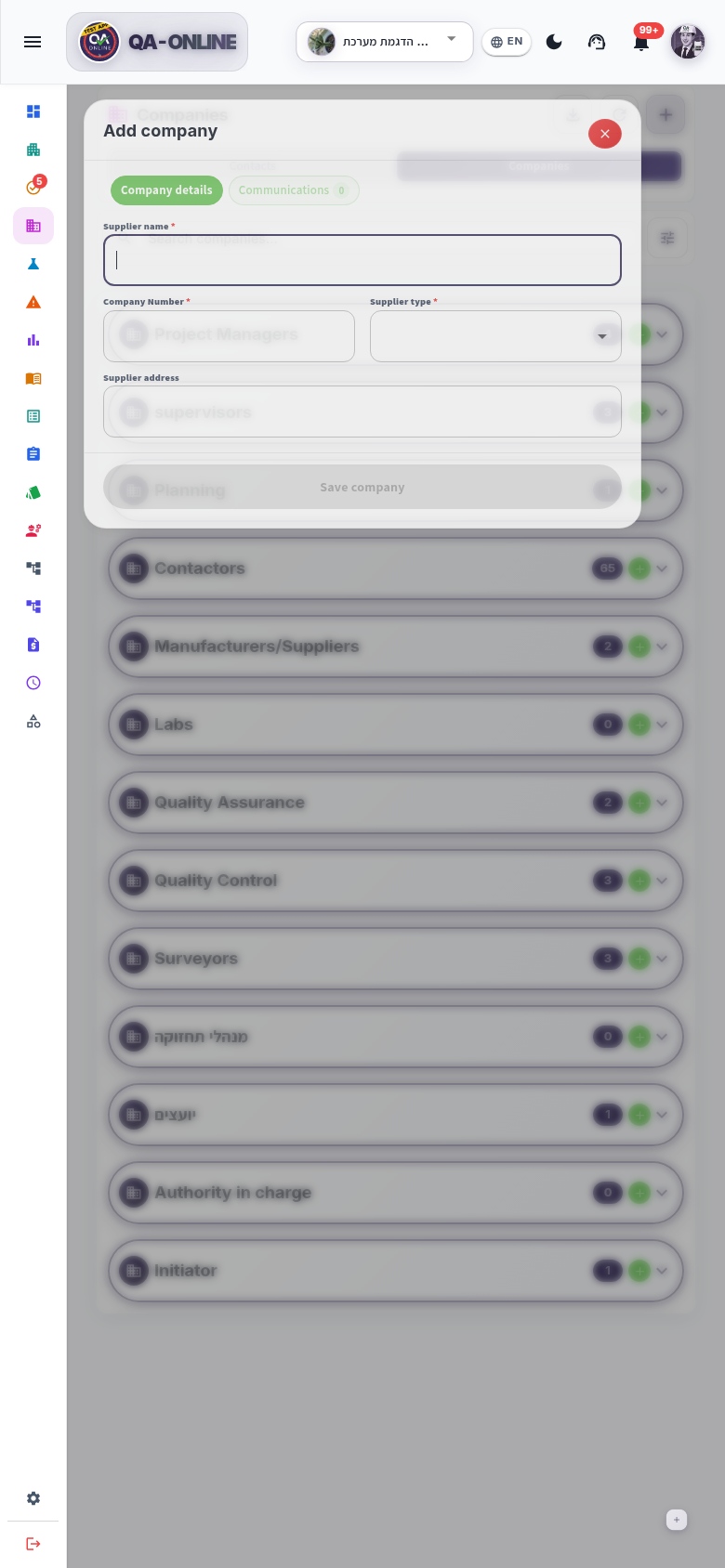
- Companies are shown as groups by type. Tap + at the top of the screen, or the green + in a group to have the company type filled in for you.
- The Add company window opens full screen. Fill in the fields and tap Save company at the bottom.
How to add a contact to a company#
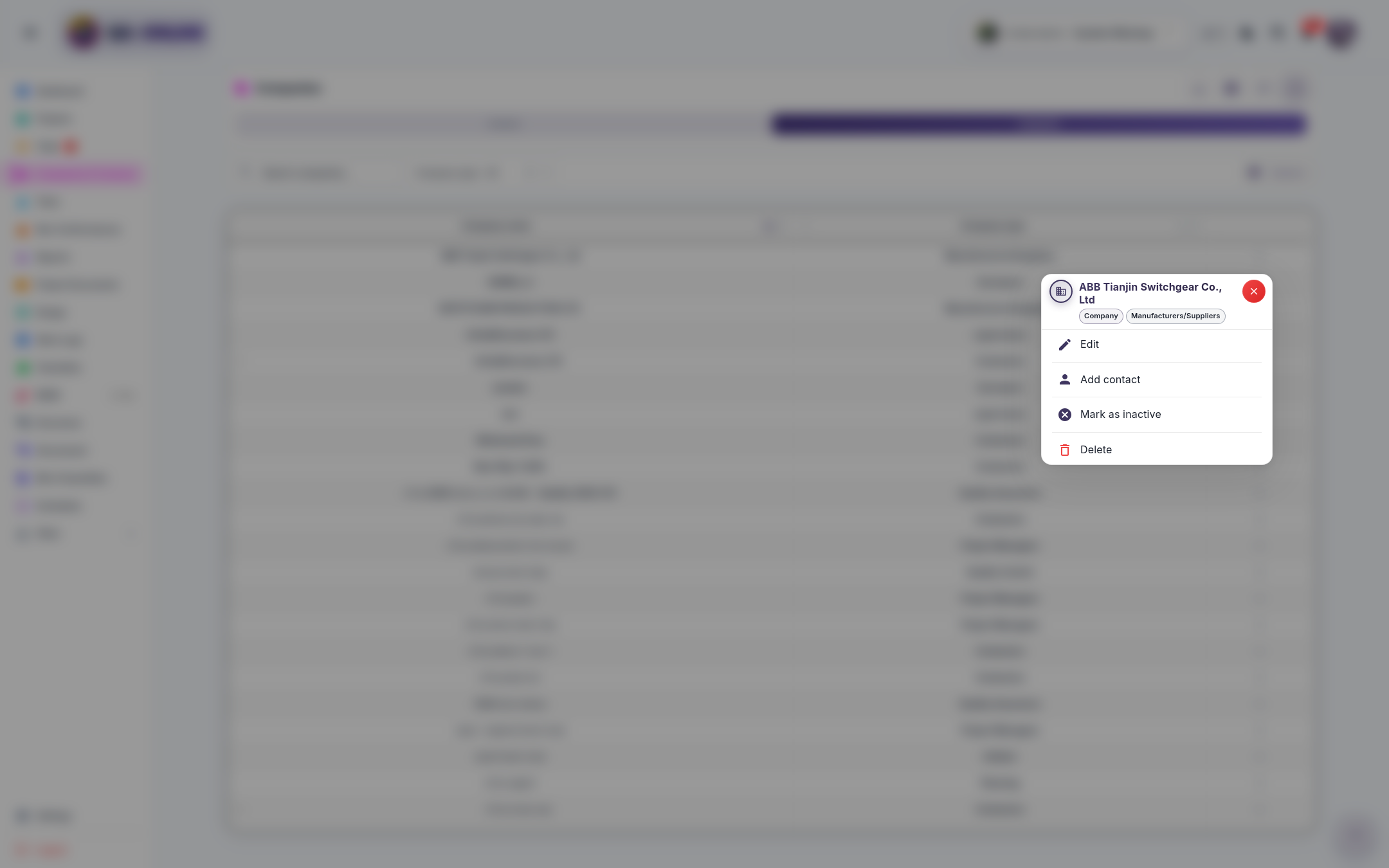
- On the Companies tab, open the company’s row menu (three dots) and choose Add contact.
- In the Add contact window, choose one of two options:
- Add new contact – fill in First name, Last name, Email, Phone, and Role. Optional: Role nickname.
- Add contact from pool – choose a Contact who’s already registered with the company in QA-Online, then choose a Role.
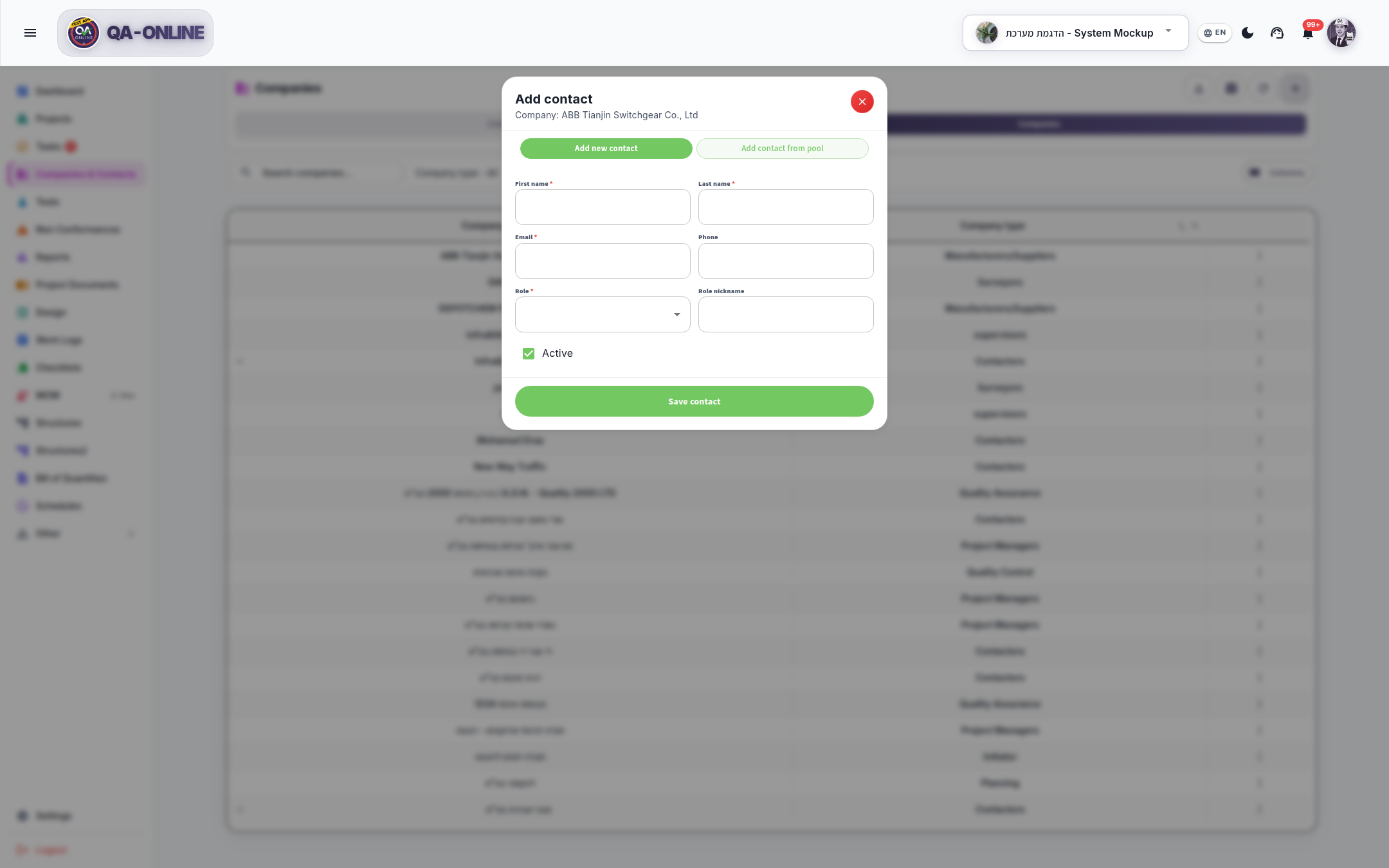
- Make sure the Active switch is on.
- Click Save contact.
On your phone#
Open the type group, open the options menu on the company card, and choose Add contact. The window opens full screen, and you continue as you would on a computer.
How to edit a company and change its logo#
- Open the company’s row menu and choose Edit (the first item in the menu shown in the screenshot above), or click Edit in the Company details window.
- In the Edit company window, update the details and the communications.
- To upload or replace the company logo, click Change logo and choose an image.
- Click Save changes.
The logo appears on the company card and in the Company details window. You can choose any image file.
On a phone: on the company card, open the options menu and choose Edit. The Edit company window opens full screen.
How to add a subcontractor#
A subcontractor is always linked to a main contractor in the project.
- On the Companies tab, find the contractor company.
- Open the row menu (three dots) and choose Add subcontractor.
- In the Add subcontractor window, check that the Contractor company is correct, and fill in Company Number, Supplier name, and Supplier address.
- Click Save subcontractor.
The contractor’s card shows the number of subcontractors. Expand the contractor to see them.
How to view company details#
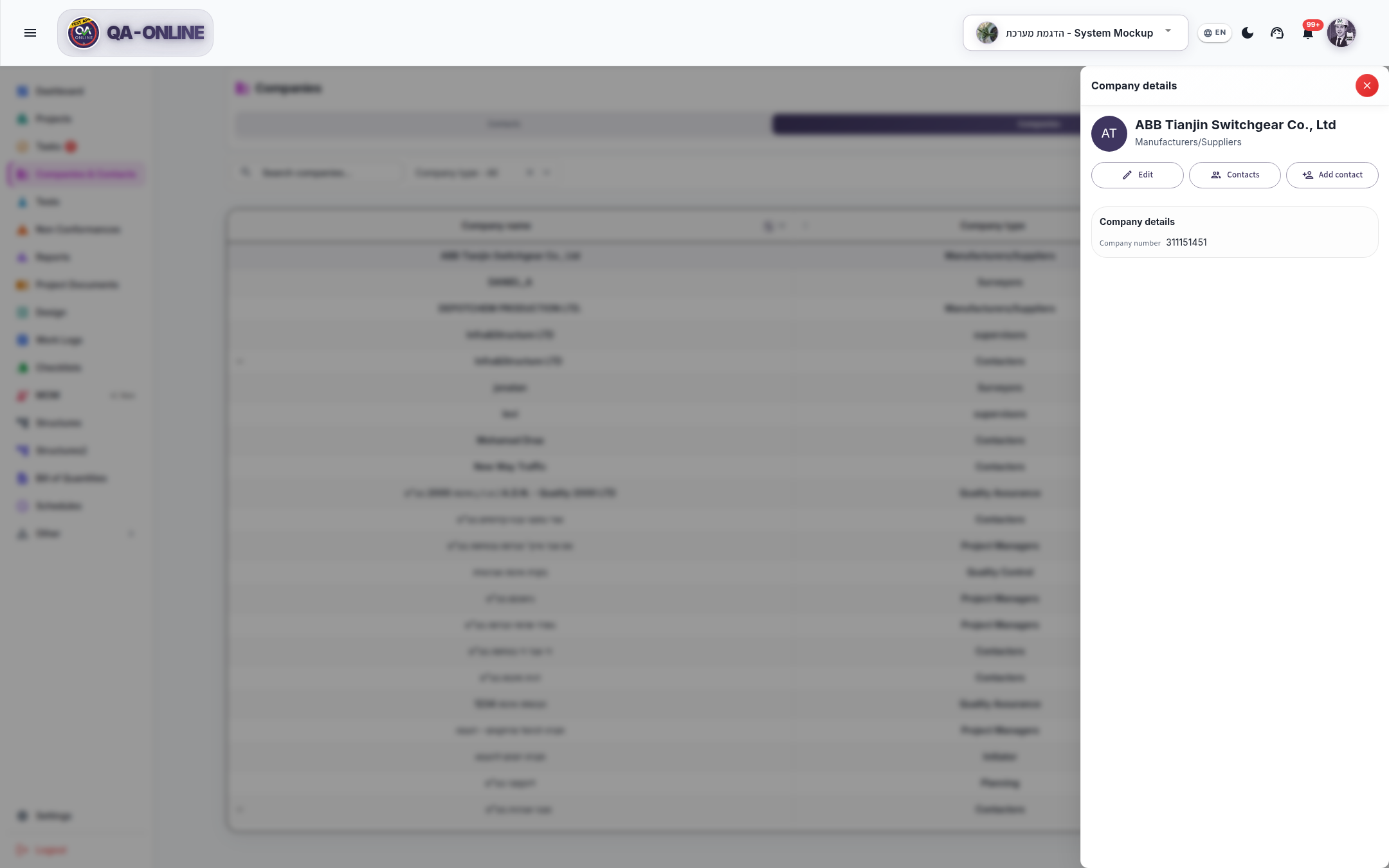
- Click the company name.
- The Company details window opens, with the logo, the company details, the contact methods, and the remarks.
- From here you can click Edit, Contacts, or Add contact.
How to view a company’s contacts#
- On the company’s card or row, click Contacts (the number in parentheses is the number of contacts).
- The company’s contacts open. You can search in the Search contacts field, filter by System user / Not a system user, and switch between Active and Inactive.
How to work with a contact#
Click a contact (on the Contacts tab or in a company’s contact list). The Contact details window opens.
| Action | Where |
|---|---|
| The envelope icon – opens a new email message | |
| Call | The phone icon – dials the mobile number |
| Edit | The pencil icon – opens Edit contact |
| Associate discipline | Under More actions – choose the contact’s professional disciplines |
| Communication means | Under More actions – update the contact’s communications |
| Create user | Under More actions – appears only if the contact doesn’t have a system user yet |
| Active contact | A switch – turning it off marks the contact as inactive |
| Delete | At the bottom of the window |
Click View company profile to go to the contact’s company.
The same actions are also available in the contact’s row menu (three dots): Edit, Associate discipline, Communications, Create user, Deactivate contact, and Delete.
If the phone or email doesn’t open#
In the phone app, if QA-Online can’t open your phone or mail app, it copies the details to the clipboard and shows Copied to clipboard:
- For a phone number: "Phone number copied. Open your phone app and paste it to dial."
- For an email: "Email copied. Open your mail app and paste it into a new message."
If copying fails too, you’ll see the message Could not open link – copy the address manually from the contact details.
How to create a user for a contact#
For a contact to be able to sign in to QA-Online, create a user for them:
- In the Contact details window, click More actions and choose Create user (or choose Create user in the row menu).
- In the User Creation window, fill in Username and Email.
- Choose a Default language (Hebrew or English).
- Choose a Permission group. It determines what the user can see and do.
- Optional: under Signature, drag in or choose an image of the user’s signature.
- Click Create user.
How to mark a company or contact as inactive#
When a company has finished working on the project, it’s better to mark it as inactive instead of deleting it. That way, the history is kept.
- Company: in the row menu, choose Mark as inactive. The company is hidden from the companies list.
- Contact: in the row menu, choose Deactivate contact, or turn off the Active contact switch in the details window. To bring the contact back, choose Activate contact.
How to delete#
- In the row menu, choose Delete.
- In the confirmation window, click Delete.
How to search and filter#
- Search: type in the search field (Search companies… or Search companies and contacts…).
- Companies: filter by Company type - All.
- Contacts: filter by Companies - All, Company type - All, Role - All, and System user - All.
- In table view, you can filter by the values in each column (Column filters) and sort (Sort by).
- To return to the full list, click Clear all filters.
How to switch views#
On a computer, you can switch between Cards and Table with the view button in the header. In card view, companies are grouped by company type.
How to export to Excel#
- Choose the tab you want to export: Contacts or Companies.
- Click the export icon in the header (Export to Excel).
- The file is prepared in the background and appears in the Downloads window. You can keep working in the meantime.
For more on downloading and previewing files, see Common tools.
On your phone#
- The view is always cards.
- The add button appears as a floating button at the bottom of the screen.
- Tapping Call or Email opens your phone or mail app. If that doesn’t work, see If the phone or email doesn’t open.
Frequently asked questions#
The company already exists in another project. Do I need to enter it again? No. Start typing its name in the Add company window and choose it from Similar companies in the system. Its contacts are linked to the project automatically.
Why doesn’t a contact appear in my list of signers or responsible people? Check that the contact is marked as active and has a suitable Role in the project. If the right role is missing, contact your system administrator.
What’s the difference between a contact and a user? A contact is a record with a name and contact details. A user is a contact who also has a username and permission to sign in to QA-Online.
I deleted a company by mistake. Can I restore it? A deletion can’t be undone, but you can link the company again: click Add company, type its name, and choose it from Similar companies in the system. Its contacts are linked to the project again, but you may need to set their roles again. Next time, use Mark as inactive instead.
See also#
- For organization administrators – managing users, permission groups, and roles.
- Non-conformances – choosing the responsible contractor from the project’s companies.
- Common tools – filtering, exporting, and copying a link.