
Tools, settings, and help
Using a phone or tablet
QA-Online adapts to your screen size. All modules are available on a phone too, with the same data and the same permissions as on a computer. What changes is the layout: menus open from the side or from the bottom, lists appear as cards, and actions move to a floating button or the three-dot menu.
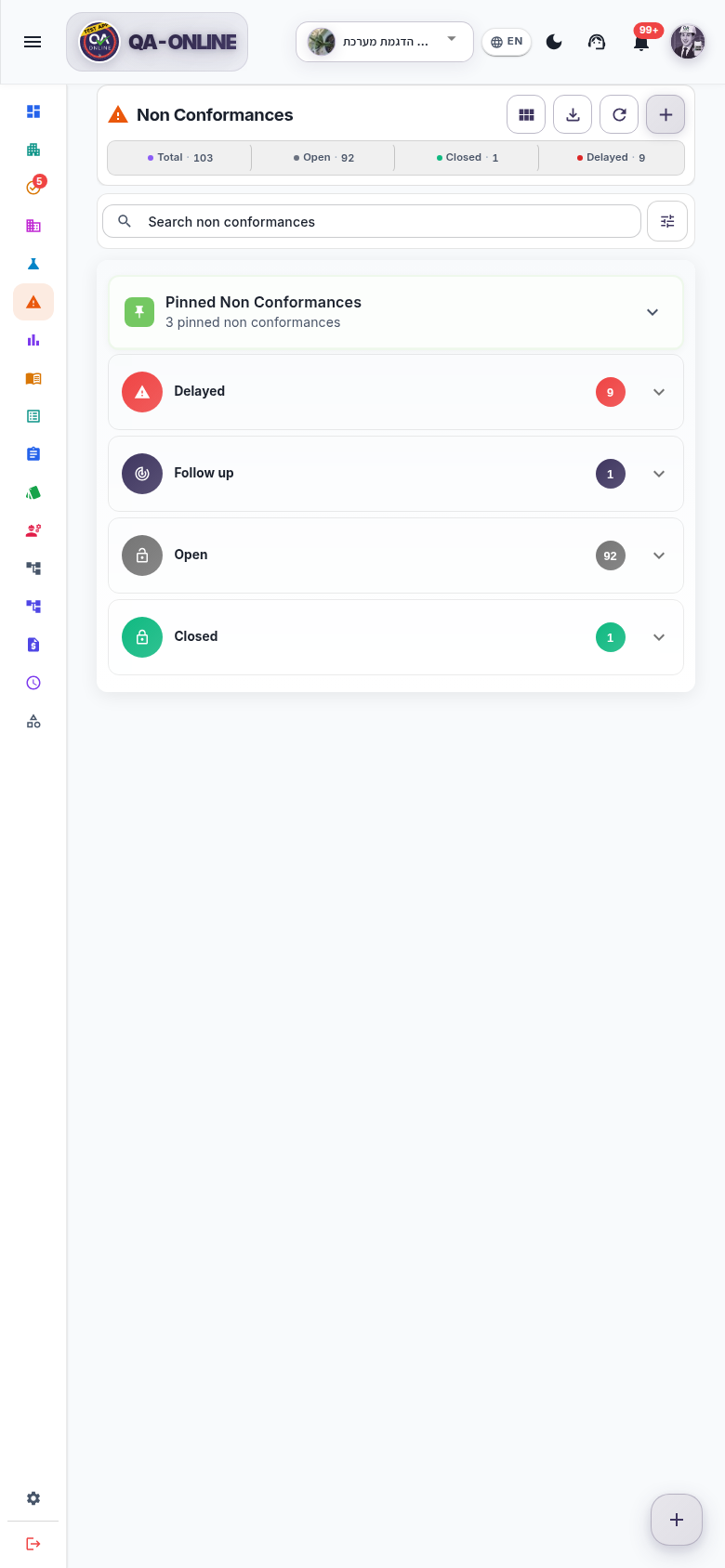
How to sign in from your phone#
There are two ways. Both show the same system, with the same username and password:
| Option | How to get started | What you get |
|---|---|---|
| The QA-Online app | Download the app from Google Play (Android) or the App Store (iPhone) and sign in. | Push notifications for new tasks, links to items that open directly in the app, file downloads, and adding tasks to your phone’s calendar. |
| Browser | Open the system’s address in your phone’s browser and sign in. | The same system, with no installation. |
The SMS verification code is suggested automatically above the keyboard, so you don’t need to copy it. For details, see Sign-in and account.
What’s different on a phone – in brief#
| Topic | On a computer | On a phone |
|---|---|---|
| Side menu | Open at the side of the screen; you can collapse it | Opens when you tap the menu button (three lines) and closes after you choose an item |
| Project selector | A drop-down menu | A sheet that slides up from the bottom; close it with Close or by dragging down |
| Notifications, support, language, and color mode | Icons in the top bar | Inside the user menu (your profile picture) |
| Creating a new item | The + button in the screen header | A floating + button in the corner of the screen |
| List view | Table, cards, or calendar | Cards or calendar (no table) |
| Filters | Visible above the list | Collapsed; open them with the filters button |
| Actions on several items at once | Select rows in the table | Available on a computer only (in Checklists – through the wizards on the floating button) |
| Detail window | A window in the center of the screen | Full screen; actions are in the three-dot menu (More options) |
| Copying a link | Copy link | Share – opens your phone’s share sheet |
How to create an item from the field#
- Open the module from the side menu, for example Non-conformances.
- Tap the floating + button in the corner of the screen.
- Fill in the first part of the form.
- Tap Next to move to the next part.
- In the last part, the button changes to Save. Tap it.
Phone screenshots for each module#
Every module has an On a phone section with screenshots of the list, the create window, and an open item:
- Checklists – creating, editing, and duplicating
- Non-conformances – creating and editing
- Tests – creating and editing
- Work logs – creating, editing, and duplicating
- Project documents – creating, editing, and duplicating
- Field reports – creating, editing, and duplicating
- Tasks – creating and handling
- Companies and contacts – adding a company and a contact
Taking photos and attaching files#
- In the item, tap the area for adding files (for example, Add files or Attach file).
- In your phone’s dialog, choose Camera to take a photo now, or Gallery / Files to pick an existing file.
- If you want to mark up the image, tap Edit image.
- Tap Upload.
Large images are reduced automatically before uploading, so uploads stay fast even on a cellular network. In the image editor, you can pinch to zoom. For details, see Common tools.
Dictating instead of typing#
To write a long description without typing, tap the text field and then the microphone icon on your phone’s keyboard. Speak, and the text is entered in the field. Review and correct it before you save. For details, see Common tools.
Tasks and notifications on your phone#
- The Tasks screen shows Incoming / Outgoing at full width, and the Active / Done tabs above the cards.
- Tapping the task title opens the document. Tapping the details row opens its progress.
- The bell is in the user menu, and the number of unread notifications is shown on your profile picture.
- Add to calendar opens your phone’s calendar app.
For details, see Tasks and approvals.
Push notifications#
- In the app – when a new task is sent to you, you get a notification on your phone. Tap Go to Task to open it, or All Tasks to go to the Tasks screen. If the task is in another project, the app switches to the right project.
- In a browser – after you sign in, the browser asks whether to allow notifications. If you allow them, you’ll get a notification about a new task even when the tab is in the background. Some phone browsers don’t support this.
Modules with special behavior on a phone#
- Dashboard – the sections appear as tabs at the top of the screen: Analytics | Attention | Overview.
- Checklists – the detail and step windows open full screen. Save Step and Sign Step sit side by side at the bottom. The floating + button also opens the wizards for bulk actions.
- Work Logs, Project Documents, and Field reports – table rows appear as cards. Tap a card to open Edit row.
- Reports – category navigation opens with the Browse button. Filters are collapsed, and wide tables scroll sideways.
- Design – PDF, DWG, and PLT drawings open directly on your phone, with pinch to zoom.
- Structures – the tree appears as cards, one level at a time, with a breadcrumb trail at the top of the screen.
- Companies & Contacts – Call and Email open your phone dialer or email app.
- Support Center – New request is a wide button at the bottom of the screen, and you can attach a photo straight from the camera.
Working with a weak signal#
QA-Online works against the server, so you need an internet connection to save and load data.
- If the connection drops while the system is opening, the Connection problem screen appears. Check your signal and click Try again.
- If a save fails, don’t close the window. Wait for a better signal and click Save again.
- Before you go down to a basement or an area with no signal, save what you’ve already filled in.
For details about the connection screens, see Sign-in and account.
Tablet#
On a tablet, the system looks like it does on a computer, with a collapsible side menu and notifications in the top bar. When you hold a narrow tablet upright, some screens switch to the phone layout. In Checklists, the tablet also shows the Advanced Actions panel.
FAQ#
Do I need to install an app? Not necessarily. The browser shows the same system. The app adds push notifications and direct opening of links.
I don’t see a table on my phone. How do I select several items at once? Actions on several items at once are available on a computer. In Checklists, you can use the wizards on the floating + button.
Where’s the bell on a phone? In the user menu. Tap your profile picture in the corner of the header.
How do I send a colleague a link to an item from my phone? Open the item and tap Share. Choose WhatsApp, email, or any other app.
My browser won’t let me take a photo. Allow the browser (or the app) to use the camera in your phone’s settings, and try again.
See also#
- Sign-in and account – signing in, the SMS code, and connection problems.
- Getting to know the screen and navigation – the side menu, lists, and the detail window.
- Common tools – attaching photos, the image editor, and voice typing.
- Tasks and approvals – handling the tasks that come to you.