
Getting started
Sign-in and account
This chapter covers everything that happens before you reach the Dashboard: signing in with a username and password, the SMS verification code, temporary and forgotten passwords, requesting access as a new user, accepting the terms of use, and what happens when your connection or session is interrupted.
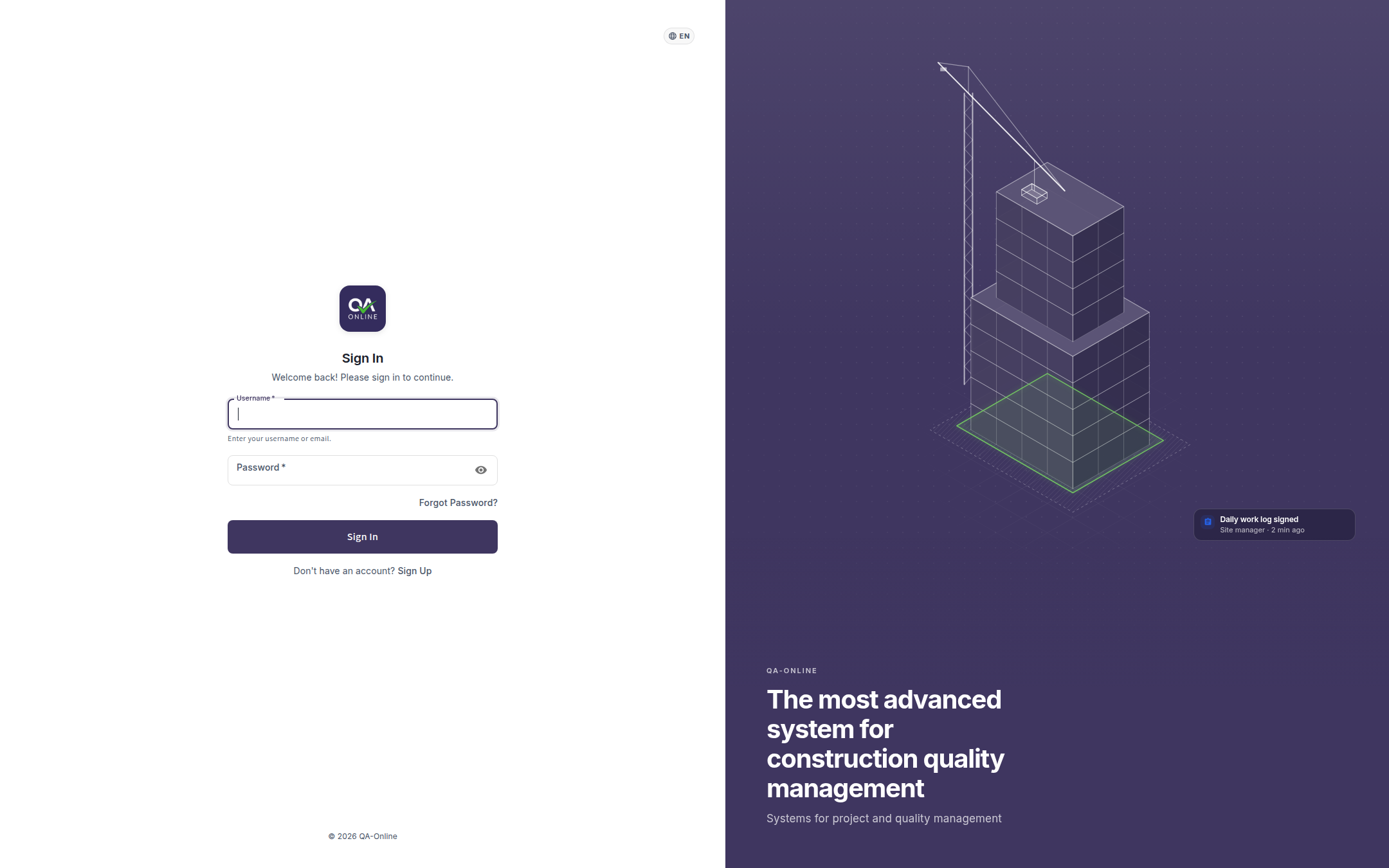
How to sign in#
- Open the QA-Online address in your browser, or open the QA-Online app on your phone.
- In the Username field, enter the username you were given or your email address.
- In the Password field, enter your password.
- Click Sign In.
If your account is protected with two-step verification, the Verify your identity screen appears (see below). Otherwise, you go straight to the Dashboard.
Change the language on the sign-in screen#
At the top corner of the sign-in screen there's a language selector. Choose Hebrew (עברית), English, Arabic (العربية), Spanish (Español), or Russian (Русский). The system remembers your choice for next time.
Common sign-in error messages#
| Message | What to do |
|---|---|
| Invalid username or password | Check your keyboard language and Caps Lock. If you forgot your password, see How to reset a forgotten password. |
| Username must be at least 3 characters long | Complete the username. |
| Password must be at least 6 characters long | The password you entered is too short. |
| Connection issue. Please try again. or Network error. Please try again | Check your internet connection and try again. |
How to verify your sign-in with an SMS code#
For accounts with two-step verification, a 6-digit code is sent to your phone after you enter your password.
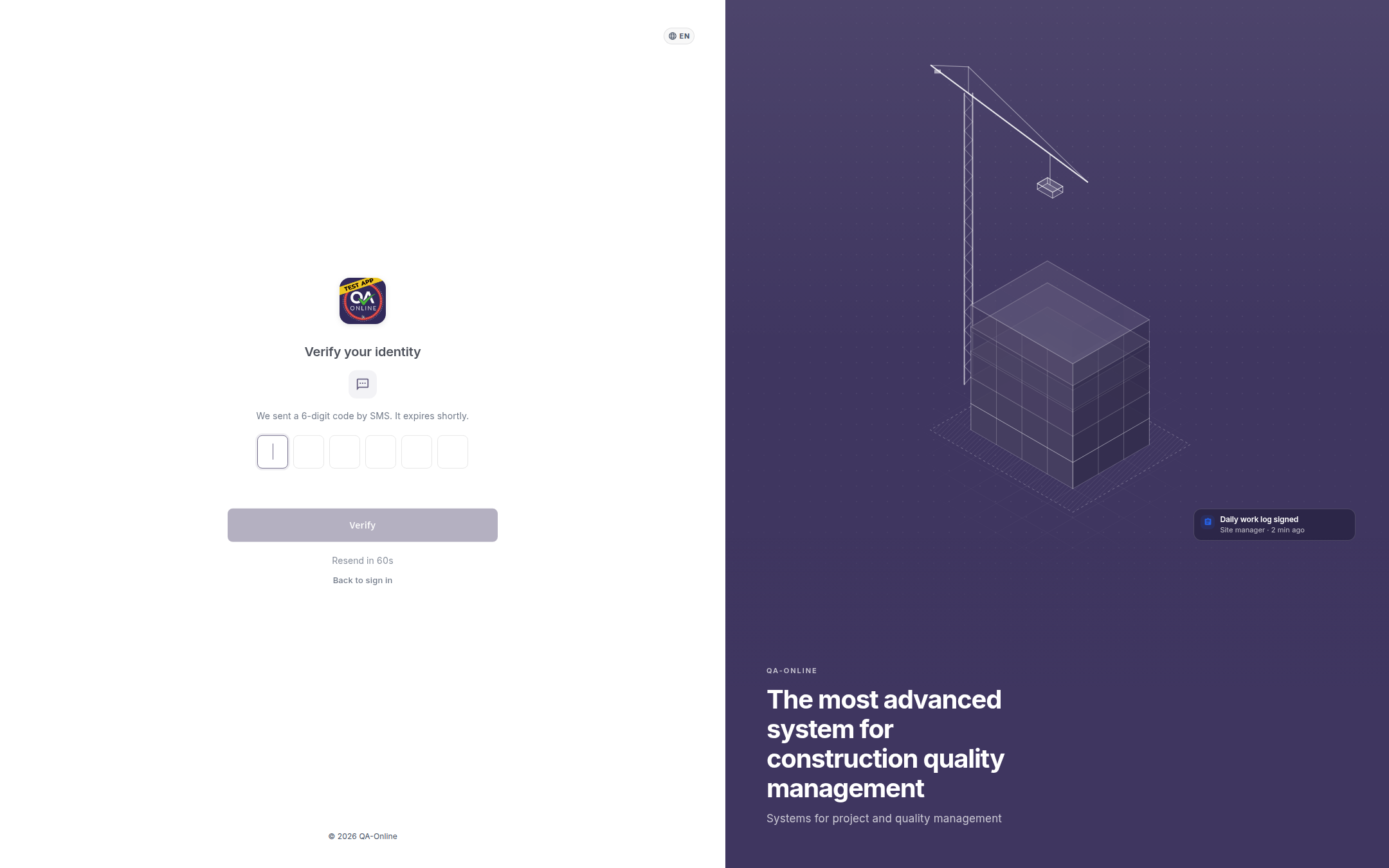
- On the Verify your identity screen, enter the 6 digits from the SMS message.
- Once all 6 digits are filled in, the code is checked automatically. You can also click Verify.
- If the code is correct, you go to the Dashboard.
Didn't get a code?#
- Wait for the Resend in …s countdown to finish (one minute).
- Click Resend code. A new code is sent by SMS.
- Enter the latest code you received.
If you reached this screen by mistake, or you want to sign in with a different user, click Back to sign in.
Incorrect code and temporary lock#
- After an incorrect code, you'll see That code is incorrect or expired. and, below it, the number of attempts left (for example, 2 attempts left).
- After 3 incorrect codes, the screen is locked for 5 minutes. You'll see Too many incorrect codes with a countdown (Try again in 4:59), and the button shows Temporarily locked.
- While the screen is locked, you can't request a new code (Resend unavailable while locked). When the countdown ends, you can try again.
How to change a temporary password#
You get a temporary password when a system administrator creates a new account for you, or by email after a password reset. When you sign in with a temporary password, the system requires you to choose a permanent one before you continue.
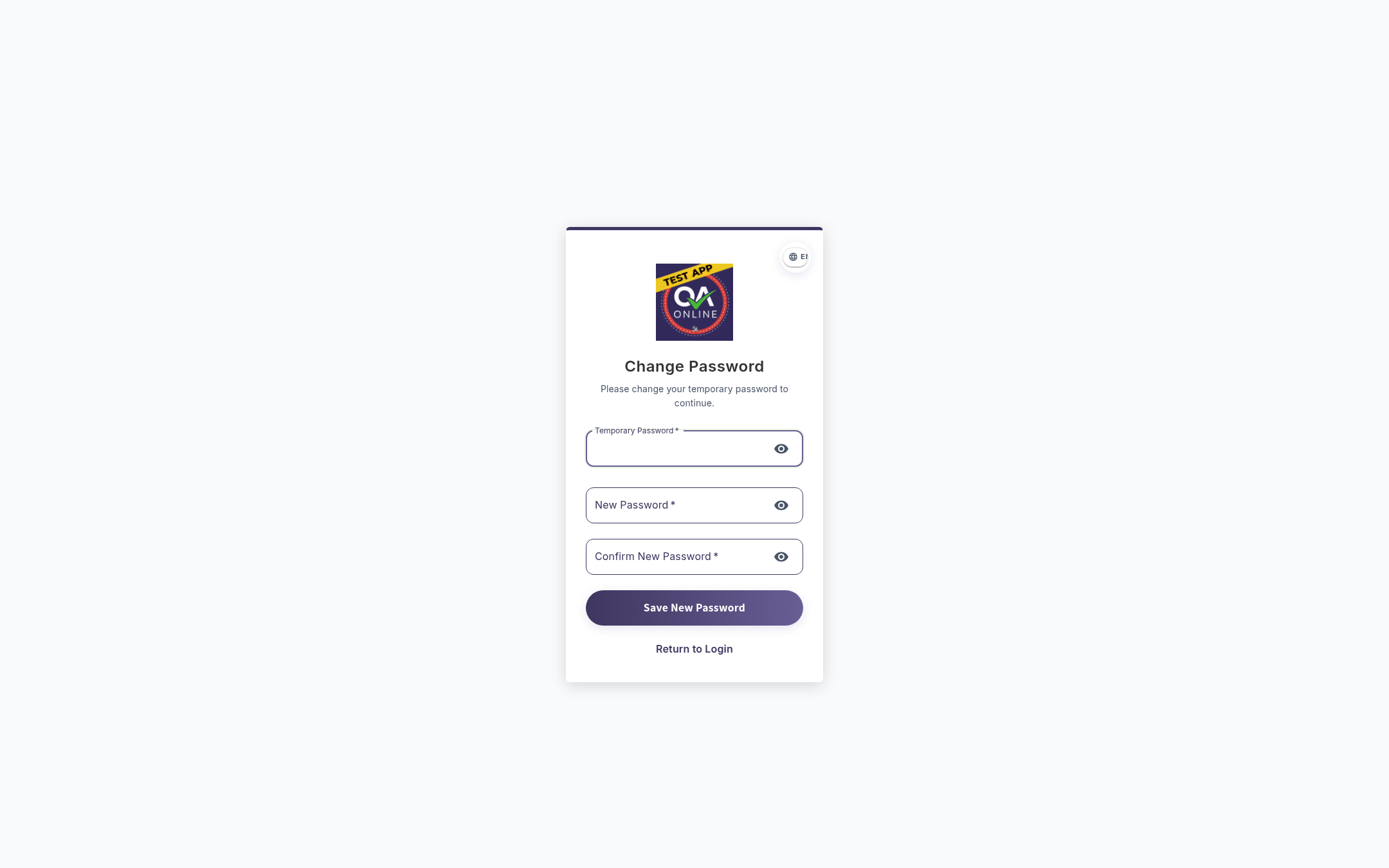
- Sign in as usual with your username and the temporary password. If an SMS code is required, enter it.
- You'll see the message Temporary password detected. Please change your password. and the Change Password card.
- In the New Password field, enter a new password – at least 6 characters.
- In the Confirm New Password field, type it again exactly.
- Click Change Password.
- You'll see the message Password changed successfully! Redirecting to dashboard... and the system signs you in with your new password.
If your account is protected with two-step verification, a new SMS code is sent after you change your password. Enter it to complete sign-in.
- If you see Passwords do not match, type the same password again in both fields.
- If you see Password changed successfully, but automatic login failed. Please login manually., your new password has already been saved. After a few seconds you'll return to the sign-in screen. Sign in with your new password.
How to reset a forgotten password#
Resetting your password sends you a temporary password by email. You sign in with it and immediately choose a new password.
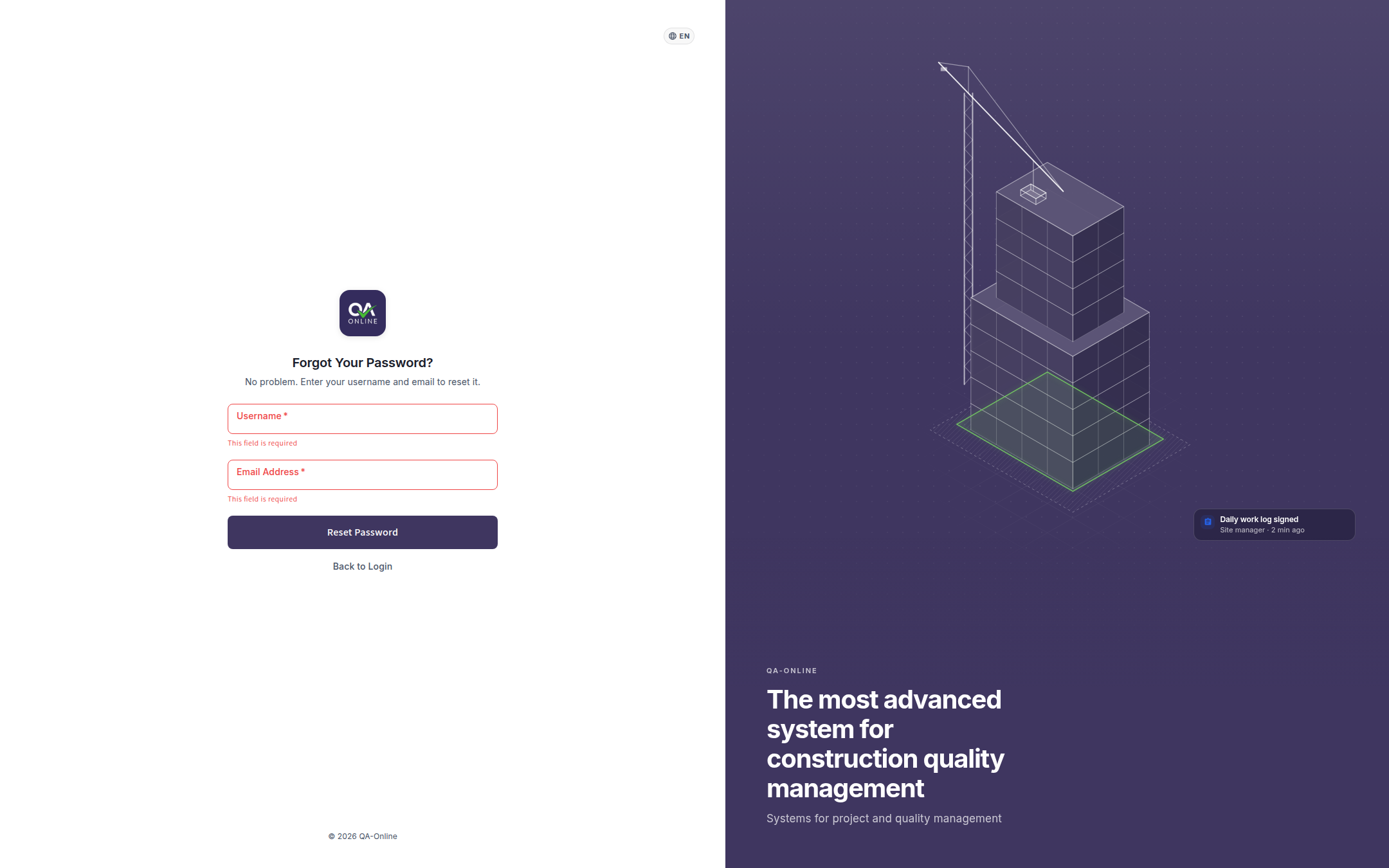
- On the sign-in screen, click Forgot Password?.
- On the Forgot Your Password? card, in the Username field, enter your username.
- In the Email Address field, enter the email address saved on your account.
- Click Reset Password.
- A success message appears, and after a few seconds you return to the sign-in screen.
- Open the email and copy the temporary password.
- Sign in with your username and the temporary password.
- Choose a new password, as described in How to change a temporary password.
To go back to the sign-in screen without resetting, click Back to Login.
How to change your password while signed in#
There's no screen for changing a password while you're signed in. To set a new password, sign out and use password reset, or ask your organization's system administrator to reset it for you. See also Settings.
How to request access#
Users don't create their own accounts. The form on the sign-in screen sends a request to the QA-Online team, who get back to you to set up your account.
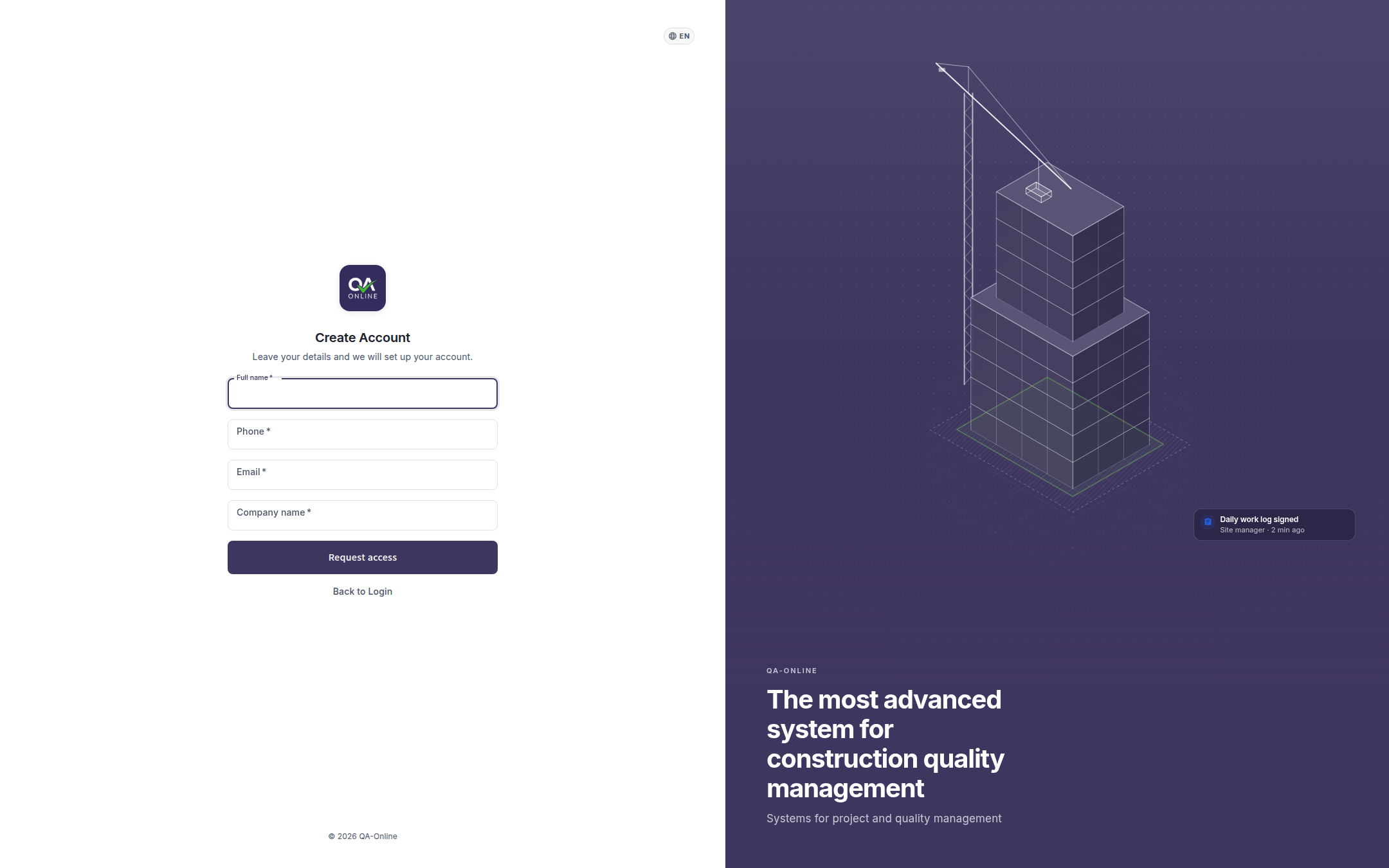
- On the sign-in screen, next to Don't have an account?, click Sign Up.
- On the Create Account card, fill in Full name, Phone, Email, and Company name. All fields are required.
- Click Request access.
- You'll see the message Thanks - we received your request and will be in touch shortly. and return to the sign-in screen.
Accepting the terms of use#
The first time you sign in, and whenever the terms are updated, a Terms of use window opens. You can't continue working until you accept it.
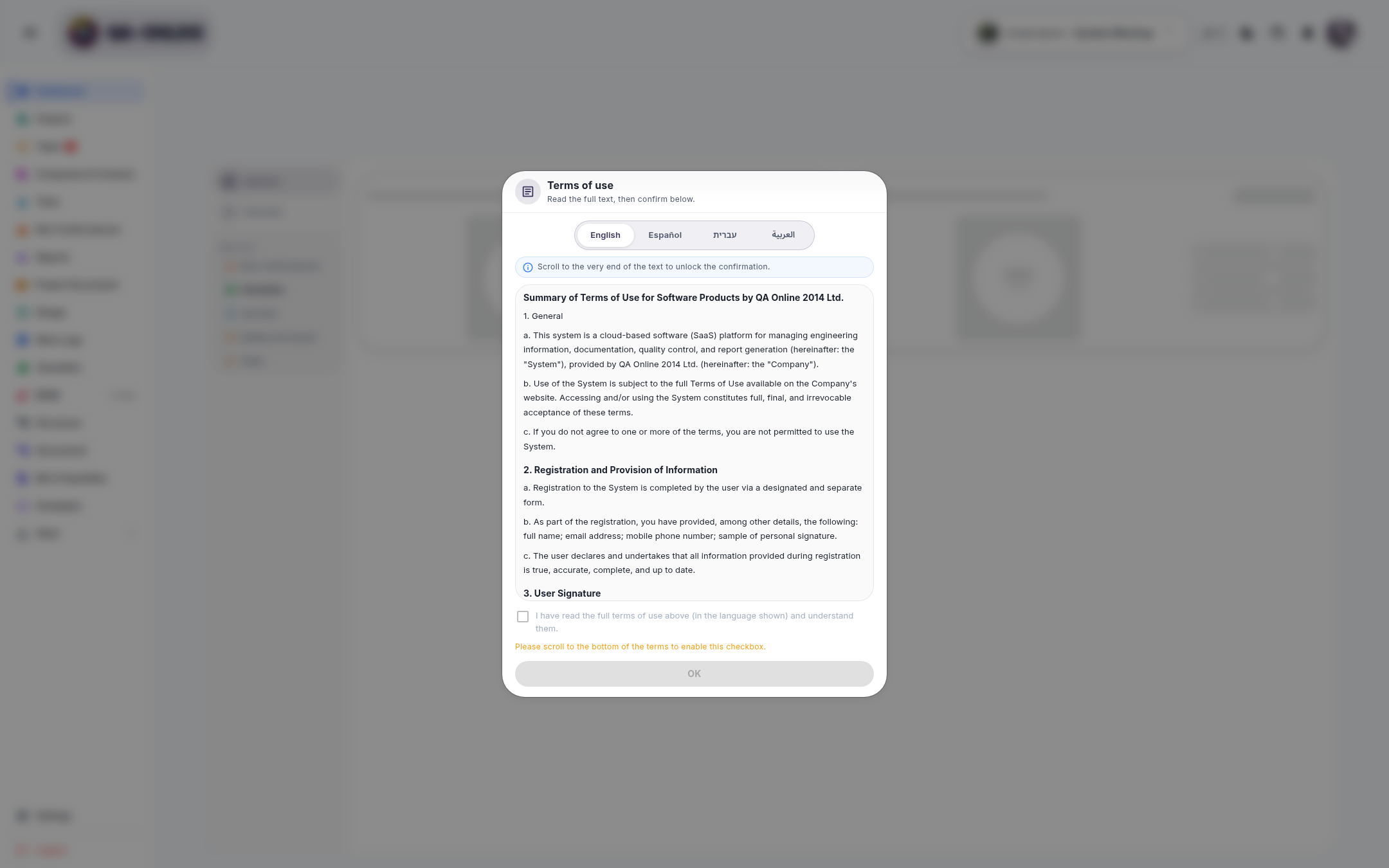
- At the top of the window, choose the document language: Hebrew (עברית), English, Arabic (العربية), or Spanish (Español).
- Scroll to the end of the text. Until you do, you'll see the instruction Scroll to the very end of the text to unlock the confirmation.
- Select I have read the full terms of use above (in the language shown) and understand them.
- Click OK.
If you see Could not save your acceptance. Please try again., check your connection and click OK again.
What happens when your session expires#
Your session renews itself while you work. If it ends anyway (for example, after a long time when the system wasn't open), you'll be asked to sign in again.
- In the middle of work – the system takes you to the sign-in screen, with no additional message. After you sign in again, you'll land on the Dashboard, not on the screen you were on.
- When you open the system – if your previous session is no longer valid, the Your session has expired screen appears. Click Sign in again and sign in.
- When you open a link to an item – after you sign in again, the item opens.
Loading screens and connection problems#
While the system starts up, a loading screen appears (Loading your workspace…, Restoring your session…). It takes a few seconds. If something is delayed, one of the following screens appears:
| Screen title | What happened | What to do |
|---|---|---|
| Your session has expired | Your previous session is no longer valid. | Click Sign in again and sign in. |
| Restoring your session | The system is reconnecting to your account. | Wait a moment. If it continues, click Try again. |
| Connection problem | There's no stable internet connection. Your saved data is still on the device. | Check your connection and click Try again, or continue in limited mode. |
| Can't connect right now | Startup is taking longer than expected. | Check your connection and click Try again. |
- On the Restoring your session, Connection problem, and Can't connect right now screens, the system retries on its own and shows a countdown. You can stop the automatic retry. The countdown and the stop button currently appear in English (Retrying automatically in …s, Stop auto-retry).
- When there's no internet at all, you'll see Waiting for your connection to come back…. When the connection returns, the system continues on its own.
- If you've already worked on this device, a button to continue in limited mode also appears (its label currently appears in English: Continue (limited)). In this mode you'll see data saved on the device, but some of it may be out of date.
How to sign out#
- Click your profile picture (or your initials) in the corner of the top header.
- At the bottom of the menu, click Logout.
You can also sign out from the bottom of the side menu, with Logout. Signing out is immediate, and there's no confirmation window.
Deleting your account#
You send a request to delete your account from Settings. The full explanation is in Settings.
Frequently asked questions#
I forgot my username too. What do I do? Try signing in with your email address instead of your username. If that doesn't work, contact your organization's system administrator.
I got "Temporarily locked" after incorrect codes. How long do I wait? 5 minutes. The countdown appears on the screen, and after it ends you can try again or request a new code.
I changed my phone number. How do I get the SMS code? Your number is saved in your contact details in the system. Ask your organization's system administrator to update it.
I sent an access request. When can I sign in? The QA-Online team will contact you by phone or email with your sign-in details. The first time you sign in, you'll be asked to change the temporary password.
See also#
- Quick start – what to do after your first sign-in.
- Settings – profile, language, signature, and account deletion.
- Using QA-Online on a phone or tablet – signing in from the browser or the app.
- FAQ and troubleshooting – sign-in and connection problems.