
Daily work
Tasks and approvals
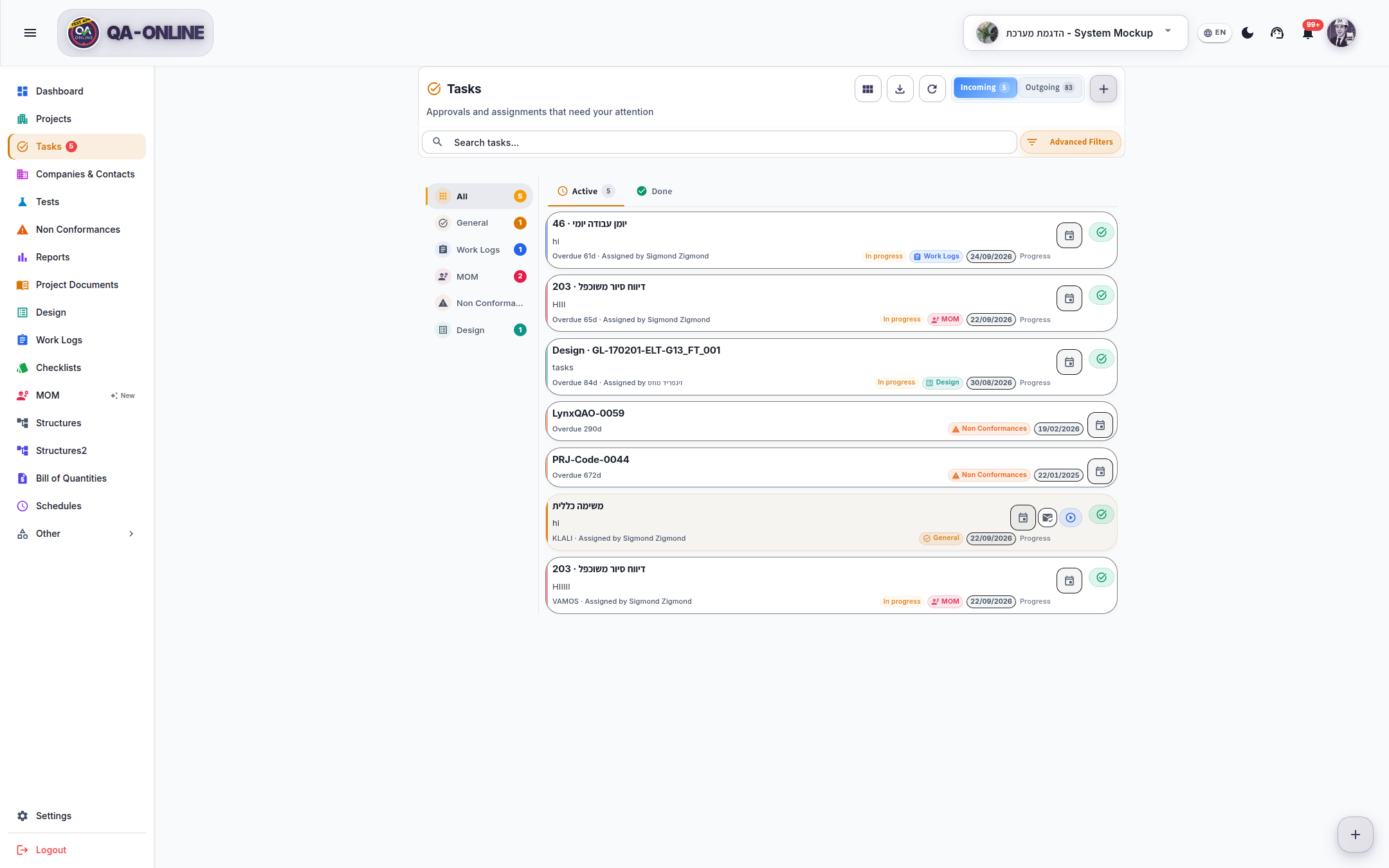
When someone passes a document to you for approval, assigns you a checklist step, or opens a task for you, the item appears on the Tasks screen. From here, you open the document, handle it, and follow its progress. The screen is for everyone who works on the project: inspectors, site managers, quality managers, contractors, and consultants.
What an approval is and how it reaches you#
Many documents in QA-Online go through an approval process: a sequence of steps, where each step belongs to a person or a role. For example, the site manager fills in a work log, the inspector approves it, and the project manager signs at the end. In checklists, each step is an inspection that needs a signature.
When it's your turn, a task is created for you. It appears on the Tasks screen, on the Dashboard under Requires your attention, and in a pop-up window (or as a notification on your phone).
How to approve or return a step#
The exact steps differ in each module, but the principle is the same:
- On the Tasks screen, click the task's title. The document opens directly at your step.
- Review the content, the files, and the comments from earlier steps.
- In the step window, choose the right action – for example, approve, or return to the previous step for correction. The names of the actions are set in your organization's settings.
- Add a response or a comment if needed, and sign if a signature is required.
- Save.
What happens next:
- You approved – the document moves to the next step, and the person responsible for it gets a new task.
- You returned – the task goes back to the person who handled the previous step, and Step returned is recorded in the task's history.
- Your task closes. In project documents, work logs, and field reports, it closes automatically after you respond. In checklists, it closes when you sign the step. A regular save without a signature doesn't close the task.
Full instructions for each module are in its own chapter: Checklists, Non-conformances, Tests, Work logs, Project documents, Field reports.
How to create a new task#
You can open a task for any contact in the project – either a general task or a task related to a specific item.
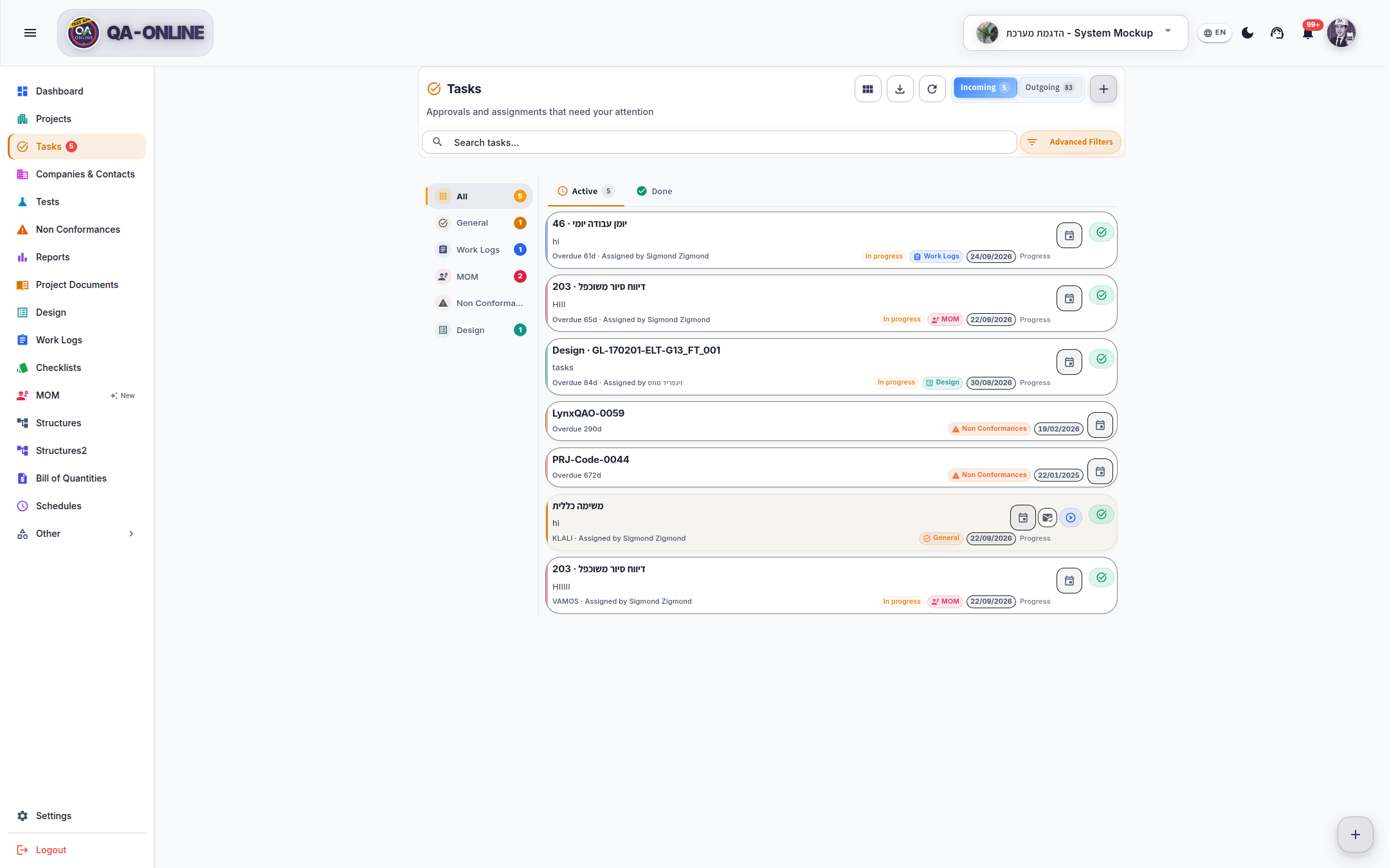
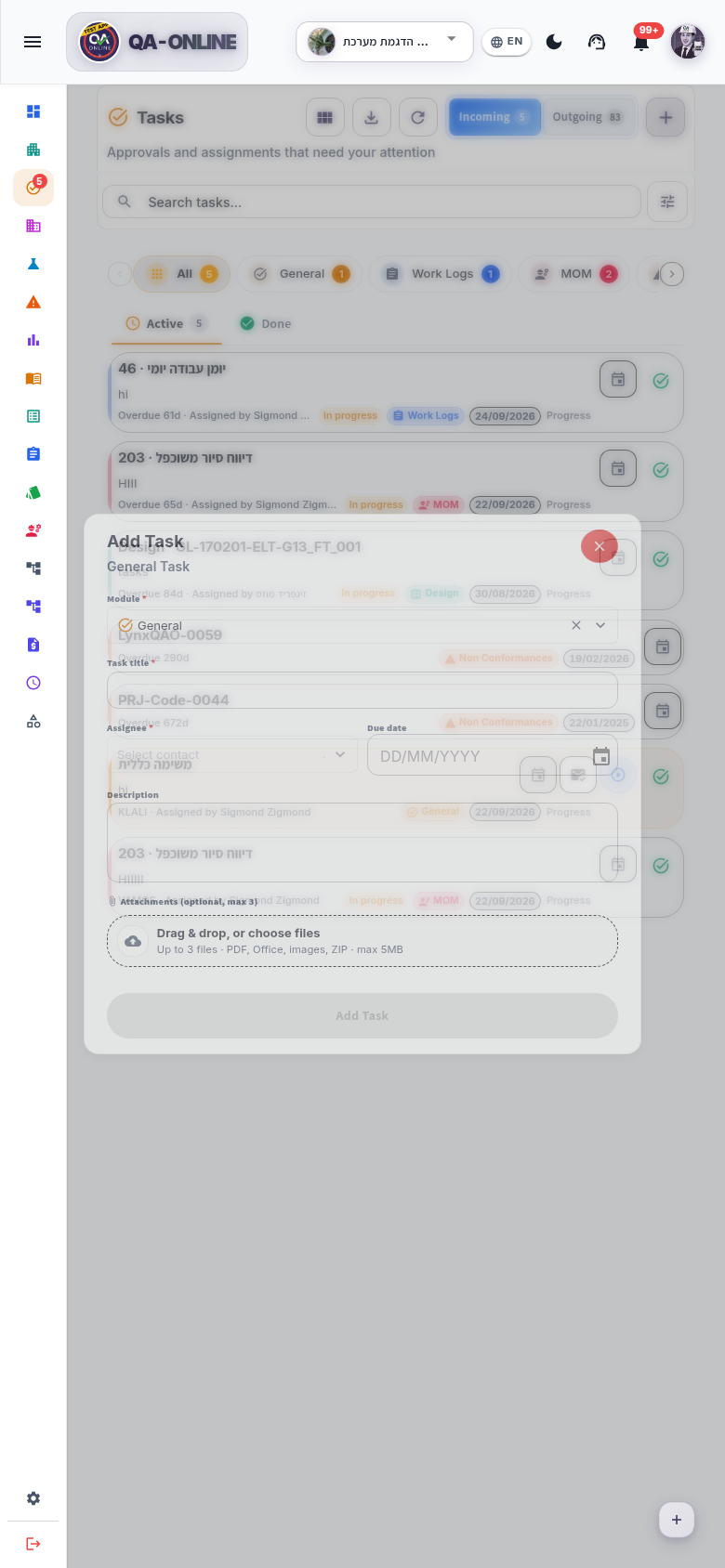
- In the side menu, click Tasks, and in the screen header, click + (Add task). You can also use the floating button in the corner of the screen.
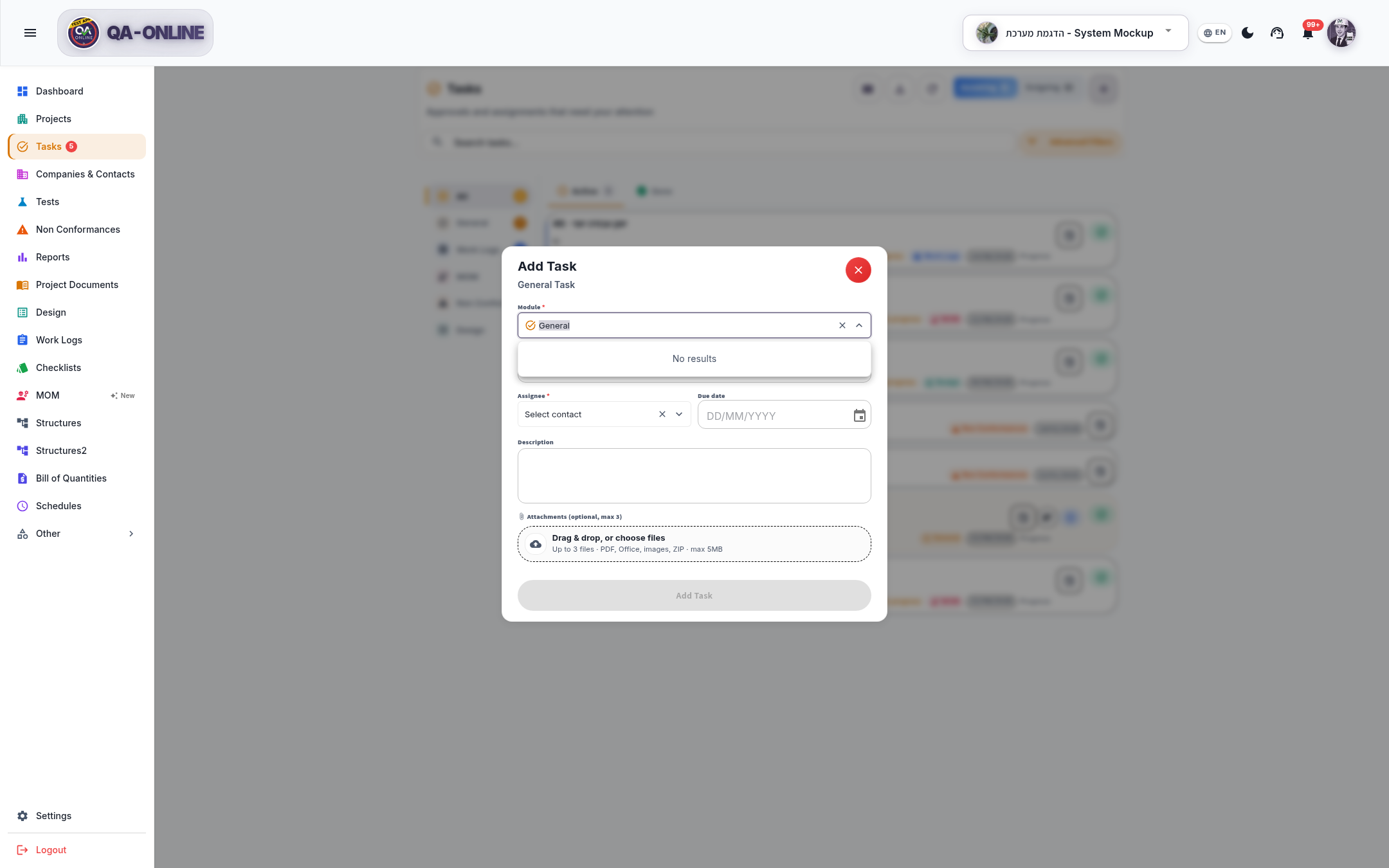
- The Add task window opens. In Module, leave General Task, or choose a module to link the task to a specific item.
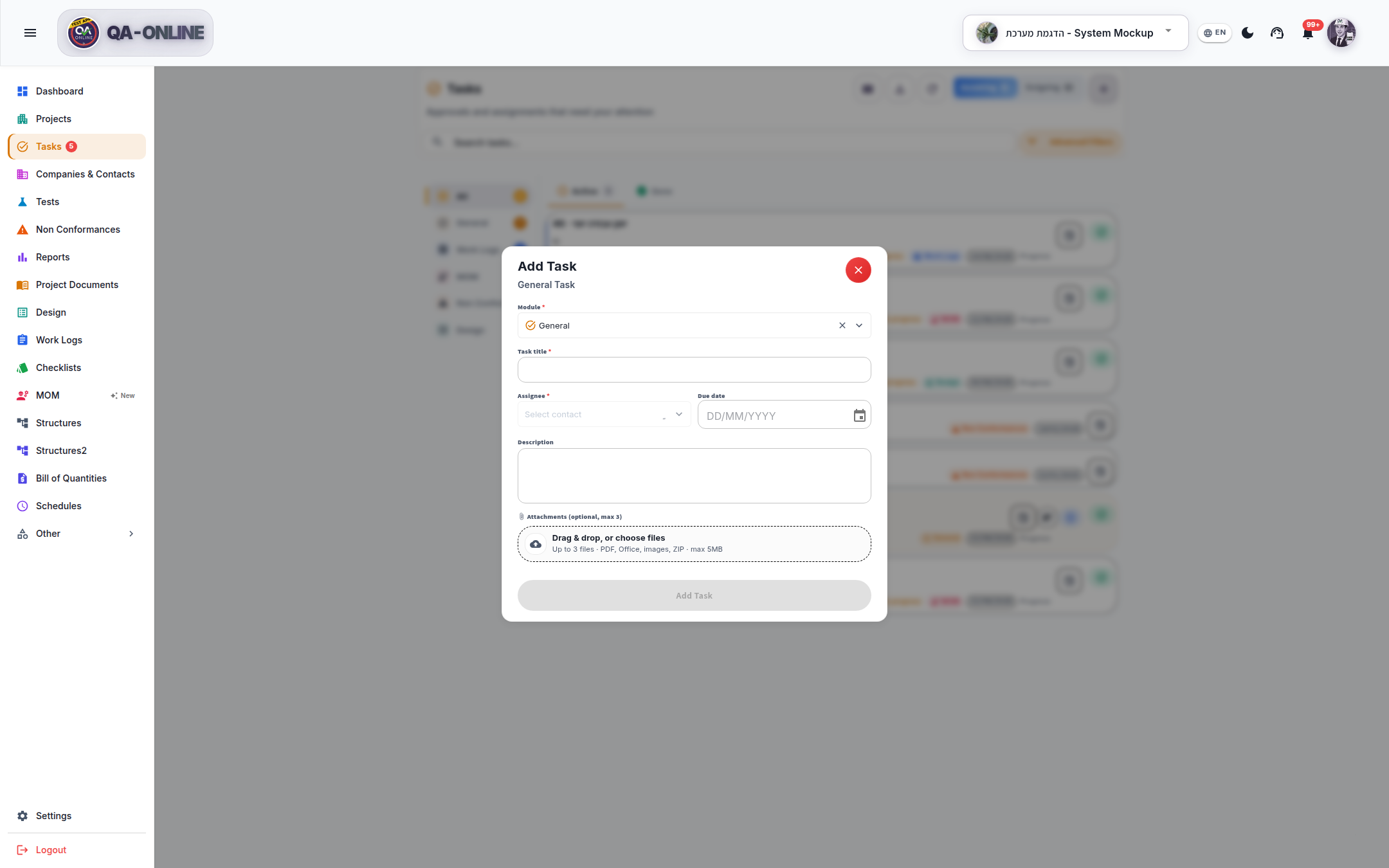
- If you chose a module, choose a Type and then a Code (the item itself). In Design, you choose a Drawing; in orders, an Order; and in Structures, a Location.
- Enter a Task title (required).
- Choose an Assignee – the contact who'll receive the task (required).
- If needed, choose a Due date, write a Description, and attach up to 3 files (up to 5MB each).
- Click Add task. You'll see the message Task assigned. The task appears in the assignee's Incoming box, and in your Outgoing box.
Who gets an email:
- The assignee – gets an email about the new task. If you assigned the task to yourself, no separate email is sent to you as the assignee.
- You – get a confirmation email for the task you opened.
- An email is sent only to people whose email address appears on their contact card.
- Editing or cancelling a task, and tasks created by an approval process, don't send an email.
Other ways to open a task:
- From a module – in the actions menu of an item in a list (checklist, non-conformance, work log, document, report, test), choose Add task. The task is linked to the item automatically.
- From the Dashboard – click + in the Requires your attention section.
- From the Messenger view – choose a contact and click New task.
On your phone#
- Tap the floating + button in the corner of the screen.
- The Add task window opens over the list. Fill in the fields as you would on a computer, and tap Add task.
How to handle an incoming task#
- In the side menu, click Tasks. Make sure Incoming and Active are selected.
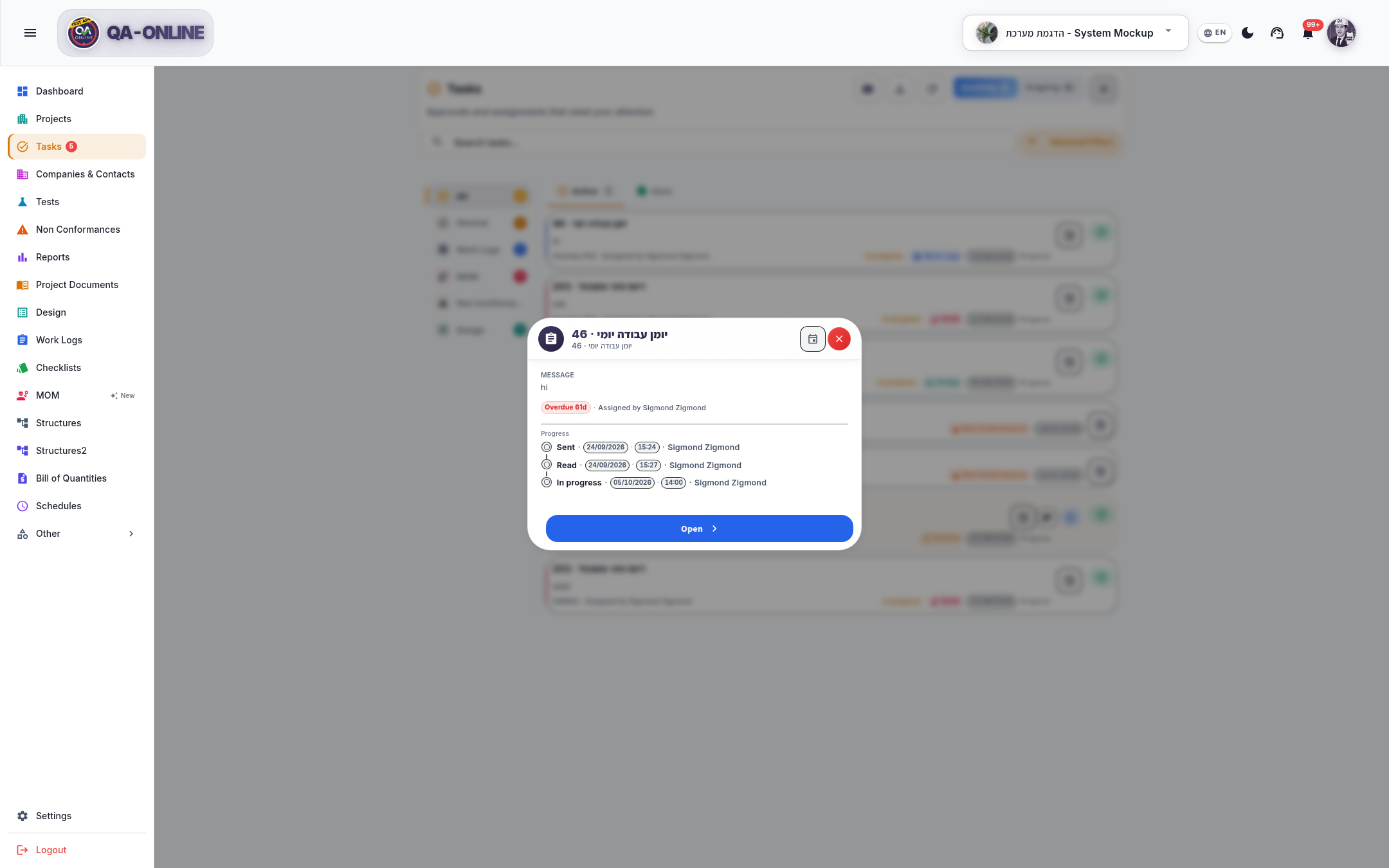
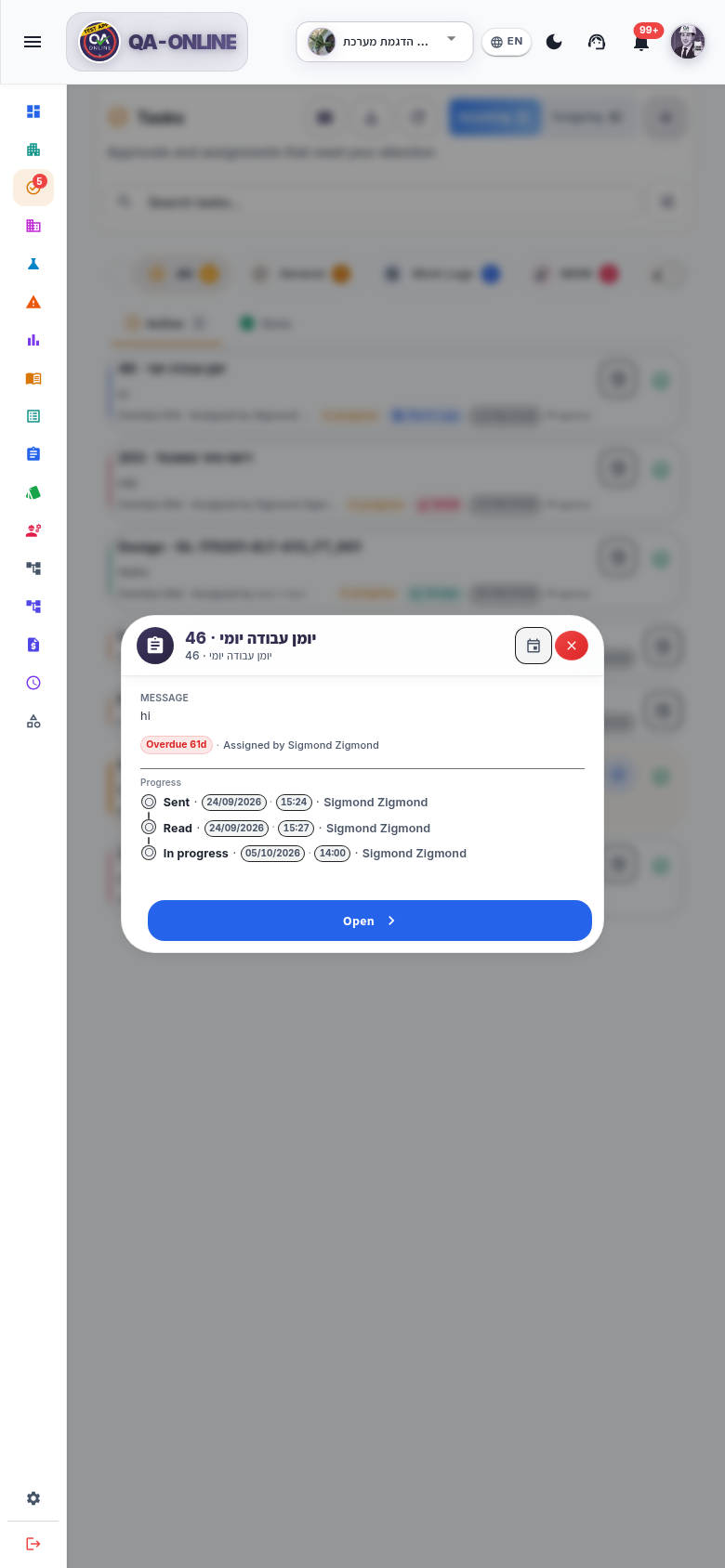
- Click the arrow on the side of the card to see the details: who sent it, the due date, the comments, and the progress.
- Click the task's title. The document or record opens in the matching module, and the status changes to In progress.
- Handle the item: approve, sign, fill in a response, or return it.
- If the task didn't close on its own, go back to the Tasks screen and click Done on the card.
The item moves to the Done tab, and the message Moved out of attention appears. Click Undo right away if you clicked by mistake.
More actions appear on the side of the card, depending on the task type:
- Mark as read – marks that you've seen the task, without opening it. It appears only on unread tasks.
- Mark in progress – appears only on general tasks that aren't related to an item. It lets the sender know you've started working on it.
- Add to calendar – adds the task to your Google or Outlook calendar (see How to add a task to your calendar).
To change a task you sent, see How to reassign a task and How to cancel a task. Tasks don't have a duplicate action.
On your phone#
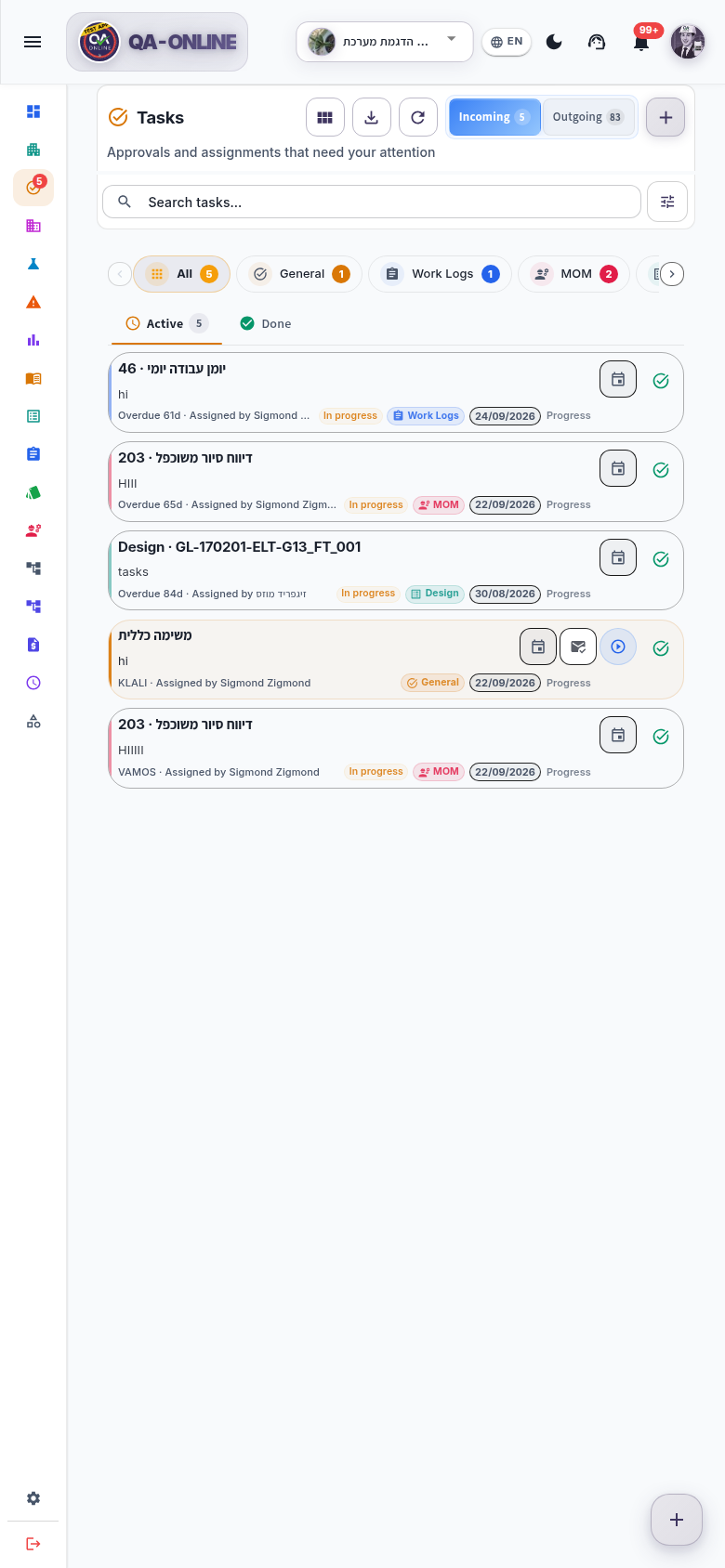
Cards appear at full width (see the Tasks screen on a phone above). Tap the arrow on a card to open it, and tap the title to open the document. Done and the other actions appear in the open card.
How the screen is organized#
| Element | What it does |
|---|---|
| Incoming / Outgoing | Incoming – tasks waiting for you. Outgoing – tasks you sent to others, so you can follow them |
| Active / Done | Tabs above the list. Active – what's still open. Done – what's already been handled. A number appears next to each tab |
| Module list | All, General, Project Documents, Work Logs, MOM, Checklists, Non Conformances, Design, Structures, Lab Orders, Survey Orders |
| Search and filter | The Search tasks… box and Advanced Filters by date |
| Header buttons | View, export, Refresh, and Add task (+) |
In Incoming → Active, overdue tasks appear first. They're followed by tasks due today, then tasks that are coming due, and then unread tasks.
What's on a task card#
- Document or item name – for example, work log number 12 or a step in a checklist. The name appears at the top of the card.
- Who sent it – Transferred by … or Assigned by …. In Outgoing, you'll see Sent to ….
- Due date – if one was set: Overdue 3d, Due today, Due in 1d, or Due in 5d.
- Comments or message – always shown on the card. When you open the card, you see the full text.
- Attachments – a paperclip icon and the number of files. When you open the card, you can click Preview or Download.
- Progress – a chip with the current status.
An unread task is marked with a colored stripe on the side of the card.
Progress statuses#
| Status | What it means |
|---|---|
| Sent | The task was created, and the recipient hasn't opened it yet |
| Read | The recipient has seen the task |
| In progress | The recipient opened the document from the task, or selected Mark in progress |
| Done | The task was handled – automatically, or by clicking Done |
| Cancelled | The sender cancelled the task |
How to see a task's history#
- Click the arrow on the side of the card or click Progress.
- The Progress rail opens, with all the steps, the dates, and who performed each action. For example: Reassigned by Yossi to Dana, Step returned, Task updated, or Reopened.
The history is available in both the Incoming and Outgoing boxes. It's the easiest way to check whether someone has already opened what you sent.
More actions on incoming tasks#
How to mark all tasks done or read#
- In Incoming → Active, in the Cards view, choose a module in the module list (or All).
- At the end of the filter bar, click the Mark all done icon or the Mark all read icon.
- A message such as "12 moved out of attention" appears. Click Undo right away if you clicked by mistake.
How to restore a task you closed#
- In the Incoming box, go to the Done tab.
- On the task's card, click Restore.
- The task returns to the Active tab, and the message Restored to active tasks appears.
Tasks with a non-conformance closing date#
If you opened a non-conformance that has an Expected closing date, it appears in Incoming when the date has passed, when it's today, or when it's up to 14 days away. Tasks like this disappear on their own when the non-conformance is closed or when you change the date. They don't have a Done button.
How to track tasks you sent#
- On the Tasks screen, choose Outgoing.
- The Active tab shows tasks that aren't completed yet. The Done tab shows tasks that the recipient finished.
- The progress chip shows where each task stands (Sent, Read, In progress).
- To see the document itself, click Open. Opening it yourself doesn't change the recipient's status.
How to reassign a task#
You can edit a task you opened for as long as it's active:
- Choose Outgoing → Active.
- On the task's card, click the edit icon (Edit task).
- Change the Assignee (and the title, description, or files too, if needed).
- Click Save.
The task moves to the new assignee and leaves the previous assignee's box. The history records Reassigned by … to ….
For tasks created by a process – for example, a step in a checklist – the transfer is done inside the module: you change the person responsible for the step, and the task moves automatically. If you remove the person responsible, the task closes for them.
How to cancel a task#
- Choose Outgoing → Active and click Edit task.
- Click Cancel task.
- In the Cancel this task? window, confirm the cancellation.
The task is marked as done for the recipient and cancelled for you. In the Done tab, it appears with the Cancelled chip.
How to search and filter tasks#
- Search – type in the Search tasks… box.
- Module – click a module in the module list. To see everything, click All.
- Dates – click Advanced Filters and choose From and To. The filter uses the task's due date, and if it has no due date, the date it was sent. Each date you choose appears as a chip, and you can clear each one separately or click Clear all.
- Clearing – if no results are found, the message No matching tasks appears. Click Clear filters.
Views: cards, calendar, and messenger#
Click the view button in the header and choose:
| View | When to use it |
|---|---|
| Cards | The default: a list by module |
| Calendar | A monthly calendar. Tasks are shown by their due date (or by the date they were sent, if there's no due date). Click a task to open it, or click a day to see all the tasks on it |
| Messenger | Tasks are grouped by contact, with incoming and outgoing together, like a conversation. You can search for a contact in the Search contacts… box |
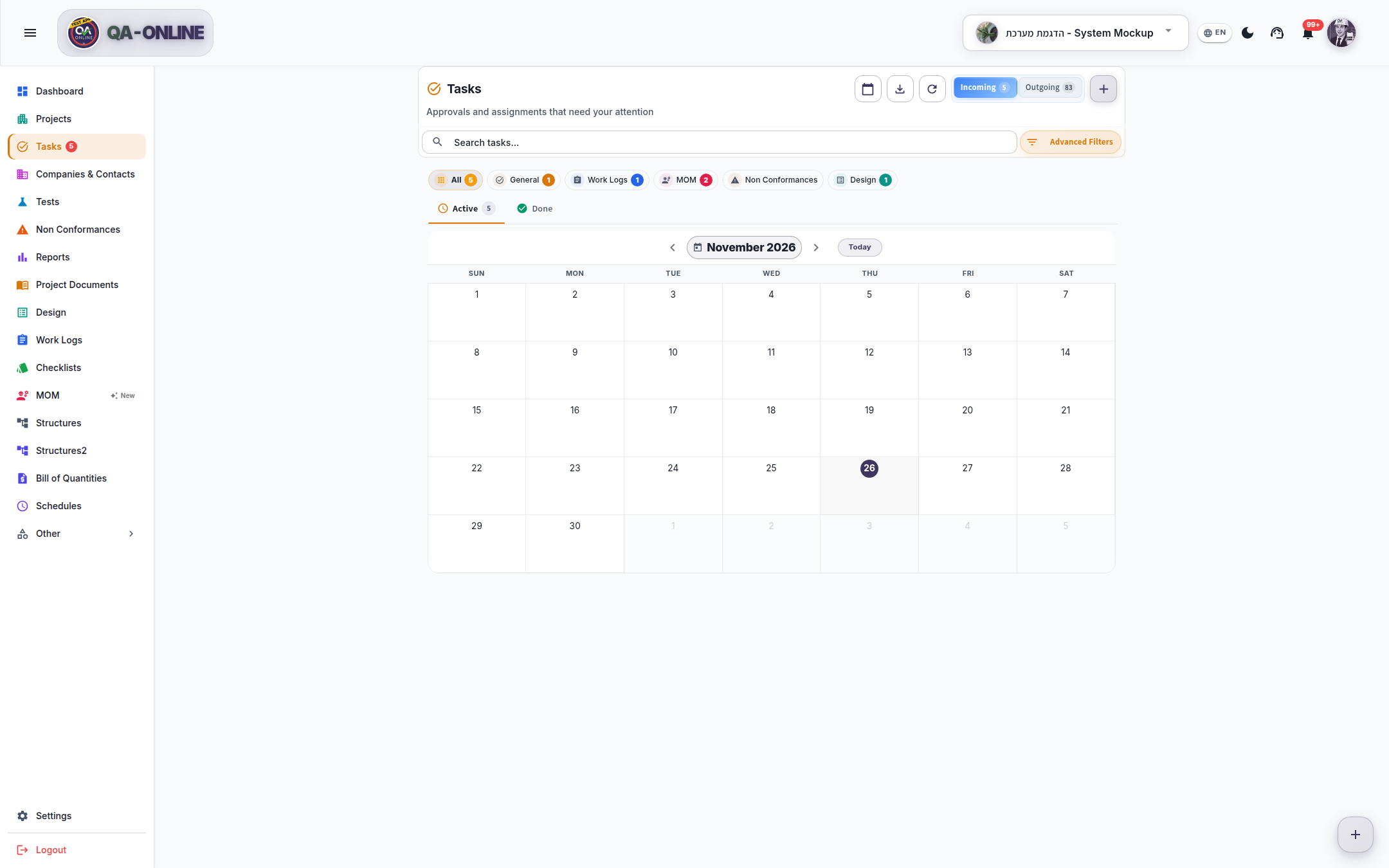
How to add a task to your calendar#
- On the task's card, click the calendar icon (Add to calendar).
- In the Add to calendar window, choose Google or Outlook.
- Choose a Date. The event is added as an all-day event.
- Click Add to Google Calendar or Add to Outlook.
- Confirm the event in the calendar app that opens.
The event includes the project name, the module, the task details, and a link that opens the item in QA-Online.
Where the button appears: on task cards in the Active tab (in both Incoming and Outgoing), on cards in the day window of the Calendar view, and in an open task bubble in the Messenger view. It doesn't appear in the Done tab. On the Dashboard, it appears only after you open the task details. The Add to calendar option is also in the actions menu of items in the module lists.
The Tasks column in module lists#
In the lists for checklists, non-conformances, tests, work logs, project documents, and field reports (in table view), there's a column named Tasks. It shows how many open tasks each item has, and how many of them are unread.
- Click the number in the column. The Open tasks window opens.
- Click a task to see its details. If the task is assigned to you, it's marked as read.
- Click the Open button followed by the module name to open the item. For a task that isn't related to an item, you'll see View tasks, which takes you to the Tasks screen: to the Incoming box if the task is assigned to you, or to Outgoing if you sent it. The card appears open and highlighted.
- To return to the task list in the window, click Back to list.
Notifications for new tasks#
- Pop-up window – when a new task arrives, a window opens with a headline such as … needs your review or … assigned you a task. The window shows the document name, the due date, and a short explanation of what to do. Click Open in … (the module name) to handle it right away, or View in Tasks. If several tasks arrived, move between them with Previous and Next.
- Task in a different project – the text "This is in … . We'll switch you there when you open it." appears. The project switches automatically.
- Notification bell – in the top bar. It shows your active tasks, as well as overdue lab and survey orders and supplier approvals that have expired. Click Mark all as read or View all notifications.
- Email – only when someone opens a new task for you in the Add task window (see How to create a new task).
How to export the tasks list#
- Click the download icon in the header (Export tasks as PDF or Excel).
- Choose PDF or Excel.
- The file is created in the background. It includes exactly what's currently shown: the box, the tab, the module, the search, and the dates, along with the progress history of each task. In Excel, the history appears on a separate sheet named Progress.
If the list is empty, the button isn't available. For preview and download, see Shared tools.
On your phone#
- The choice between Incoming and Outgoing appears at full width below the header, and the Active / Done tabs appear above the cards.
- To create a task, tap the floating + button.
- Tapping the details row on a card opens the progress. Tapping the title opens the document.
- In the Calendar view, tap a day to see its tasks.
- The Messenger view isn't available on phones.
- The notification bell is in the user menu (your profile picture), along with the number of unread notifications.
- In the app, you'll get a push notification for a new task, with the buttons Go to Task and All Tasks.
- Add to calendar opens your phone's calendar app.
Frequently asked questions#
I approved the document, but the task still shows under "Active". Why? In non-conformances, tests, design, and structures, you need to click Done yourself. In checklists, the task closes only after you sign the step, not after a regular save.
How do I know whether the person I sent a task to has already seen it? Choose Outgoing and check the progress chip: Read means the recipient has seen the task, and In progress means they opened the document.
What's the difference between Tasks and the notification bell? The Tasks screen gathers everything you need to handle, and keeps it until you finish. The bell is a quick summary, and it also includes general notifications such as overdue orders.
I clicked "Mark all done" while a search was active, and other tasks were closed too. Mark all done applies to all the active tasks in the module you chose, regardless of the search. Click Undo in the message, or restore individual tasks from the Done tab.
I closed a task by mistake. Click Undo in the message that appears right after you close it. If the message is already gone, go to the Done tab and click Restore.
See also#
- Dashboard and projects – a summary of your tasks in the Requires your attention section.
- Checklists – assigning steps and signing, which closes the task.
- Shared tools – export, preview, and download.
- Using phones and tablets – push notifications and fieldwork.