
Tools, settings, and help
Support and help
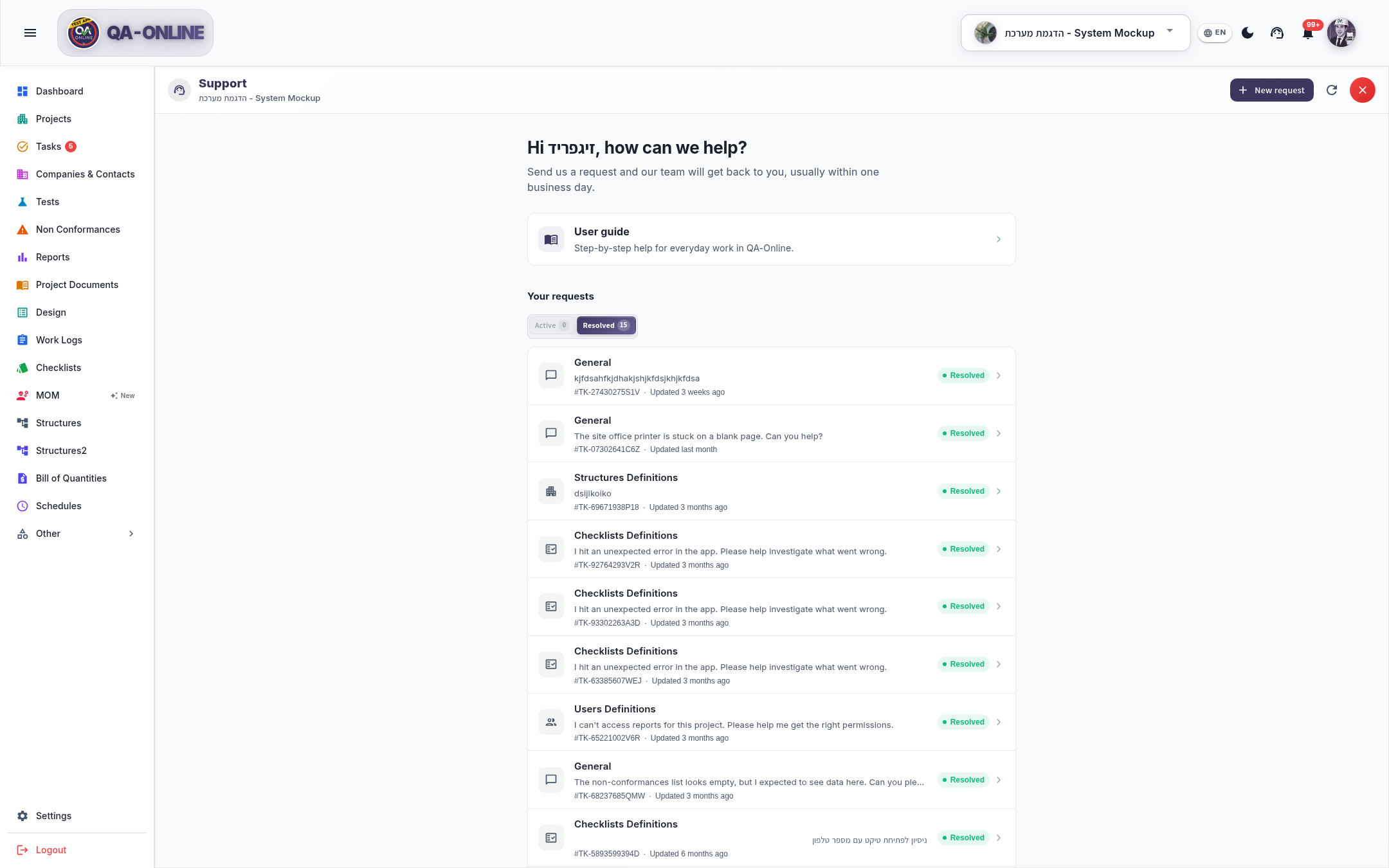
Ran into a problem, missing a permission, need to add a user, or have a question? Open a support request. The team usually replies within one business day, and the reply appears in the Support Center inside the system.
How to open the Support Center#
- On a computer – click the agent icon (Support Center) in the top bar.
- On a phone – tap your profile picture and choose Support Center from the menu.
- From the Dashboard – if you have open requests, a badge such as 2 open tickets appears in the Dashboard header (on a phone, an icon and a number). Click it to open the Support Center.

There are also shortcuts from screens where something didn’t work – see Opening a request from an error or access restriction.
What you see in the Support Center#
| Area | What’s in it |
|---|---|
| How can we help? | A short greeting and a note about response times. |
| Your requests | The requests you’ve opened, in two tabs: Active and Resolved. A request with a new reply is marked New reply and appears first. |
| Start a new request | Topic cards that open a form with the category already filled in. |
| Prefer to talk to us? | The support team’s email address and phone number. Click one to open your email app or phone dialer. |
How to open a support request#
- Make sure the right project is selected. The request is linked to it automatically.
- Open the Support Center.
- Click New request (on a computer – at the top of the window; on a phone – the wide button at the bottom of the screen). You can also click one of the topic cards:
- Something isn't working – report an error or unexpected behavior.
- Access & permissions – get access to a project, module, or document.
- Users & team – add, remove, or update people in your project.
- Something else – questions, feedback, or ideas.
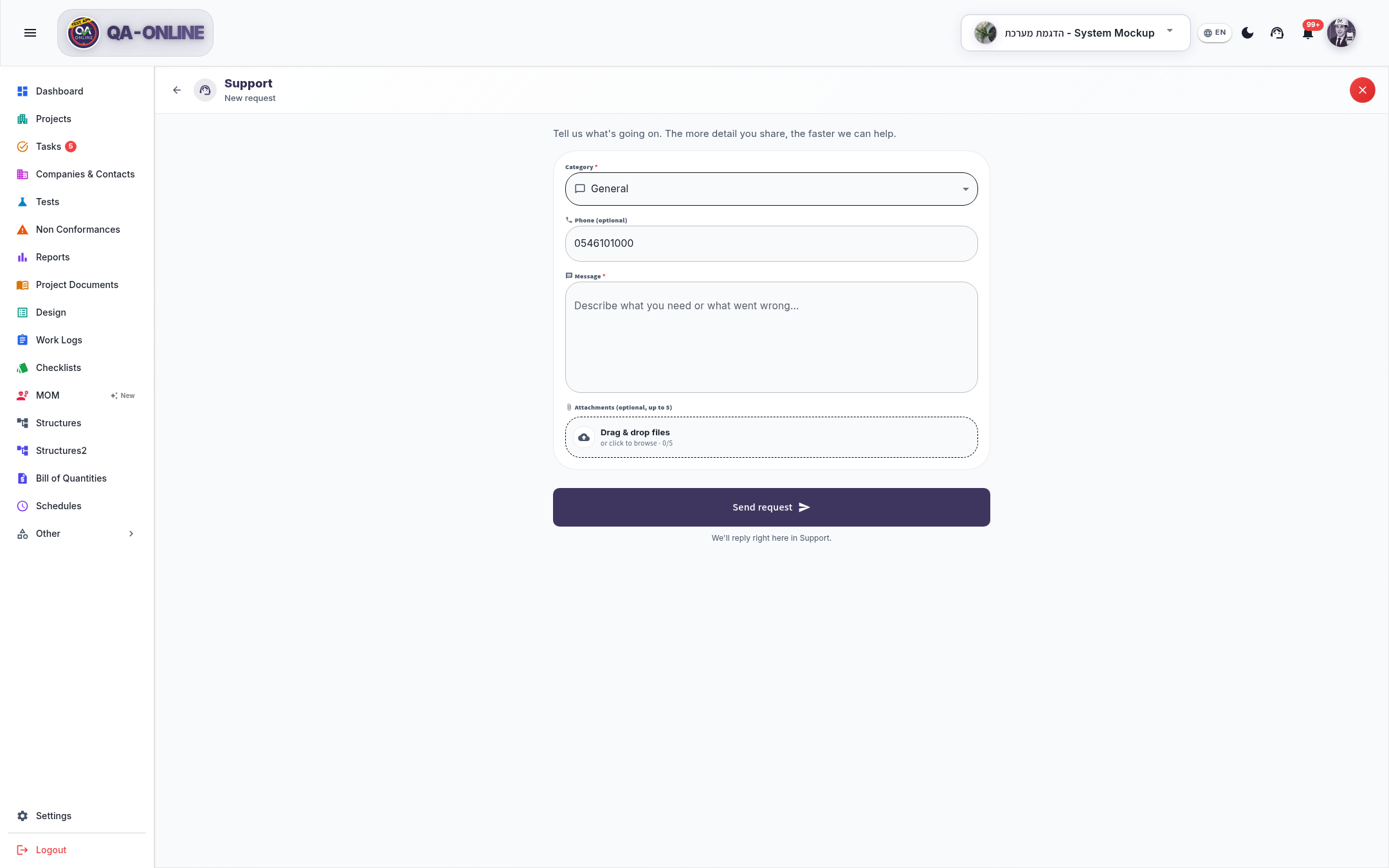
- Fill in the form:
- Category – required. If you chose a topic card, it’s already filled in.
- Phone (optional) – for a follow-up call. It’s usually pre-filled from your profile.
- Message – required, at least 10 characters. Describe what you were trying to do, what happened, and on which screen.
- Attachments – optional (details below).
- Click Send request.
- The Request sent screen appears with a Reference number. Click View my requests to return to the list.
Categories#
In the Category list you can choose: General, Bugs, Access / Permissions, Users Definitions, Structures Definitions, Checklists Definitions, and Documents Definitions. Pick the closest one – the team will route your request to the right person.
How to attach files#
- In the request form, click the Add photos or files area, or drag files onto it (on a computer).
- Choose up to 5 files, each up to 5 MB.
- To remove a file, click Remove file next to it.
Supported file types: images (PNG, JPG, GIF, BMP, WebP), PDF, Word, Excel and CSV, TXT, ZIP, and drawing files (DWG, PLT, MPP).
If a file is too large, you’ll see File is too large. Maximum 5 MB per file. – reduce its size (for example, take a screenshot instead of attaching the full file) or compress it into a ZIP.
How to track a request#
- Open the Support Center.
- In the Active tab, click the request.
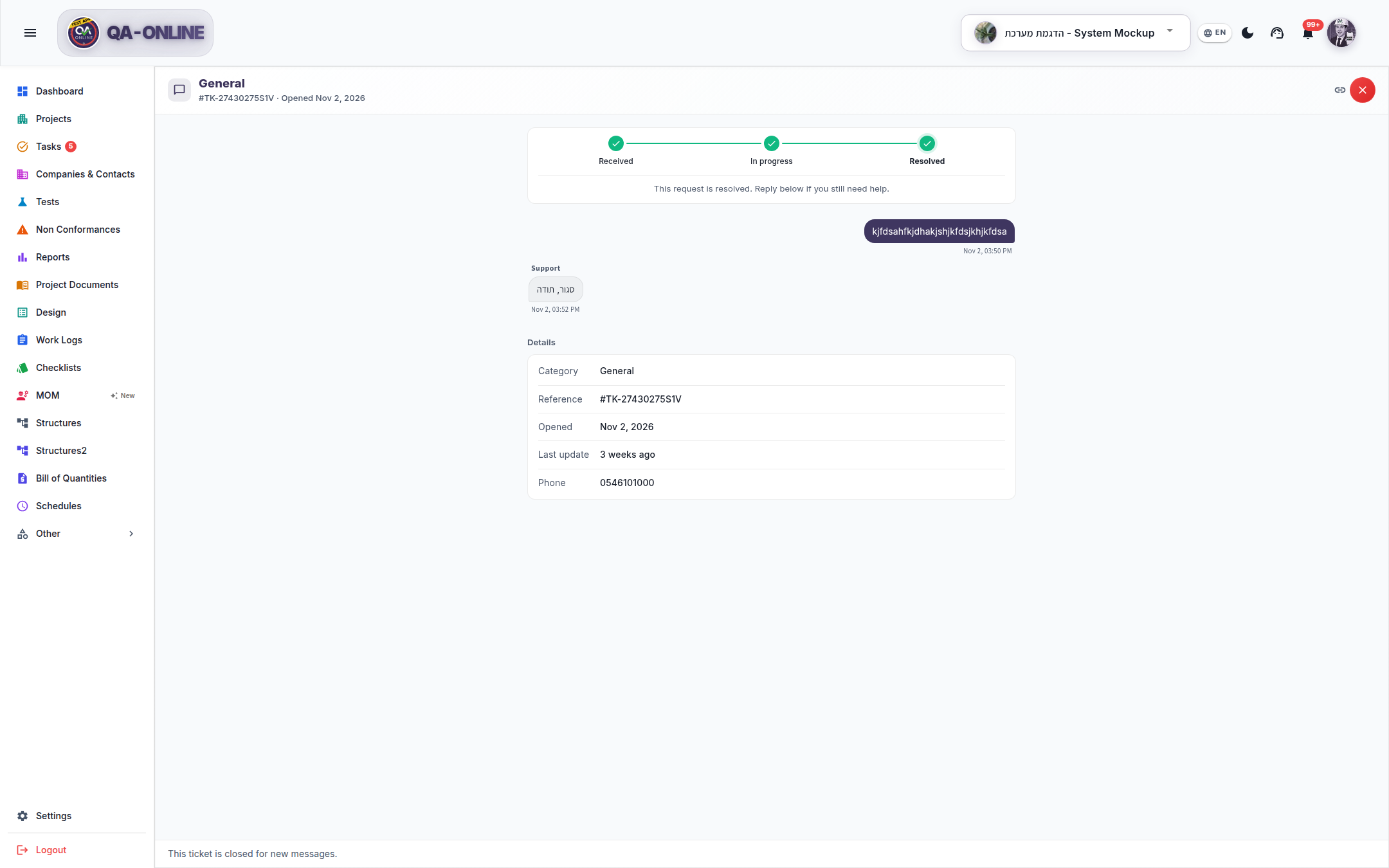
- In the request window you’ll see:
- In the header – the category, reference number, and the date it was opened.
- Request progress – Received → In progress → Resolved, with a short line about what’s happening now.
- Conversation – your original message and the support team’s replies.
- Attachments – with Preview and Download buttons.
- Details – category, reference number, dates, phone, and project.
Statuses#
| Status | Meaning |
|---|---|
| Received | We’ve received your request and will pick it up shortly. |
| In progress | The support team is working on your request. The reply will appear here. |
| Resolved | Your request has been resolved. Reply if you still need help. |
| Closed | The request is closed. |
| Cancelled | The request was cancelled. |
Requests that are resolved or closed move to the Resolved tab.
How to reply to the support team#
- Open the request.
- At the bottom of the window, type in the Write a message field.
- Click Send.
- You can keep writing even after the request is Resolved (up to 24 hours after it was resolved) or Closed. Your message reopens the request – you’ll see Sending a message reopens this ticket.
- A request that was cancelled, or resolved more than 24 hours ago, no longer accepts messages. You’ll see This ticket is closed for new messages. – open a new request.
- Replies can contain text only. If you need to attach another file, open a new request and mention the previous reference number.
How to share a link to a request#
Every request has a direct link. In the request window, click Copy link (on a phone – Share) and send it to a colleague or manager. Whoever opens the link needs to be signed in to the system, and the request opens directly. For a general explanation of links, see Common tools.
Opening a request from an error or access restriction#
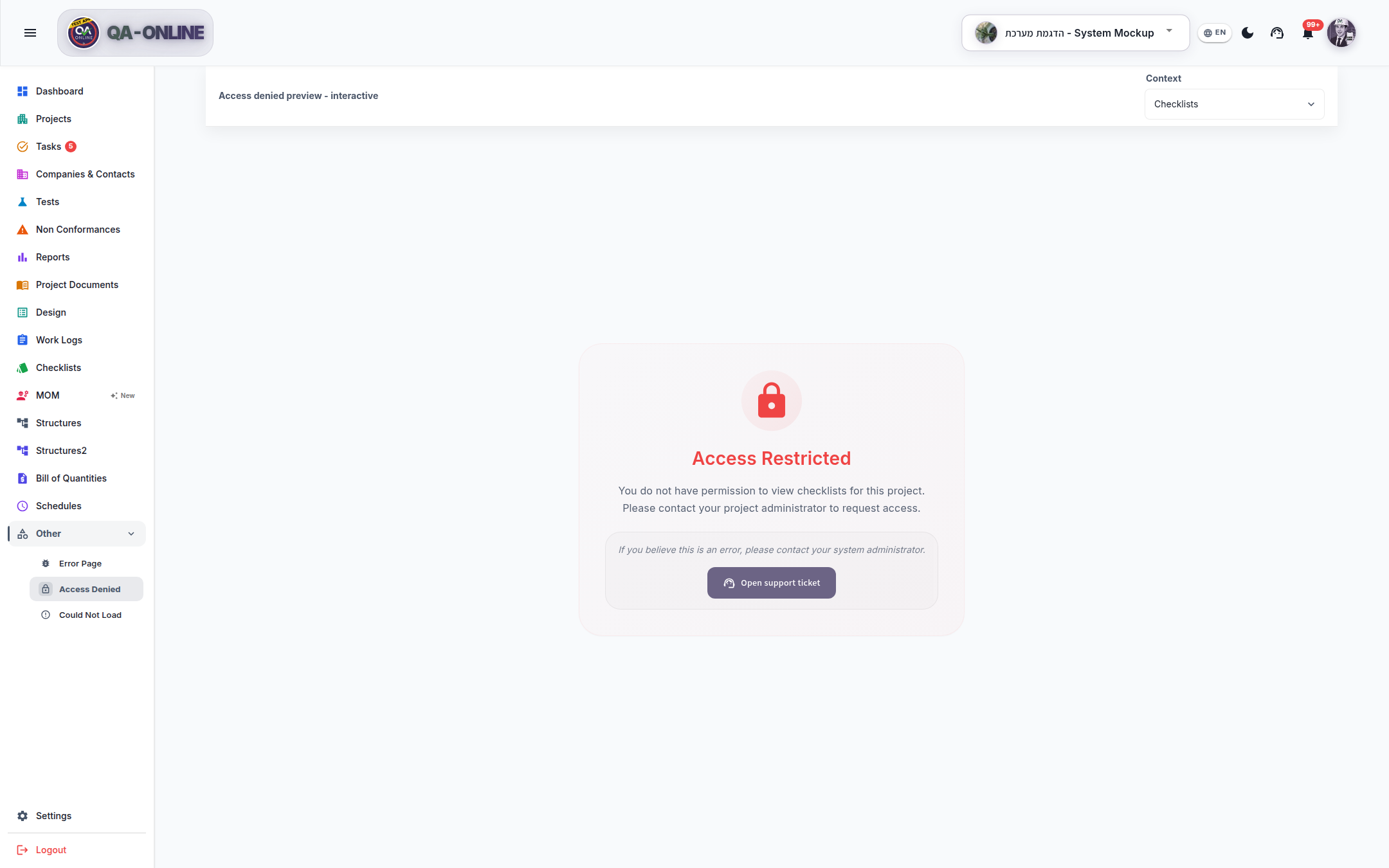
In most places where something doesn’t work, the system offers to open a request for you – and in some cases the form opens with the category and message already filled in. Check the text, add details if needed, and send.
| Where | What you see | What’s pre-filled |
|---|---|---|
| The Access Restricted screen (no permission for the module) | An Open support ticket button | The Access / Permissions category and a description of the module you can’t access |
| A list that didn’t load | An Open support ticket button | – |
| An empty list (for example, no projects or companies) | If you believe this is a mistake, open a support ticket. | – |
| The Something went wrong screen (unexpected error) | Open a support ticket, next to Try again and Back to home | The Bugs category and a description of the error |
| A failed export | The Something went wrong screen with Open a support ticket | The Bugs category and the export details |
On your phone#
- The Support Center is in the user menu (tap your profile picture).
- The New request button stays fixed at the bottom of the screen.
- In the form, the Send request button stays fixed at the bottom. Your phone’s Back button takes you from the form back to the list of requests.
- On the Dashboard, the open requests badge shows only an icon and a number.
FAQ#
How long does it take to get a reply? Usually within one business day. The reply appears in the request window in the Support Center.
My request disappeared from the list. Check the Resolved tab, and make sure the selected project is the one where you opened the request.
The problem came back after the request was resolved. Should I open a new one? If less than 24 hours have passed, reply on the same request and it will reopen. Otherwise, open a new request and mention the previous reference number.
Can I contact you by phone or email? Yes. The details are in the Support Center, in the Prefer to talk to us? area.
Will I get an email when you reply? No. Replies appear only in the Support Center. Check it from time to time, or look for the badge with the number of open requests on the Dashboard.
See also#
- Common tools – copy a link to an item so you can attach it to a request.
- For organization system administrators – what your organization’s system administrator can solve without contacting support.
- FAQ and troubleshooting – quick answers to common problems.